
Getting Started
Logging in, navigating the admin dashboard, and configuring your profile.
Getting Started
This chapter walks through logging in, navigating the admin panel, and managing your profile.
Logging In
- Open your browser and go to
https://platform.hometownlive.tv/login. - Enter your Email and Password.
- (Optional) Check Remember Me to stay logged in on this device.
- Complete the reCAPTCHA verification.
- Click Login.
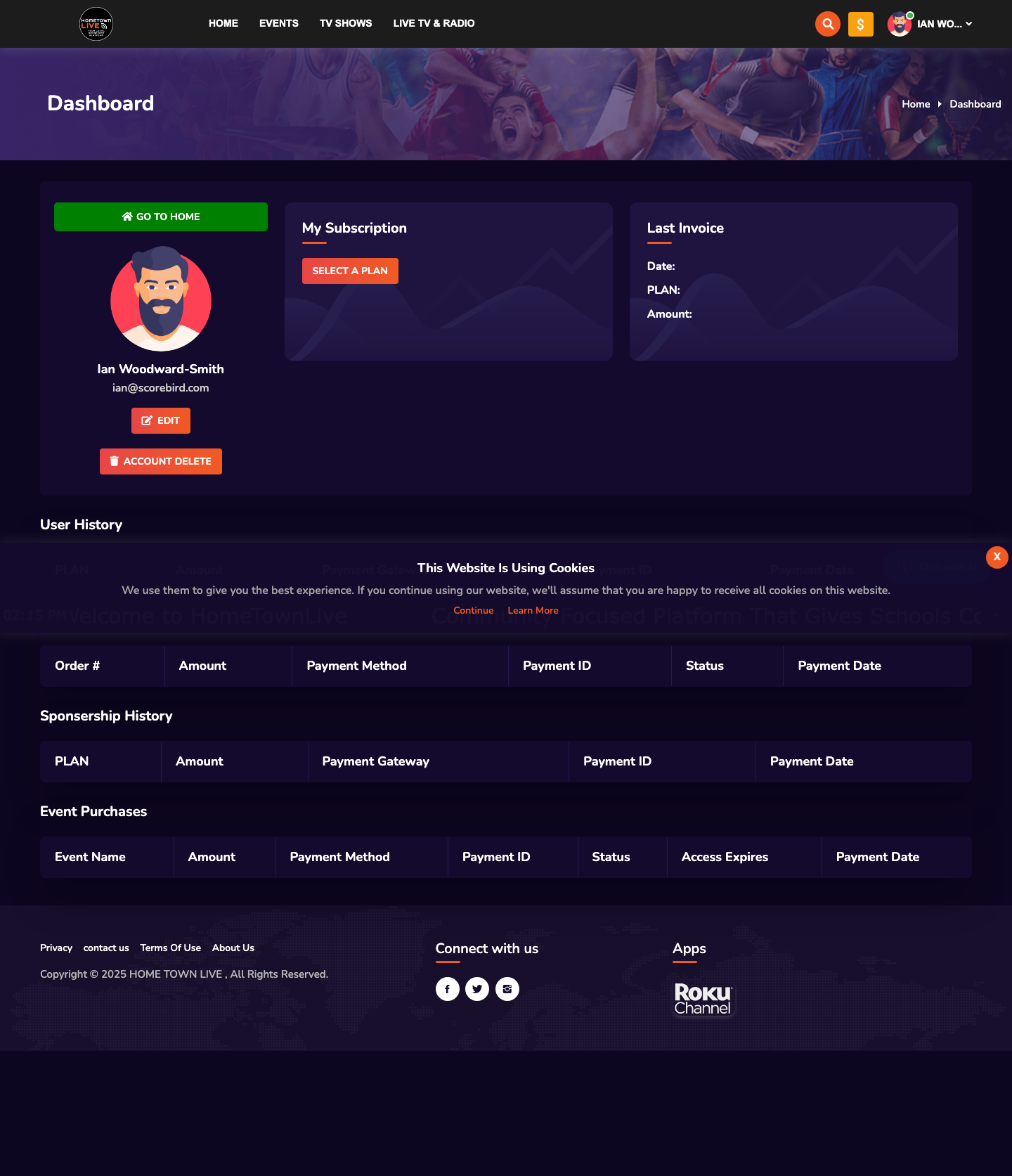
After logging in, the platform lands you on the viewer home page.
Forgot Your Password?
- On the login page, click Forgot Password?
- Enter your account email address.
- Click Submit. A password reset link is sent to your inbox.
- Open the email and follow the reset link to set a new password.
Note: Check your spam or junk folder if the reset email does not arrive within a few minutes.
Creating a New Account
Viewer accounts can self-register. Admin accounts are provisioned by HometownLive.
- On the login page, click Sign Up.
- Fill in the registration fields:
| Field | Description |
|---|---|
| Name | Your full name. |
| Your email address. Used for login and notifications. | |
| Phone | Your phone number (optional). |
| Password | Choose a strong password. |
- Click Sign Up to create your account.
Reaching the Admin Panel
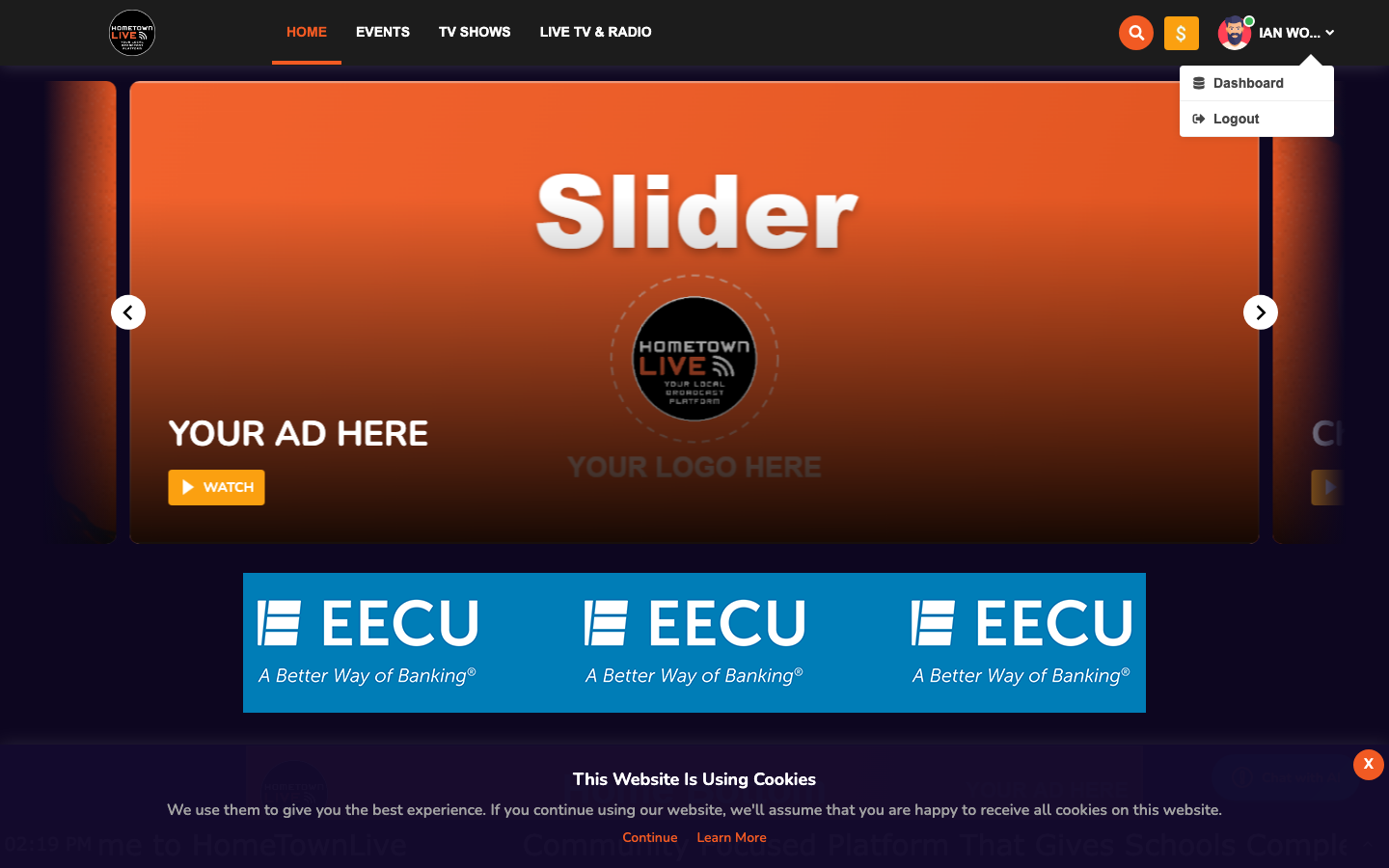
After logging in, you land on the viewer home page. To reach the admin panel:
- Locate your name in the top-right corner of the page.
- Click your name to open the user menu.
- Click Dashboard.
The browser navigates to /admin/dashboard — the admin control panel.
Admin Dashboard Overview
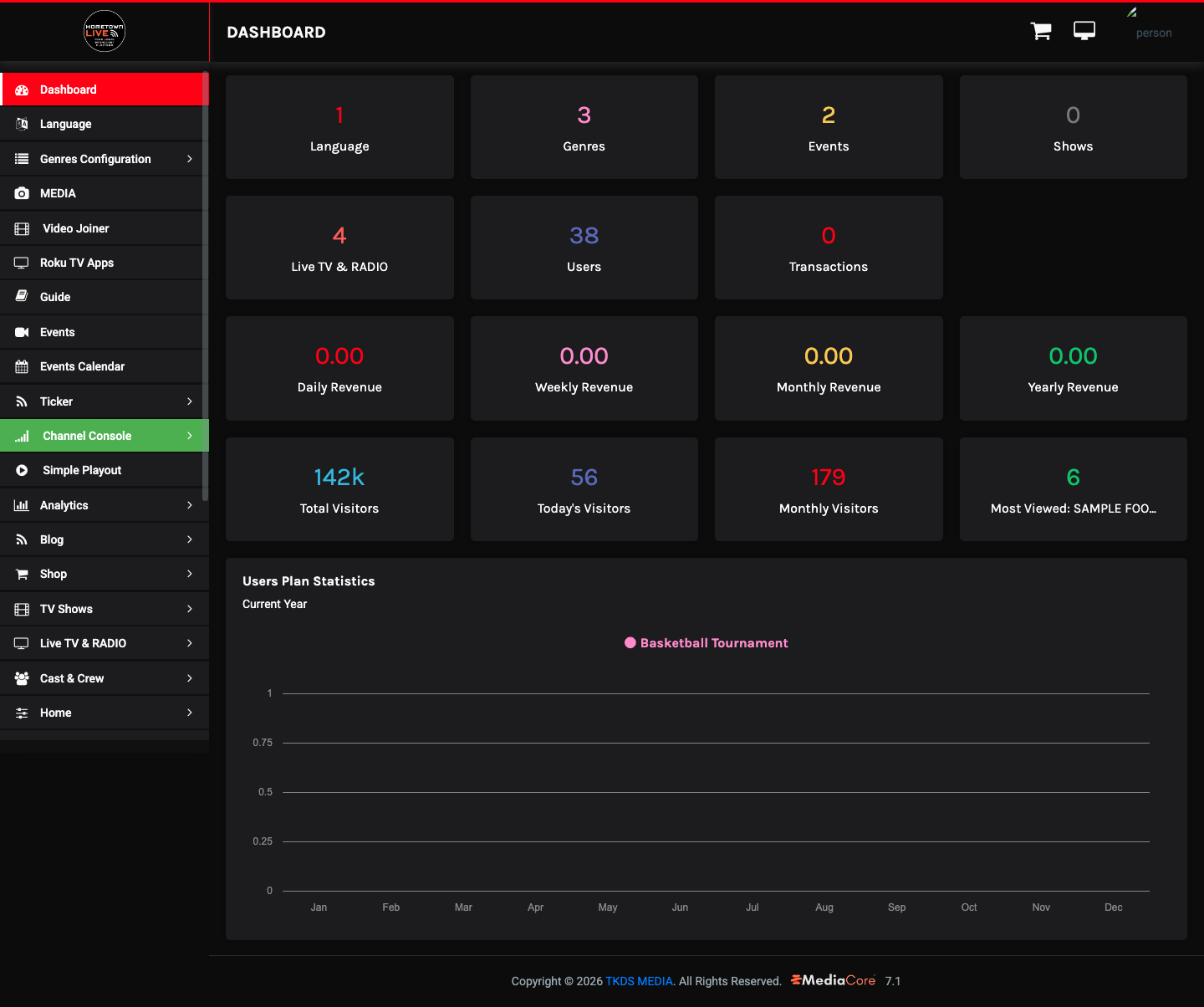
The admin dashboard is the central hub for managing the platform. It has two main areas: the sidebar navigation and the stats tiles.
Sidebar Navigation
The sidebar on the left provides access to all admin sections.
| Section | What You Manage Here |
|---|---|
| Dashboard | Overview stats, charts, and quick links. |
| Language | Content language settings. |
| Genres Configuration | Genres, Conferences, and Groups used to classify content. |
| MEDIA | Video Joiner, Roku TV Apps, and TV Guide. |
| Events | Live and on-demand event listings. |
| Events Calendar | Calendar view of all scheduled events. |
| Ticker | Scrolling text ticker — Dashboard, Settings, Alerts, Content, RSS Feeds, Events Feeds, and Score Ticker. |
| Channel Console | Channel Hub, Manage Channels/Feeds Console, PiPELiNE Feeds, Simple Playout. |
| Analytics | Viewership and traffic data. |
| Blog | Blog posts for the site. |
| Shop | E-commerce items. |
| TV Shows | Shows, Seasons, and Episodes for episodic content. |
| Live TV & RADIO | TV/Radio Categories and Channels. |
| Cast & Crew | Presenters and Producers. |
| Home | Slider, Home Sections, Carousel, and Popup configuration. |
| Users | Users, Admins, and Deleted Users. |
| Subscription Plan | Viewer subscription packages. |
| Sponsorship Plans | Sponsor tiers and packages. |
| Coupons | Discount coupon codes. |
| Payment Gateway | Payment processor configuration. |
| Transactions | Payment and transaction history. |
| Pages | Static content pages. |
| Video Player Settings | Player behavior and Player Ads. |
| Tutorials | In-platform tutorial videos. |
| Tools | Platform utilities. |
| Settings | General, SMTP Email, Social Login, Menu, reCAPTCHA, Website Banner Ads, Theme Images, Theme Colors, Site Maintenance. |
Stats Tiles
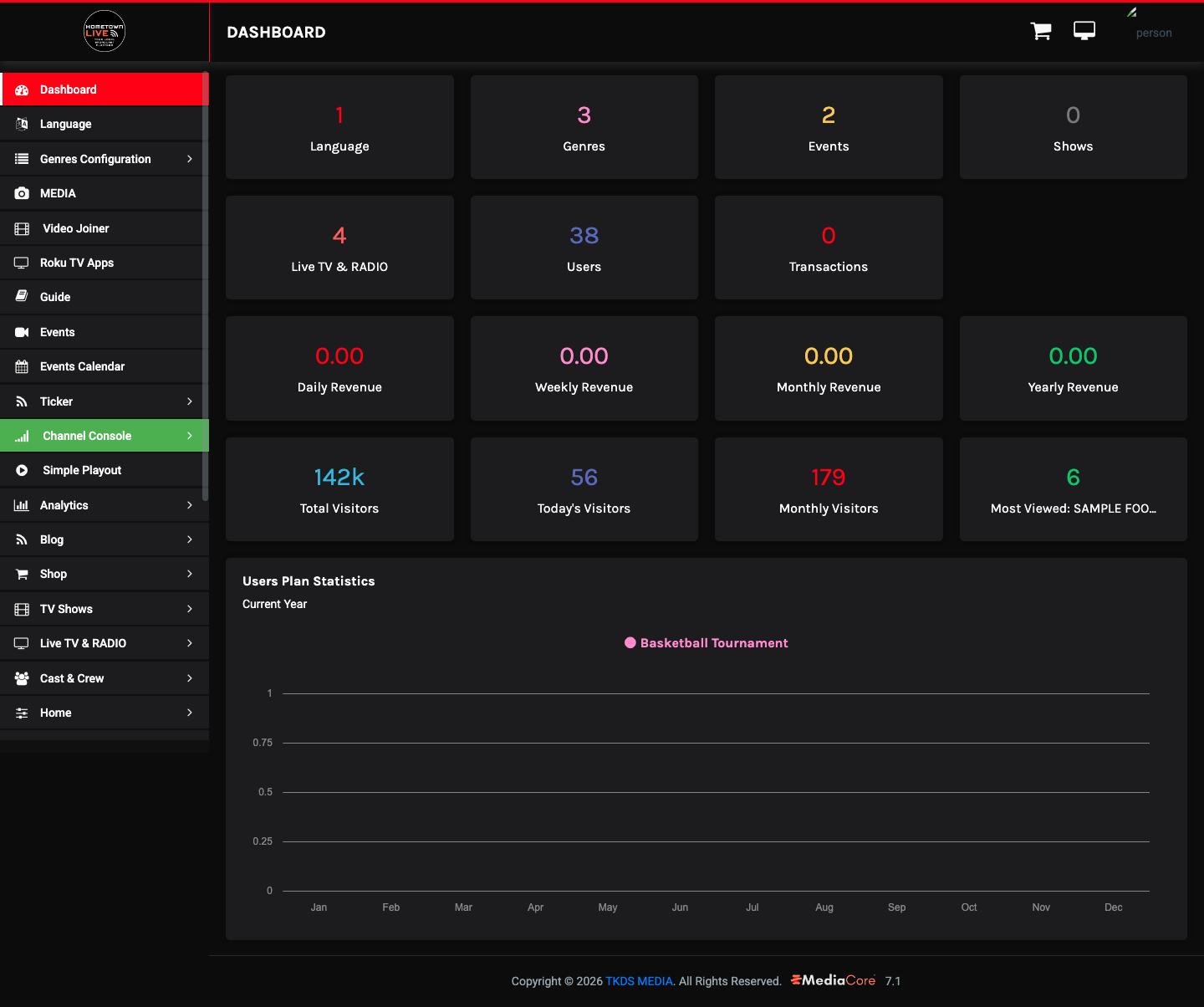
The top of the dashboard shows at-a-glance counts and metrics.
| Tile | What It Shows |
|---|---|
| Languages | Number of configured content languages. |
| Genres | Number of configured genres. |
| Events | Total event count. |
| Shows | Total TV Show count. |
| Live TV & RADIO | Number of configured live channels. |
| Users | Total registered user count. |
| Transactions | Total completed transactions. |
| Revenue | Daily, weekly, monthly, and yearly revenue totals. |
| Total Visitors | All-time visitor count. |
| Today's Visitors | Visitors in the current day. |
| Monthly Visitors | Visitors in the current month. |
| Most Viewed | The event with the highest all-time view count. |
Users Plan Statistics Chart
The Users Plan Statistics bar chart shows subscription plan activity by month. Use it to track growth in paid viewer subscriptions over time.
Managing Your Profile
- In the admin panel, click your profile avatar in the top-right corner.
- Click Profile.
- Update any of the following fields:
| Field | Description |
|---|---|
| Profile Image | Upload a headshot or avatar. |
| Name | Your display name. |
| Your login email address. | |
| Phone | Your contact phone number. |
| Password | Enter a new password to change it. |
- Click Save to apply your changes.
Tutorials
HometownLive provides in-platform tutorial videos to help admins get up to speed quickly.
- In the sidebar, click Tutorials.
- Select a tutorial to watch:
| Tutorial | Topic |
|---|---|
| HomeTownLive RTMP Stream | Configuring an RTMP stream source. |
| HOME SECTIONS | Setting up homepage content sections. |
| On-Demand Video | Uploading and publishing on-demand content. |
| STREAMING | Live streaming setup and best practices. |
| EVENTS | Creating and managing events. |
Tip: Watch the STREAMING and EVENTS tutorials before setting up your first live broadcast.
Still need help?
Can't find what you're looking for? Our support team is here to help.
Contact Support →