
Live Channels
Managing your four HLS streaming channels, Feeds Console, Simple Playout, and TV Guide.
Live Channels
HometownLive provides four dedicated streaming channels — Channel 1 through Channel 4. Each channel carries its own HLS stream delivered from dallas.tkdsstream.com. Channels appear in the viewer navigation under Live TV & RADIO.

Feeds Console
The Feeds Console shows real-time status for all four stream channels.
Location: Sidebar → Channel Console → Manage Channels/Feeds Console (/admin/restreams)
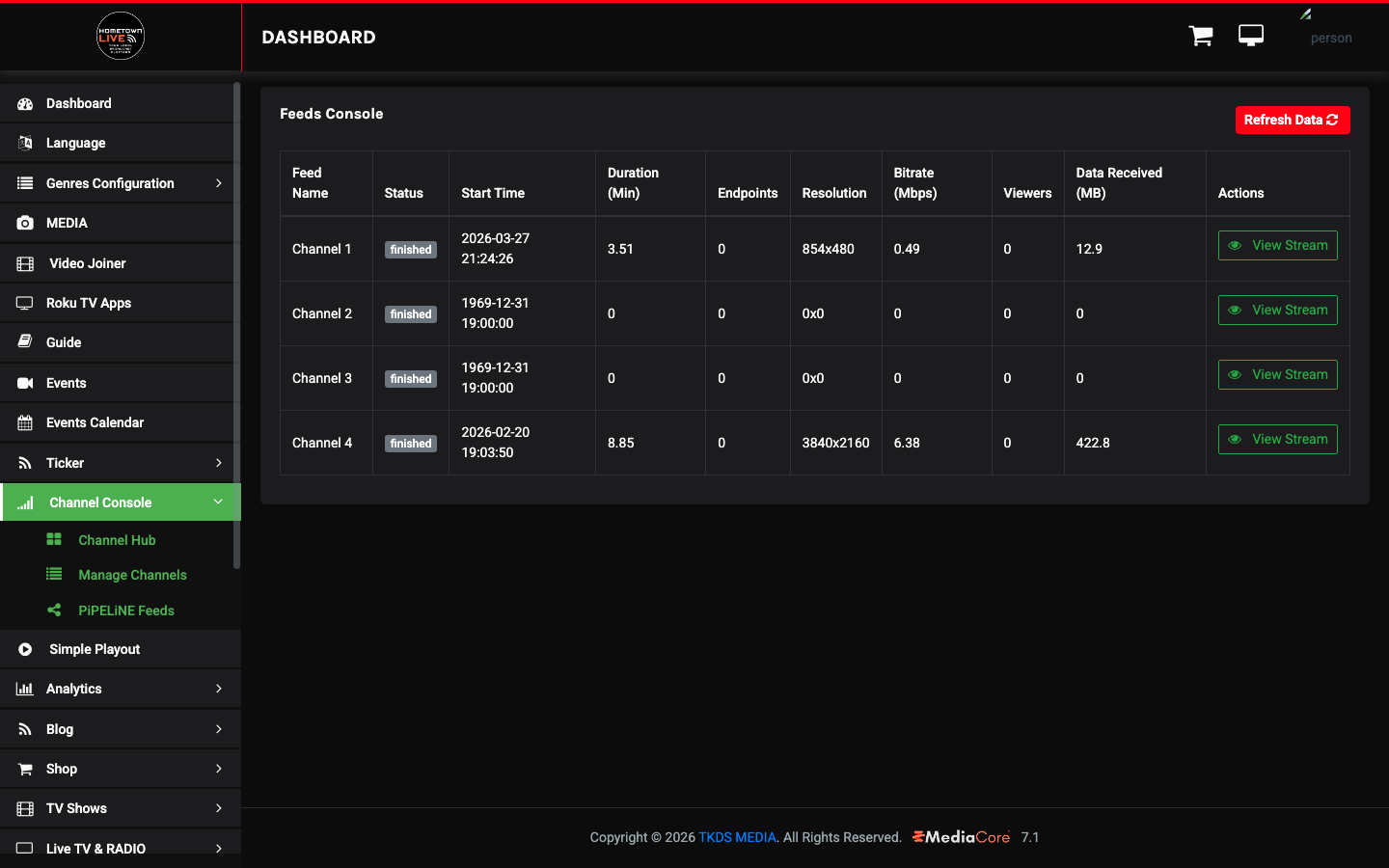
The console displays the following columns for each channel:
| Column | Description |
|---|---|
| Feed Name | The name of the channel. |
| Status | Current state: finished, live, or idle. |
| Start Time | When the current or most recent stream started. |
| Duration (Min) | How long the stream has been running in minutes. |
| Endpoints | Number of active output destinations. |
| Resolution | Stream video resolution (e.g., 1080p). |
| Bitrate (Mbps) | Current stream bitrate in megabits per second. |
| Viewers | Number of active viewers on this channel. |
| Data Received (MB) | Total data ingested for the current stream session. |
| Actions | View Stream button to open the live stream preview. |
Click Refresh Data to update the status of all channels.
Tip: Use the Feeds Console during a broadcast to confirm the stream is live and viewers are connecting.
Managing Channels
Editing a Channel
- In the sidebar, go to Live TV & RADIO → TV/Radio Channel (
/admin/live_tv). - Find the channel you want to edit and click its edit icon.
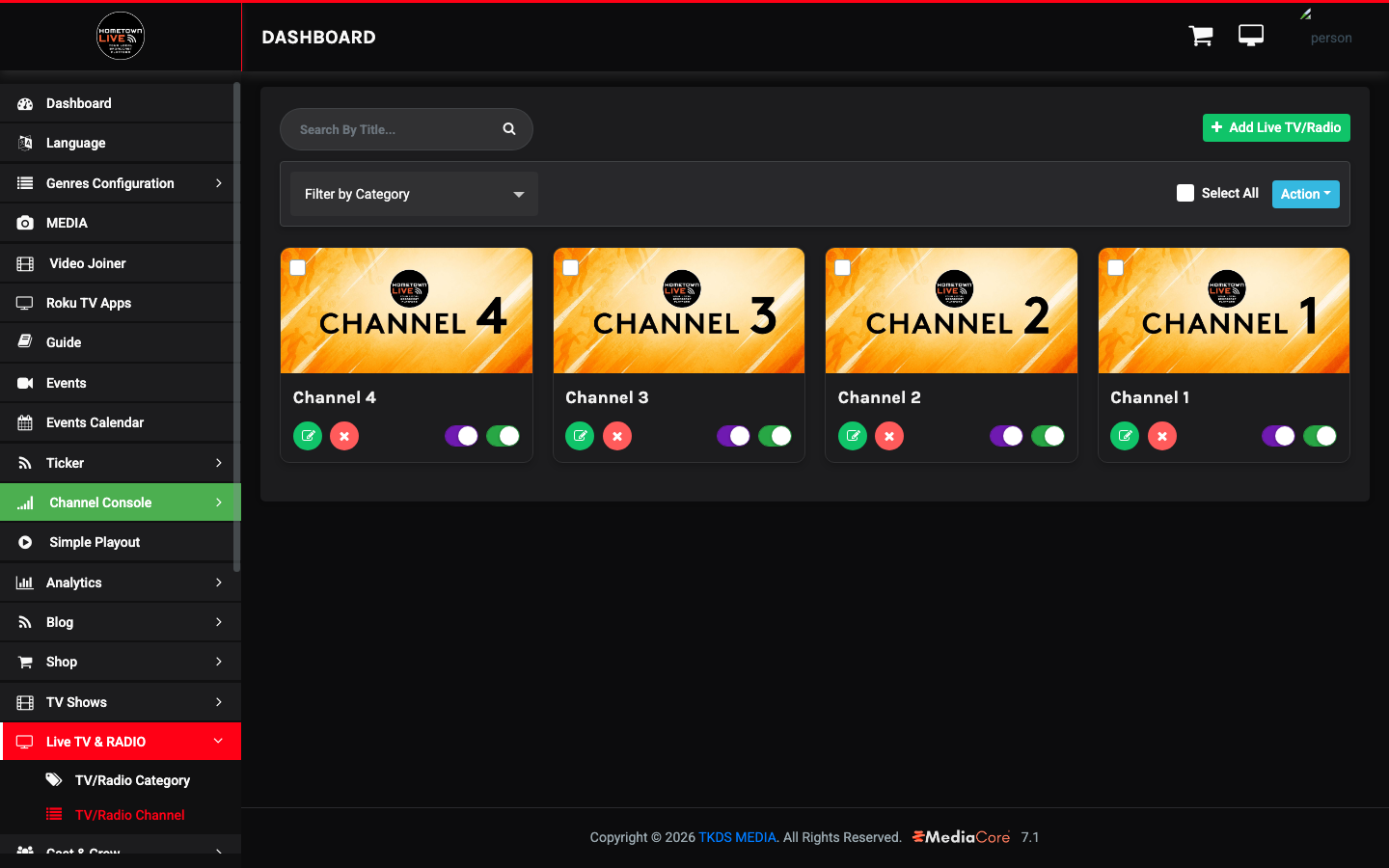
- Update the fields as needed:
| Field | Type | Description |
|---|---|---|
| Channel Name | Text | Display name shown to viewers. |
| Description | Textarea | Short description of the channel. |
| Access | Select | Free or Paid. |
| Category | Select | TV/Radio category (e.g., LIVE TV). |
| Status | Select | Active or Inactive. |
| Subscription Packages | Multi-select | Packages that include access to this channel. |
| Roku | Toggle | Enable or disable Roku app listing for this channel. |
| Auto-Update Image | Toggle | Automatically update the channel thumbnail from the stream. |
| Stream Name | Text | Internal stream identifier. |
| URL Type | Select | HLS/m3u8, MPEG-DASH, YouTube, Vimeo, MP3, or Embed Code. |
| Feed Channel | Select | Choose Channel 1–4 to link this channel to the TKDS stream infrastructure. |
| Playout Channel | Select | Optional — links to a Simple Playout channel for automated programming. |
| Channel URL | Text | Primary stream URL. |
| URL 2 / URL 3 | Text | Backup stream URLs for failover. |
| Embed Code | Textarea | HTML embed code (only used when URL Type is Embed Code). |
| Thumbnail | Image upload | Channel artwork image displayed to viewers. |
| Stream ID | Text | Required. Unique stream identifier for this channel. |
| SEO Title | Text | Page title used by search engines. |
| SEO Description | Text | Meta description for search engine results. |
| SEO Keywords | Text | Comma-separated keywords for search indexing. |
- Click Save to apply your changes.
Note: The Feed Channel field (Channel 1–4) must match the stream being ingested at
dallas.tkdsstream.com. Selecting the wrong channel will result in a blank or mismatched stream.
Channel Console / Channel Hub
The Channel Hub provides advanced feed management capabilities beyond the standard channel list.
Location: Sidebar → Channel Console → Channel Hub (/admin/channel-hub)
Note: The Channel Hub may take longer to load than other admin pages. Allow a few seconds for the interface to fully initialize.
PiPELiNE Feeds
PiPELiNE is a multi-destination restreaming service. It allows you to send a single stream to multiple platforms simultaneously (e.g., HometownLive and YouTube at the same time).
Location: Sidebar → Channel Console → PiPELiNE Feeds (/admin/pipelines)
Warning: PiPELiNE requires separate service activation. The feature will not function until it is enabled for your account. Contact HometownLive at
https://platform.hometownlive.tv/page/contact-usto enable PiPELiNE.
Simple Playout
Simple Playout lets you build automated playlist-based programming for a channel. Instead of a live stream, the channel plays a sequence of videos on a schedule.
Location: Sidebar → Channel Console → Simple Playout (/admin/playout)
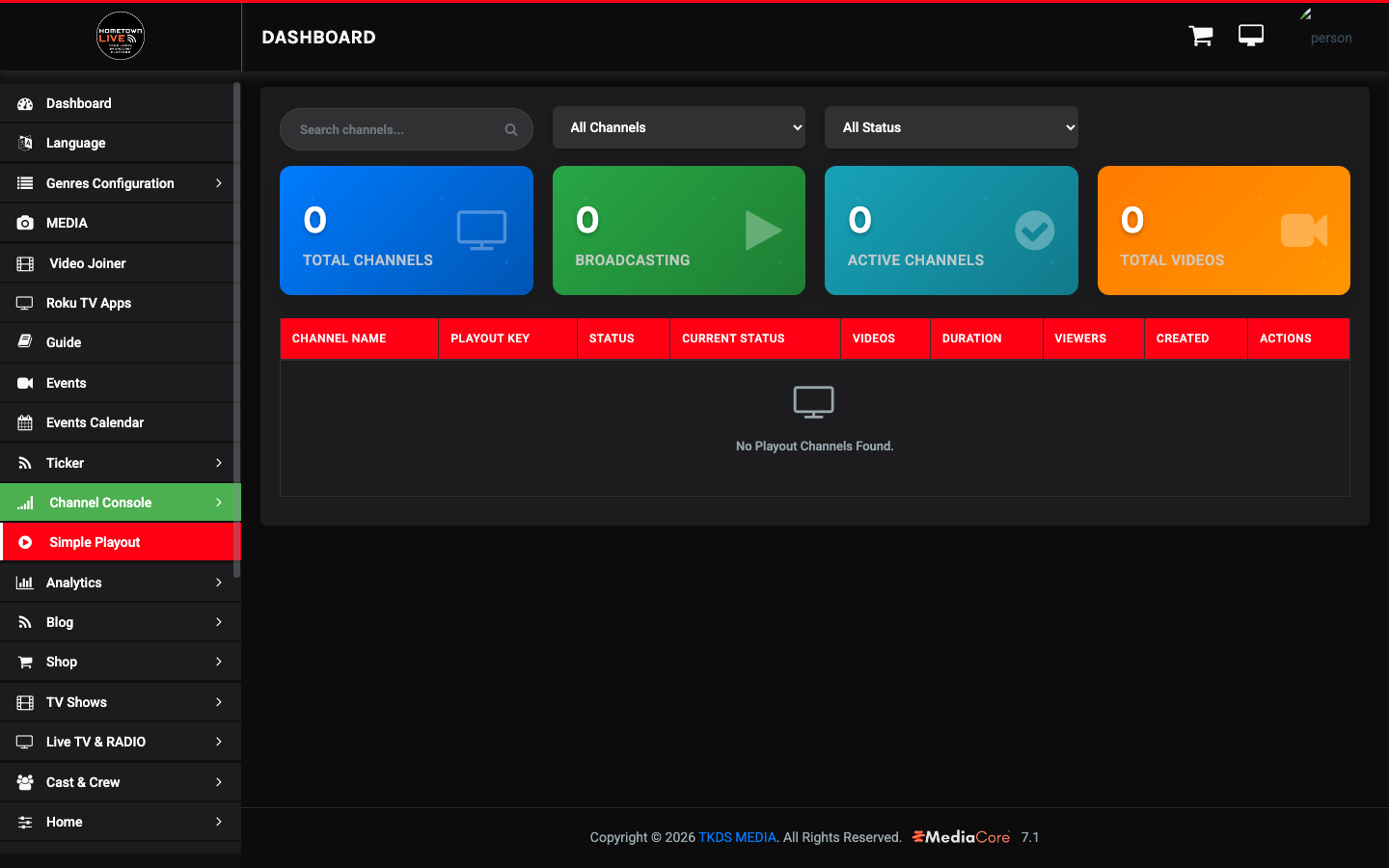
The Simple Playout page shows summary stats at the top:
| Stat | Description |
|---|---|
| Total Channels | Number of playout channels configured. |
| Broadcasting | Channels currently playing out content. |
| Active Channels | Channels in an active state. |
| Total Videos | Total videos across all playout channels. |
The list view shows each playout channel with these columns:
| Column | Description |
|---|---|
| Channel Name | Name of the playout channel. |
| Playout Key | Unique identifier for this playout channel. |
| Status | Enabled or disabled. |
| Current Status | Real-time playback state. |
| Videos | Number of videos in the playlist. |
| Duration | Total runtime of all videos in the playlist. |
| Viewers | Current viewers on this playout channel. |
| Created | Date the playout channel was created. |
TV Guide
The TV Guide lets you schedule upcoming programs on your channels so viewers can see what is coming up.
Location: Sidebar → MEDIA → Guide (/admin/guide)
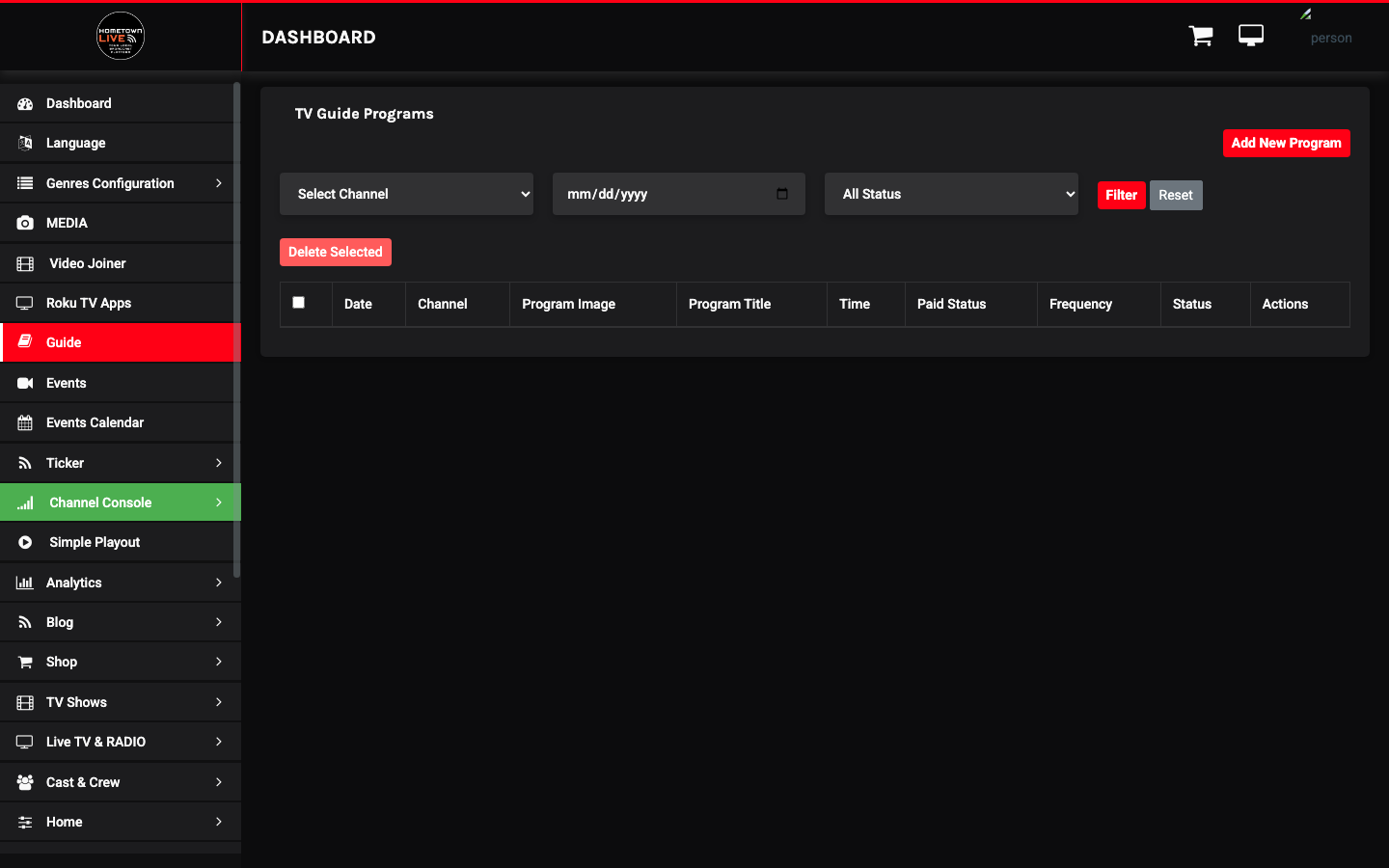
To add a program to the guide:
- Click Add New Program.
- Fill in the program details:
| Field | Type | Description |
|---|---|---|
| Channel | Select | The channel this program will air on. |
| Date | Date picker | The date of the scheduled program. |
| Program Image | Image upload | Thumbnail artwork for the guide listing. |
| Program Title | Text | Name of the program as shown in the guide. |
| Time | Time picker | Start time of the program. |
| Paid Status | Select | Free or Paid. |
| Frequency | Select | One-time, daily, weekly, etc. |
- Click Save to publish the program to the guide.
Viewer Experience
Channels appear in the viewer navigation under Live TV & RADIO. Viewers click a channel card to open the stream. The player loads automatically when a stream is active.
Tip: Set channel Status to Inactive when a channel is not in use. This prevents viewers from seeing a blank or error screen on channels that are not currently broadcasting.
Still need help?
Can't find what you're looking for? Our support team is here to help.
Contact Support →