
Viewer Guide
A guide for fans — watching live TV, browsing events, signing up, and purchasing PPV.
Viewer Guide
This chapter is written for viewers — fans, families, students, and alumni who watch events on HometownLive. No technical background is required. Share this chapter or link viewers to it when they need help getting started.
HometownLive brings your school's games, performances, and events to any screen. Most content is free and does not require an account. This guide covers everything you need to watch, purchase, and get the most out of the platform.
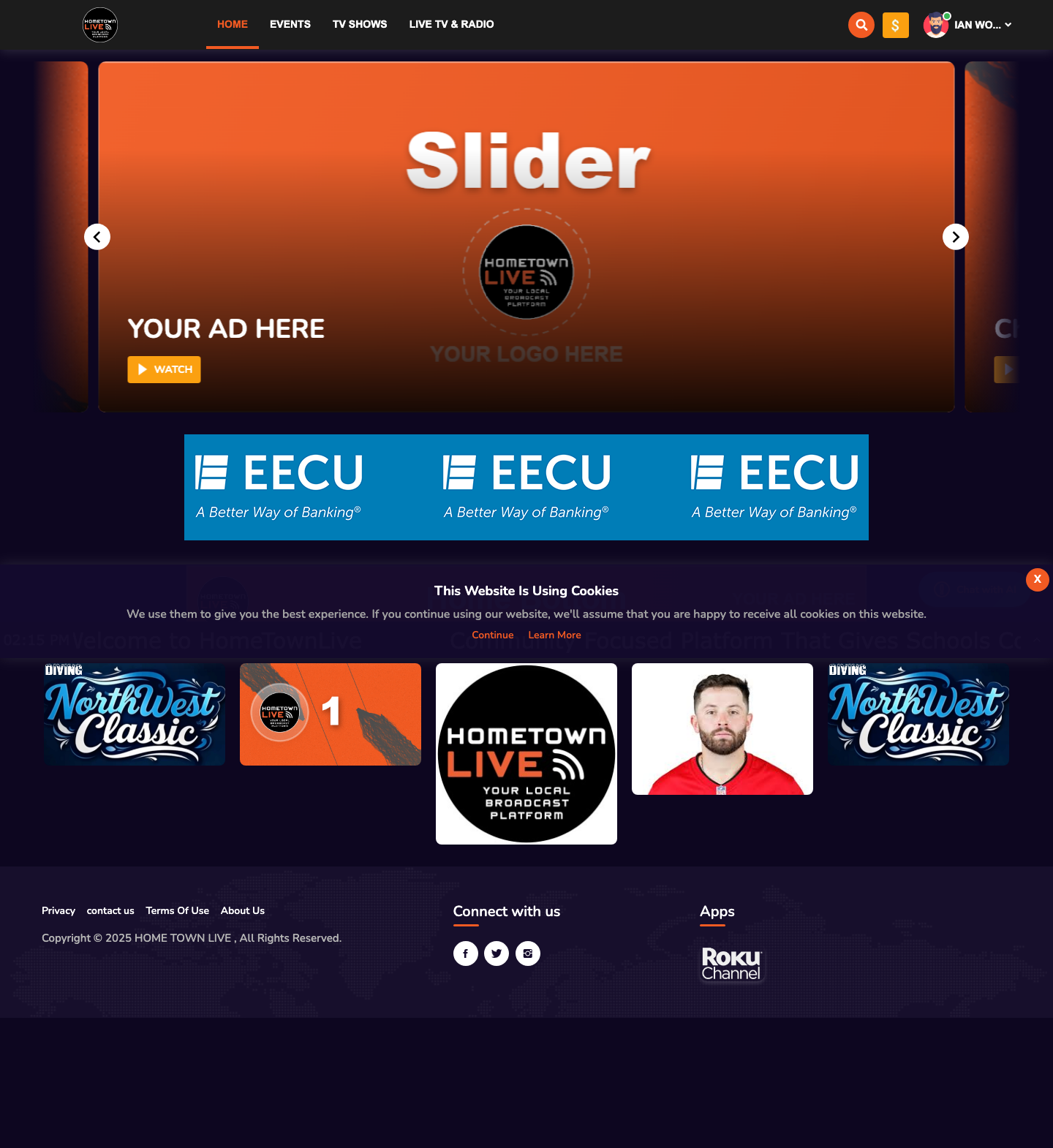
Getting Started
You do not need to create an account to watch free content. Open a browser, navigate to https://platform.hometownlive.tv, and start watching. An account is required only when purchasing Pay-Per-View access.
| Supported Browsers | Notes |
|---|---|
| Google Chrome | Recommended. Best compatibility with HLS streams and the video player. |
| Mozilla Firefox | Fully supported on all platforms. |
| Microsoft Edge | Fully supported on Windows and macOS. |
| Safari | Supported on macOS and iOS. Use the latest version for best results. |
Tip: Keep your browser up to date. An outdated browser is the most common reason the video player does not load correctly.
Watching Live Channels
Your school's live channels stream games, events, and broadcasts in real time. Live channels are always visible on the home page when a broadcast is active.

- Go to
https://platform.hometownlive.tv. - The Live Now section on the home page shows channels that are currently broadcasting.
- Click Watch under any channel to open the video player.
- No login is required to watch free channels.
To browse all channels — including those not currently live:
- Click Live TV & RADIO in the top navigation.
- The page shows all available channels and radio streams.
- Use the Category filter to narrow results (e.g., LIVE TV).
- Click a channel card to open it in the player.

Note: If a channel shows as offline, the broadcast has not started yet or has ended. Check the Events page for scheduled start times.
Browsing and Watching Events
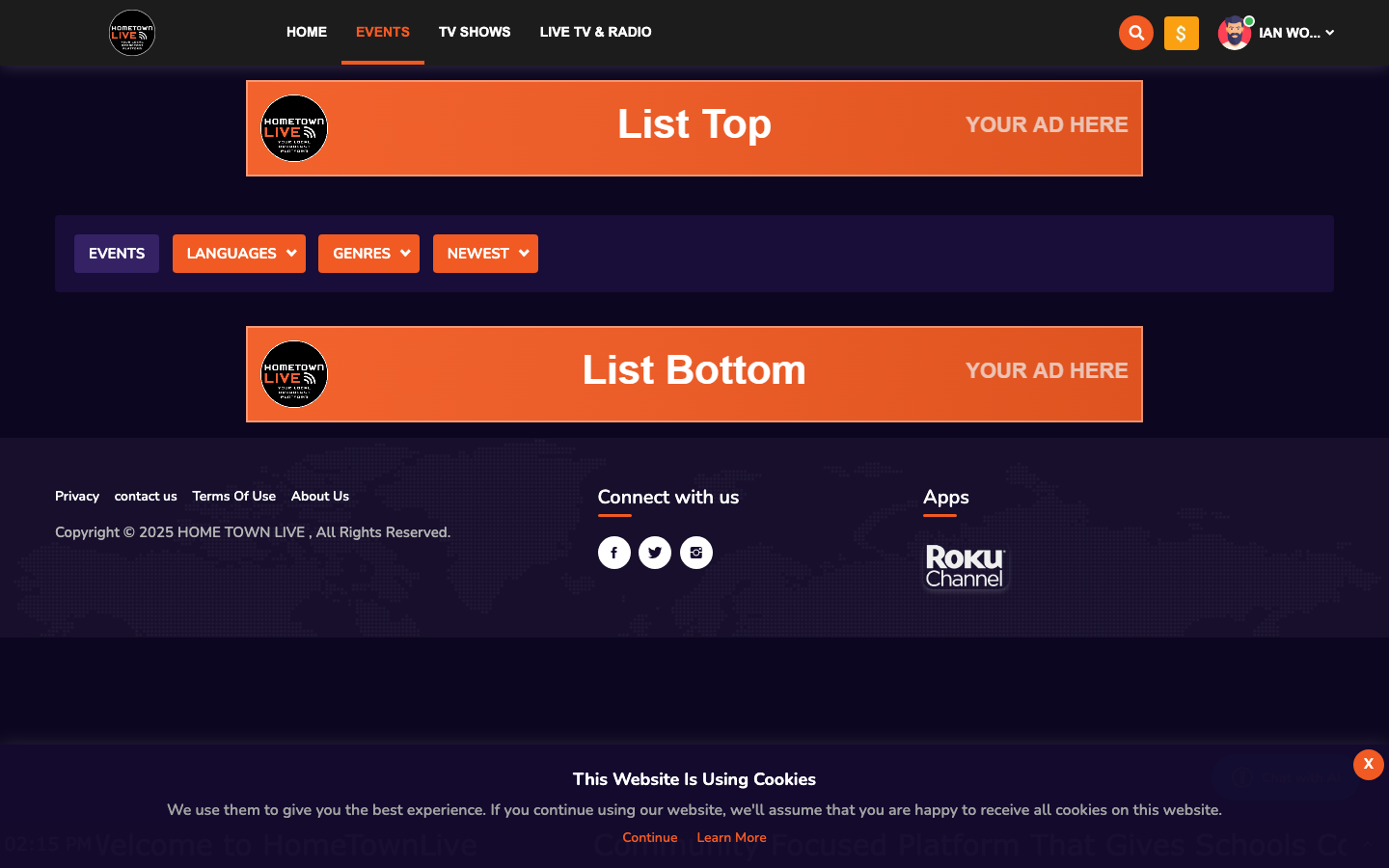
Events are individual broadcasts — a football game, a band concert, a graduation. You can browse all upcoming and recent events from the Events section.
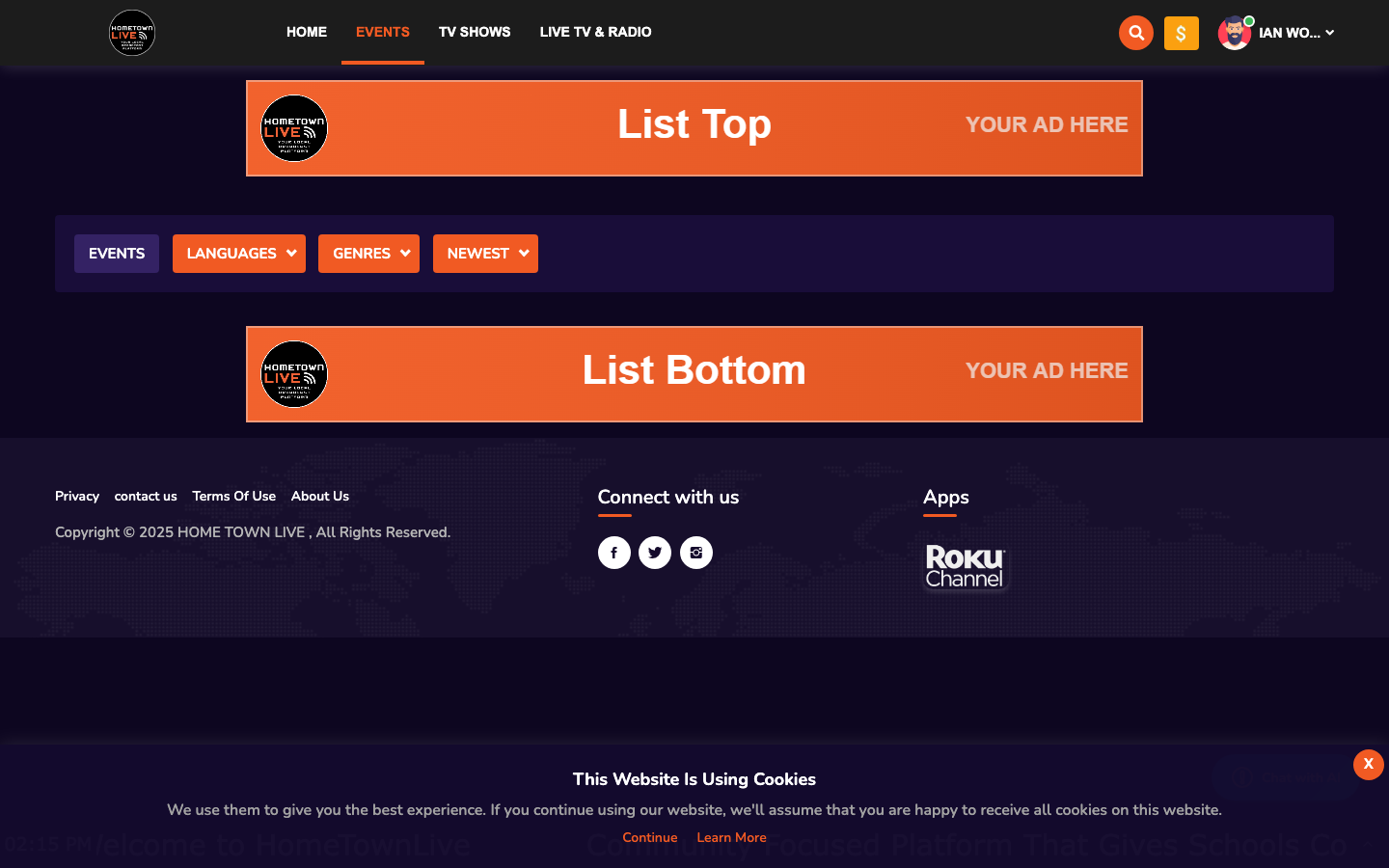
- Click Events in the top navigation.
- Use the Language and Genre filter dropdowns to narrow results.
- Genre options include: Athletics, Fine Arts, and News.
- Use the Sort dropdown to reorder results: Newest, Oldest, A to Z, or Random.
- Click any event card to open the event page.
- If the event is live, the player loads and begins streaming.
- If the event is on-demand, the recording plays immediately.
Note: The Genre filter is the fastest way to find what you are looking for. Select Athletics to see sports events, or Fine Arts to find performances and concerts.
Watching TV Shows
TV Shows are episodic programs organized into seasons and episodes — recurring series like a weekly sports wrap-up show, a student news broadcast, or a performing arts showcase.
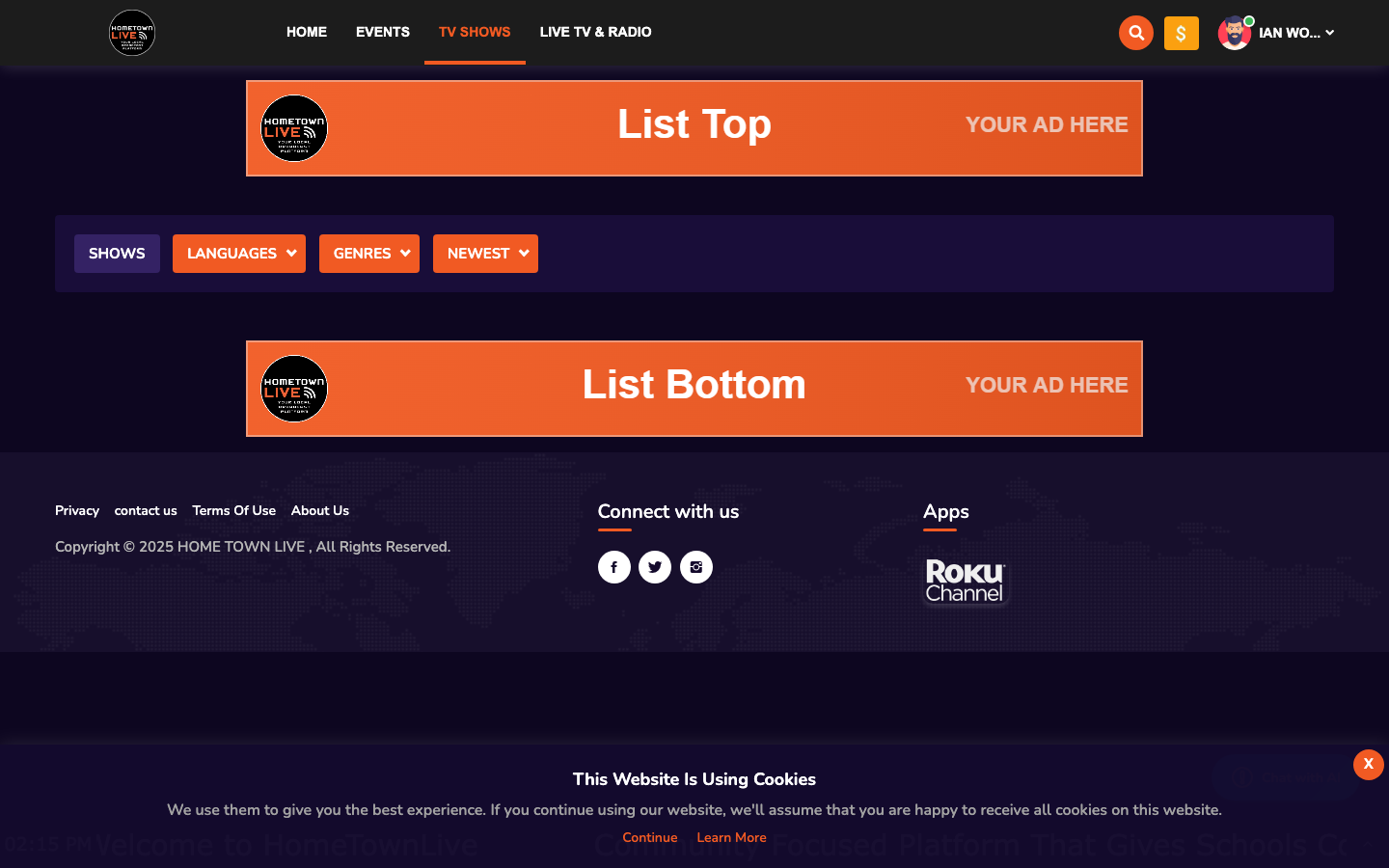
- Click TV Shows (or Shows) in the top navigation.
- Browse the show grid or use the genre filter to narrow results.
- Click a show card to open the show page.
- Select a season from the season tabs.
- Click an episode to watch it.
Tip: If your school produces a regular news or sports show, it appears here. Bookmark the show page to find new episodes easily.
Creating a Viewer Account
A viewer account is only required to purchase Pay-Per-View events. Free content is always available without logging in.
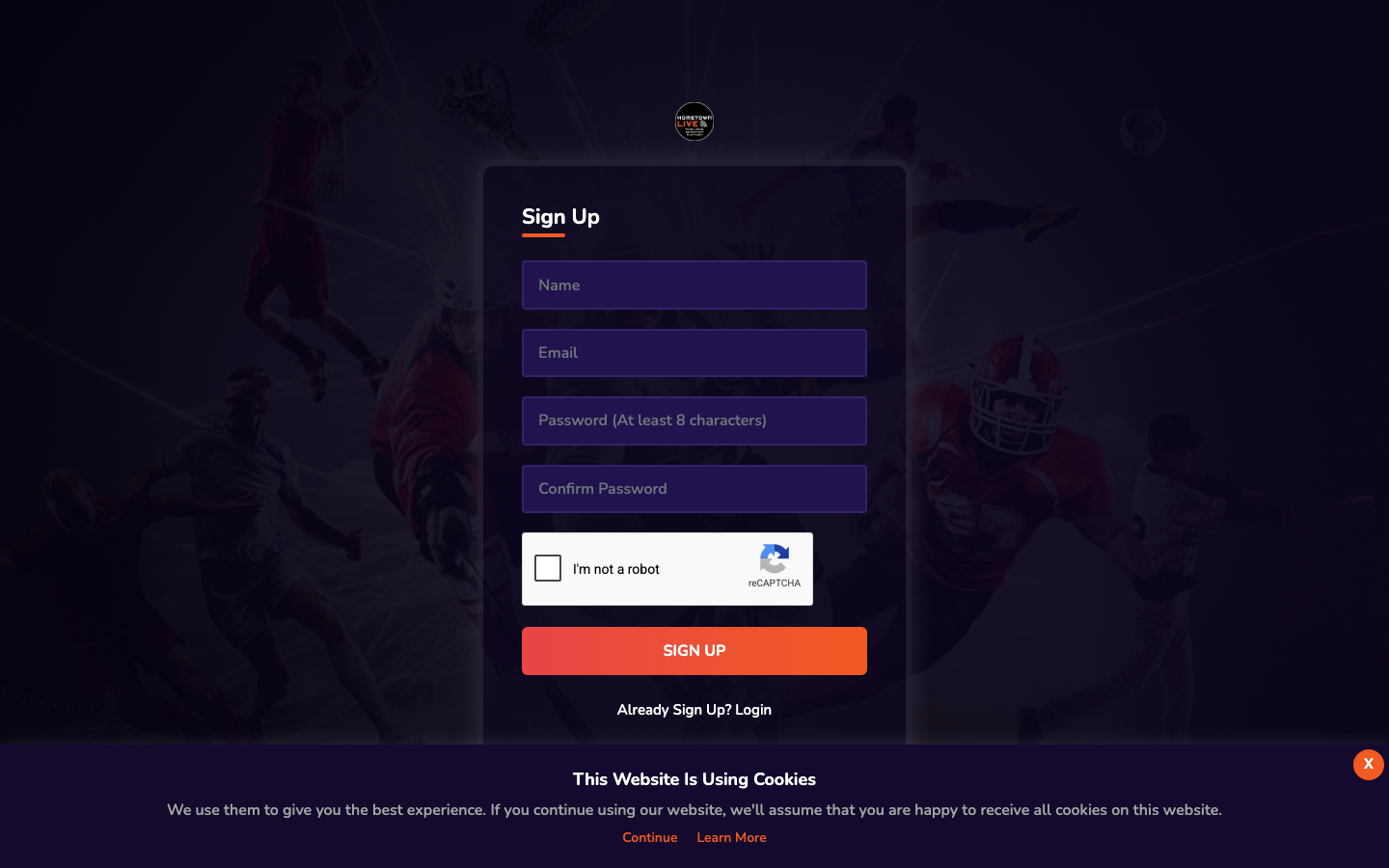
- Go to
https://platform.hometownlive.tv/signup. - Fill in your Name, Email address, and Password.
- Complete the reCAPTCHA verification if prompted.
- Click Sign Up.
- Check your email inbox for a confirmation message and follow the link to verify your account.
Note: Your email address is your username. Use an email address you check regularly so you can receive order confirmations and password reset emails.
Logging In
- Go to
https://platform.hometownlive.tv/login. - Enter your Email and Password.
- Complete the reCAPTCHA if prompted.
- Click Log In.
You may also log in using a Google or Facebook account if your school has enabled social login. Click the Google or Facebook button on the login page to use that option.
Resetting Your Password
- Go to
https://platform.hometownlive.tv/login. - Click Forgot Password? below the login form.

- Enter the email address you used to create your account.
- Click Submit.
- Check your inbox for a password reset email. Follow the link in the email to set a new password.
Tip: If the reset email does not arrive within a few minutes, check your spam or junk folder. Add
noreply@platform.hometownlive.tvto your contacts to prevent future messages from being filtered.
Purchasing a Pay-Per-View Event
Some events require a purchase before you can watch them. These are marked with a Buy or Purchase button on the event page.
- Create an account and log in (see above).
- Find the event you want to watch from the Events page or navigation.
- Click the event card to open the event page.
- Click the Buy or Purchase button.
- Select your payment method and complete the checkout process.
- Access is granted immediately after a successful payment.
- The video player loads on the event page — click Play to begin watching.
Note: Your purchased access lasts for the duration set by your school administrator. Typically this covers the broadcast window and a short replay period. Contact your school's AV team if you need clarification on access length.
Tip: Purchase access before the event starts so you are ready when the broadcast begins. Purchases are processed immediately — you do not need to wait.
Watching on Roku
HometownLive is available as a Roku channel, so you can watch events on your television from the comfort of home.
- On your Roku device, press the Home button on the remote.
- Navigate to the Streaming Channels section or open the Roku Channel Store.
- Search for HometownLive or your school's specific channel name.
- Select the channel and click Add Channel.
- Open the HometownLive channel from your Roku home screen.
- Browse live and on-demand content using the Roku remote.
Note: The Roku channel must be enabled by your school administrator before it appears in the Roku Channel Store. If you cannot find the channel, contact your school's AV team to confirm Roku is activated.
Tip: The footer of the HometownLive viewer site includes a Roku store link. You can also follow that link on a computer to find and add the channel to your Roku account.
Watching on Mobile
HometownLive works in the browser on any smartphone or tablet. You do not need a separate app for mobile viewing.
- Open your phone's browser (Chrome on Android, Safari on iOS).
- Navigate to
https://platform.hometownlive.tv. - The site adjusts automatically to your screen size.
- Tap any event, channel, or show to watch.
Tip: For the best mobile experience, use a Wi-Fi connection rather than cellular data when watching live streams. Live video uses more data than recorded content.
Contacting the School
If you have a question about an event — schedule changes, cancellations, or access issues — use the Contact Us form.
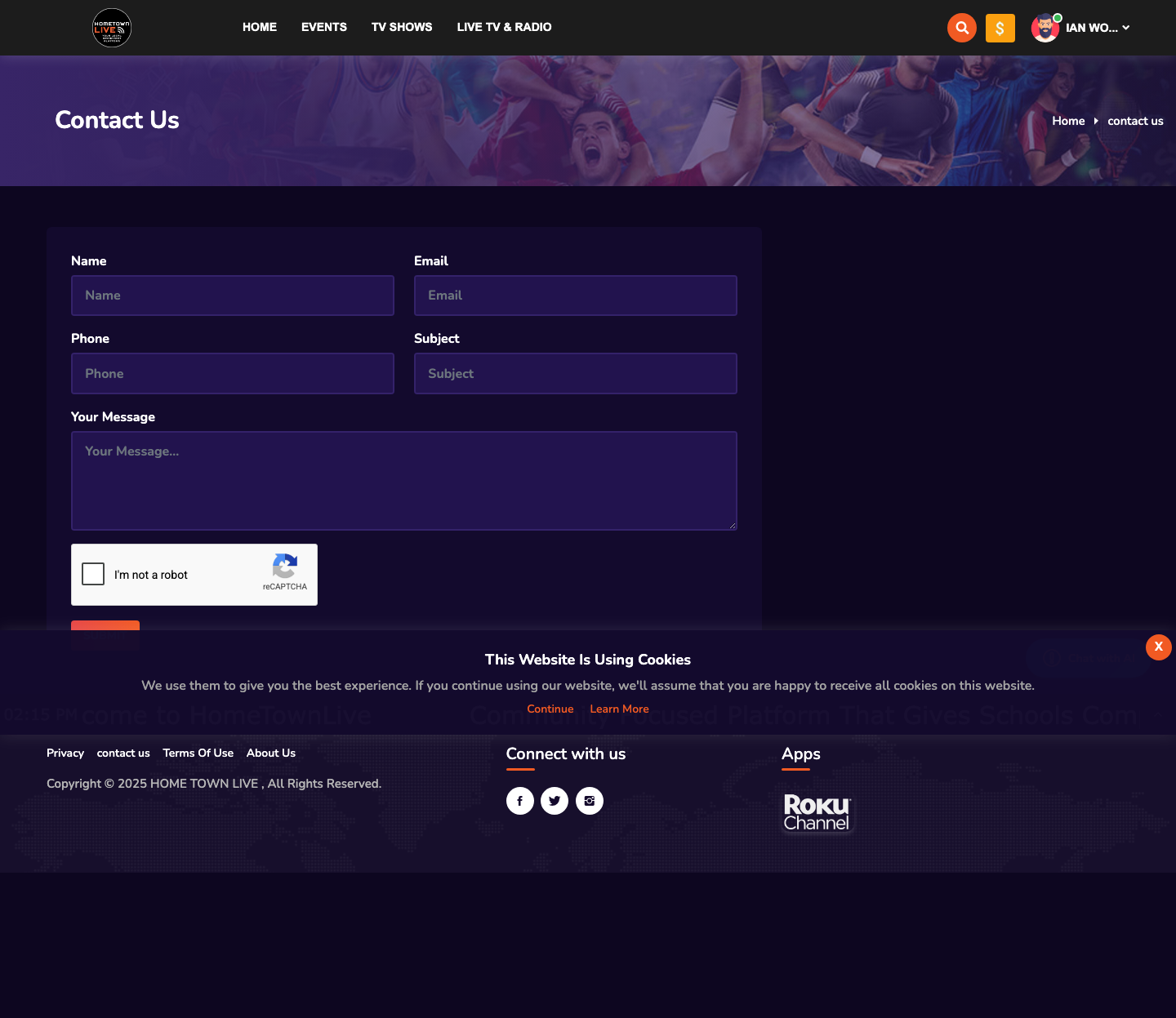
- Go to
https://platform.hometownlive.tv/page/contact-us. - Fill in your Name, Email, Phone, Subject, and Message.
- Click Submit.
- A school representative will reply by email.
Note: The Contact Us form reaches the school or organization running the HometownLive platform — not HometownLive or TKDS Media directly. For platform technical issues, contact your school's AV team or IT department.
Understanding Access Types
Not all content has the same access requirements. Here is a quick reference.
| Access Type | Description | Account Required? |
|---|---|---|
| Free | Anyone can watch without logging in. | No |
| Pay-Per-View (PPV) | Requires a one-time purchase for access. Price and access duration are set by the school. | Yes — must be logged in to purchase. |
| Subscription | Access is included in a subscription or sponsorship plan purchased from the school. | Yes — must be logged in. |
Tips for the Best Viewing Experience
- Use a wired connection or strong Wi-Fi — live streams require a stable connection. A weak Wi-Fi signal causes buffering.
- Close other tabs and apps — streaming video uses bandwidth. Other open applications and browser tabs can compete for resources on slower connections.
- Use Chrome or Firefox on a computer for the most consistent playback experience.
- Full-screen mode — click the full-screen icon in the player controls or press F on your keyboard for a full-screen view.
- Volume control — use the volume slider in the player controls. Your device volume also affects playback.
Warning: If you are watching on a school or workplace network and the stream will not load, the network may be blocking streaming content. Try using a personal device on a different network, or contact your network administrator.
Still need help?
Can't find what you're looking for? Our support team is here to help.
Contact Support →