
Monetization
Configuring payment gateways, sponsorship plans, and reviewing all transaction types.
Monetization
HometownLive supports multiple revenue streams. Subscriptions provide recurring or one-time access to all content. Pay-per-view (PPV) events let viewers purchase access to a single event. Sponsorships sell branded placement to local businesses. This chapter covers payment gateway configuration and transaction reporting for all revenue types.
Monetization Overview
| Revenue Type | How It Works | Where to Configure |
|---|---|---|
| Subscription Plans | Viewers pay for a rolling period or fixed date range that grants access to all content included in the plan. | Chapter 8 — Users and Plans |
| Pay-Per-View (PPV) | Viewers pay a one-time fee to access a single event for a set number of hours. | Events form — Pay-Per-View section (Chapter 4) |
| Sponsorship Plans | Businesses purchase a sponsorship tier and receive ad placement or branding on the platform. | /admin/sponserships |
| Coupons | Viewers apply a discount code at checkout to reduce the price of a subscription plan. | Chapter 8 — Users and Plans |
Payment Gateways
Location: Sidebar → Monetization → Payment Gateways (/admin/payment_gateway)
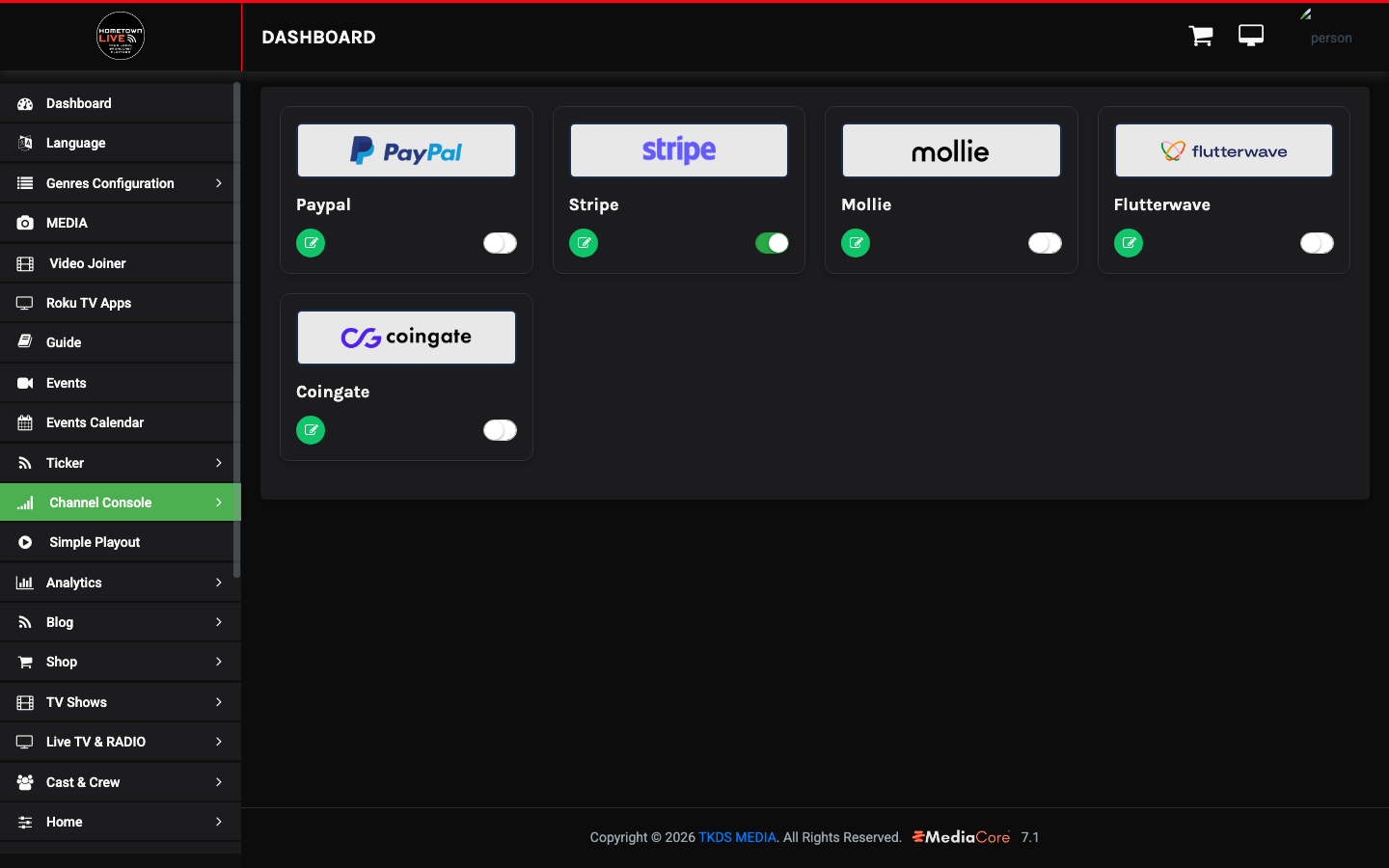
Payment Gateways configure which payment processors the platform uses to collect money from viewers. HometownLive supports five processors. Each gateway has an independent Edit button for credential configuration and an enable/disable toggle to activate or deactivate it without deleting its configuration.
| Gateway | Notes |
|---|---|
| PayPal | Widely used consumer gateway. Supports credit cards and PayPal balance. |
| Stripe | Developer-friendly gateway supporting cards, Apple Pay, and Google Pay. |
| Mollie | European-focused gateway with strong support for local payment methods. |
| Flutterwave | African market gateway supporting mobile money, cards, and bank transfers. |
| Coingate | Cryptocurrency payment processor supporting Bitcoin and other digital currencies. |
Warning: Never share payment gateway API keys with anyone outside your organization. Store credentials securely and rotate them immediately if they are compromised. Contact your payment provider's support team for instructions on key rotation.
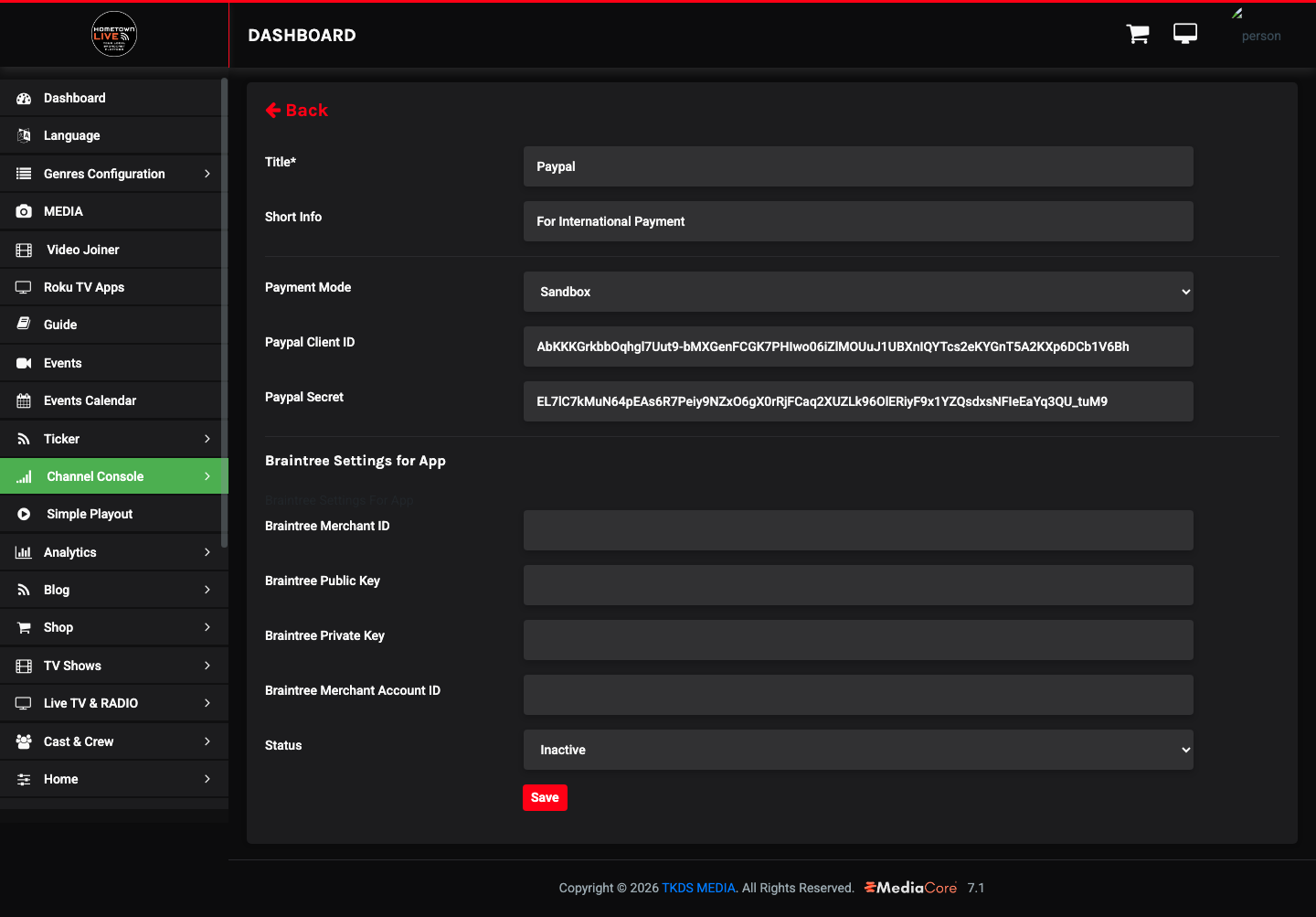
Configuring a Payment Gateway
- Click Edit on the gateway you want to configure.
- Enter the required API credentials. Key names and values vary by gateway — refer to your payment provider's developer documentation for the exact fields required.
- Toggle the gateway to Enabled.
- Click Save.
Note: Enable only the gateways your organization actively uses. Disabling unused gateways reduces your payment configuration's attack surface and simplifies troubleshooting.
Sponsorship Plans
Location: Sidebar → Monetization → Sponsorship Plans (/admin/sponserships)
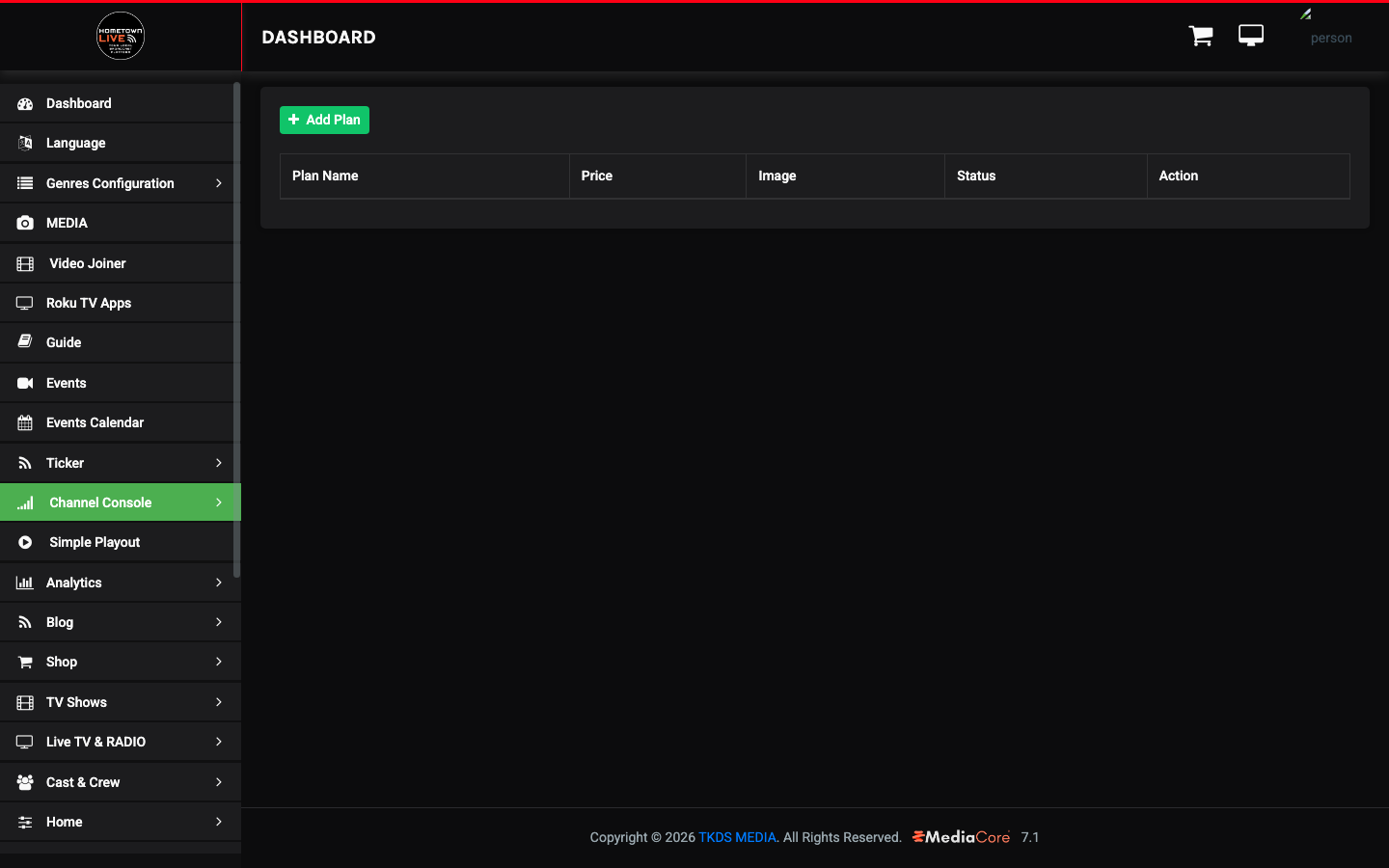
Sponsorship Plans define paid tiers for brands and local businesses. Sponsors purchase a plan in exchange for ad placement, logo display, or other branding across the platform. Configuring multiple tiers allows you to offer options at different price points.
Sponsorship Plans Table Columns
| Column | Description |
|---|---|
| Plan Name | The sponsorship tier name shown to potential sponsors at checkout. |
| Price | The price sponsors pay for this tier. |
| Image | A thumbnail preview of the sponsor logo or tier artwork. |
| Status | Active (available for purchase) or Inactive. |
| Actions | Edit or delete the sponsorship plan. |
Creating a Sponsorship Plan
- Click Add Plan.
- Enter the Plan Name — for example, "Gold Sponsor" or "Banner Sponsor."
- Enter the Price.
- Upload the sponsor tier Image if applicable.
- Set Status to Active.
- Click Save.
Tip: Create two to three sponsorship tiers at different price points — for example, Presenting Sponsor, Gold Sponsor, and Community Sponsor. Clear tier naming helps businesses understand what they are purchasing.
Transactions
The Transactions section provides detailed records for every revenue type. Use these reports to verify payments, reconcile accounts, and resolve access disputes. Each sub-section has its own export function.
Tip: Use the Export button in each Transactions sub-section to generate CSV reports for accounting, board presentations, or end-of-season financial summaries.
Subscription Plan Transactions
Location: Sidebar → Monetization → Transactions → Plans (/admin/transactions/plans)
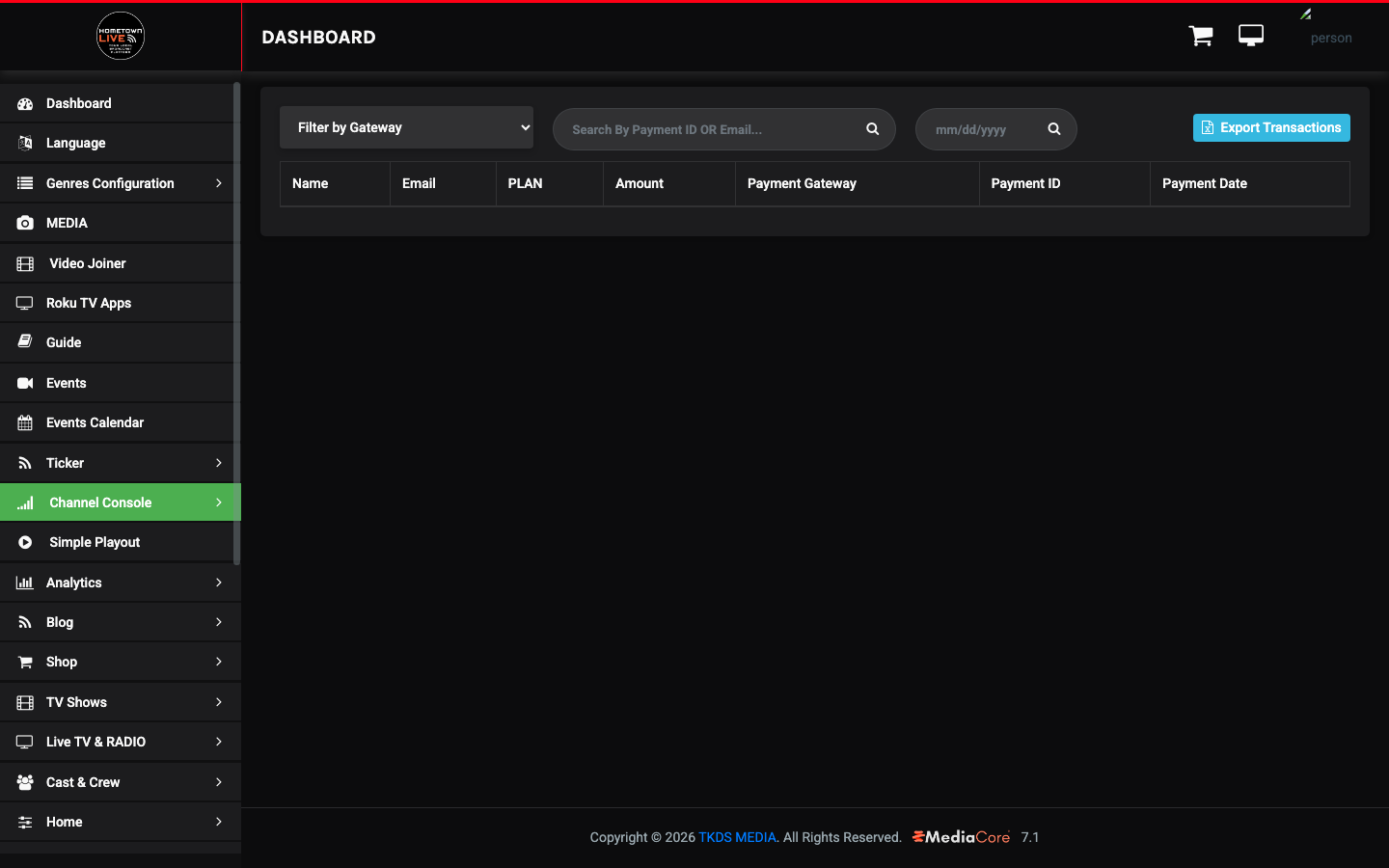
Subscription Plan Transactions lists every subscription purchase made on the platform. Use this report to verify that a specific viewer's payment was received, audit subscriber activity, or identify revenue by gateway.
Plan Transaction Filters
- Gateway — filter by payment processor. Supported values: PayPal, Stripe, Razorpay, Paystack, Instamojo, PayUMoney, Mollie, Flutterwave, Paytm, Cashfree, Coingate, Bank Transfer, External API.
- Date Range — filter by specific date or start/end range.
Plan Transaction Table Columns
| Column | Description |
|---|---|
| Name | The subscriber's full name. |
| The subscriber's account email address. | |
| Plan | The subscription plan that was purchased. |
| Amount | The amount paid. |
| Payment Gateway | Which payment processor handled the transaction. |
| Payment ID | The unique transaction ID from the payment processor. Use this to look up a transaction in your gateway dashboard. |
| Payment Date | The date and time the payment was completed. |
Exporting Plan Transactions
- Click Export Transactions.
- In the export dialog, select a specific date or a start/end date range.
- Click Export. A CSV file downloads to your computer.
Order Transactions
Location: Sidebar → Monetization → Transactions → Orders (/admin/transactions/orders)
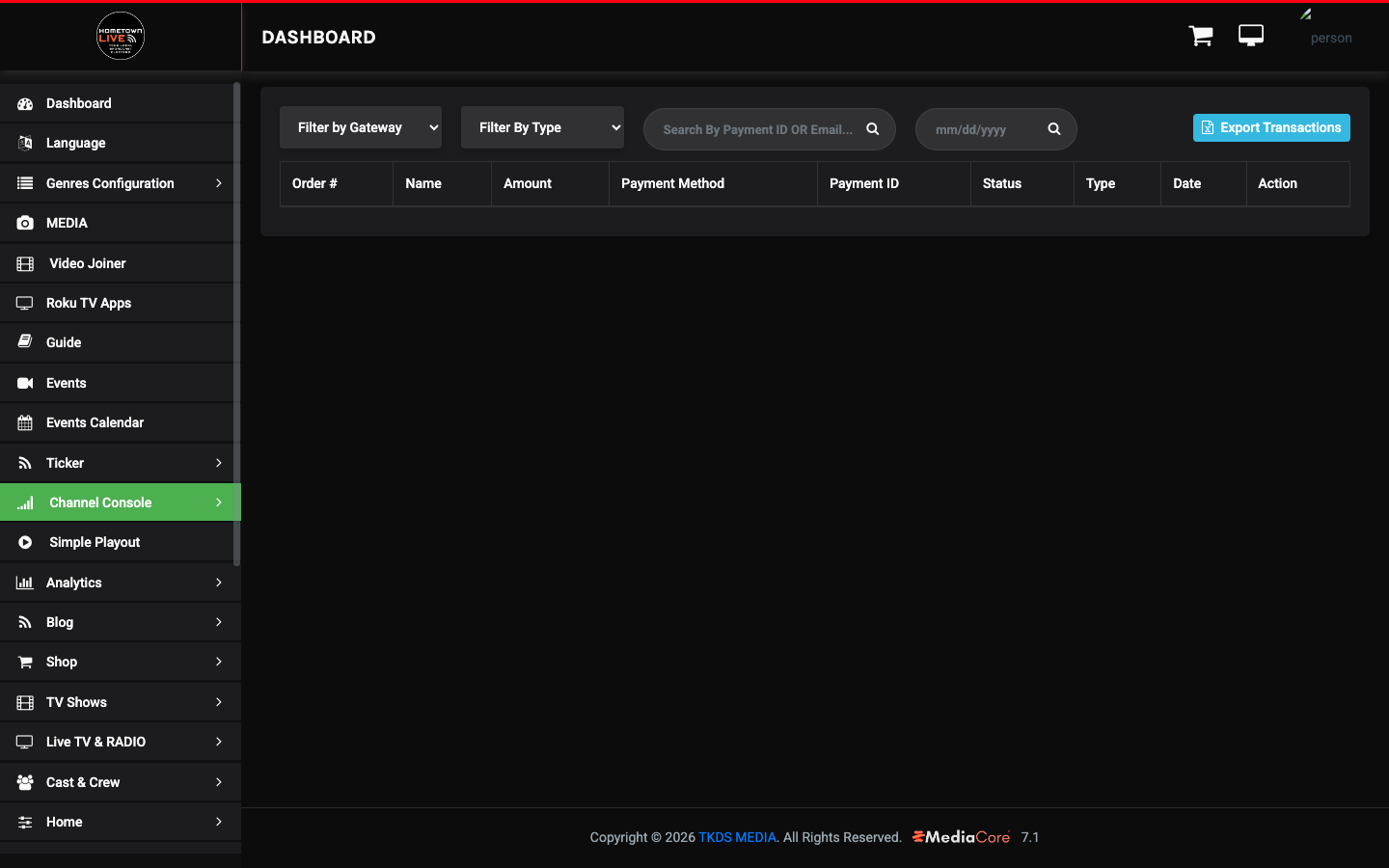
Order Transactions records merchandise and shop purchases. Use this report to track physical product orders and identify orders by source.
Order Transaction Filters
- Gateway — filter by payment processor.
- Type — filter by Admin (orders created manually by an admin user) or User (orders placed by viewers through the storefront).
Order Transaction Table Columns
| Column | Description |
|---|---|
| Order # | The unique order number for this purchase. |
| Name | The customer's full name. |
| Amount | The total order amount. |
| Payment Method | The payment gateway used. |
| Payment ID | The transaction ID from the payment processor. |
| Status | The fulfillment status of the order. |
| Type | Admin or User — who created this order. |
| Date | The date the order was placed. |
| Actions | View or manage the order. |
Sponsorship Transactions
Location: Sidebar → Monetization → Transactions → Sponsors (/admin/transactions/sponsors)
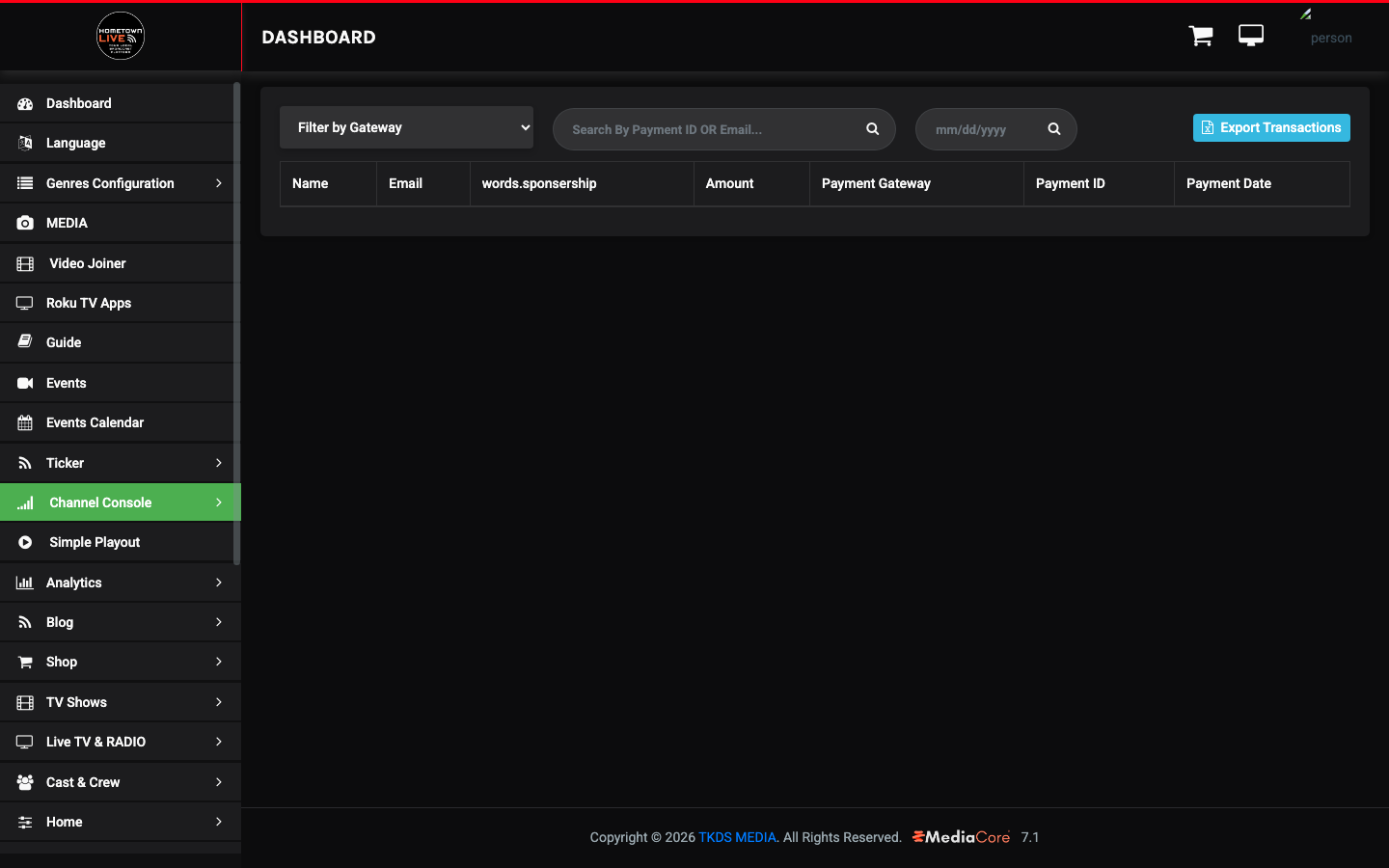
Sponsorship Transactions records every sponsorship plan purchase from brands and advertisers. Use this report to track sponsor activity and revenue.
Sponsorship Transaction Table Columns
| Column | Description |
|---|---|
| Name | The sponsor's name or business name. |
| The sponsor's contact email. | |
| Sponsorship | The sponsorship plan that was purchased. |
| Amount | The sponsorship fee paid. |
| Payment Gateway | Which payment processor handled the transaction. |
| Payment ID | The transaction ID from the payment processor. |
| Payment Date | The date the payment was completed. |
Use the filter and Export button to manage and download sponsorship transaction data.
Event Purchases (Pay-Per-View)
Location: Sidebar → Monetization → Transactions → Event Purchases (/admin/transactions/event-purchases)
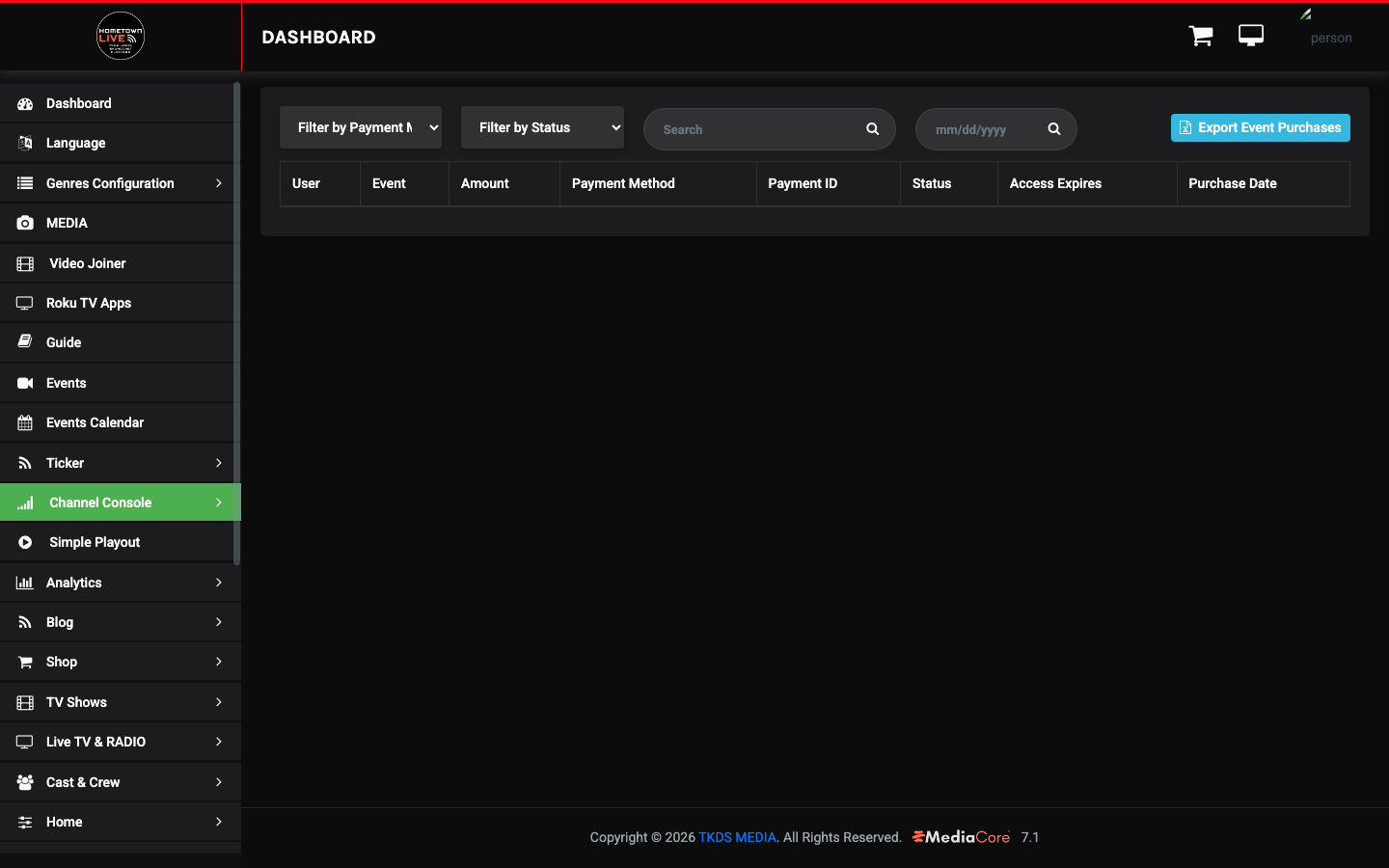
Event Purchases records all pay-per-view transactions. Use this report to verify PPV access for a specific viewer, confirm a payment was received, and investigate access issues.
Event Purchase Filters
- Payment Method — filter by Stripe, PayPal, or Razorpay.
- Status — filter by Completed, Pending, or Failed.
Event Purchase Table Columns
| Column | Description |
|---|---|
| User | The viewer who made the purchase. |
| Event | The event that was purchased. |
| Amount | The PPV price paid. |
| Payment Method | The payment gateway used. |
| Payment ID | The transaction ID from the payment processor. |
| Status | Completed, Pending, or Failed. |
| Access Expires | The date and time when the viewer's PPV access to this event expires. |
| Purchase Date | The date and time the purchase was made. |
Note: If a viewer reports they paid for an event but cannot access it, use the Event Purchases table to locate their transaction. Check Status first — a Pending status may indicate a payment processing delay. A Failed status means the payment did not complete successfully.
Revenue Summary
The Dashboard at /admin/dashboard displays high-level revenue tiles for a quick financial overview. These tiles are visible to all admin users every time they open the admin panel.
| Tile | What It Shows |
|---|---|
| Daily Revenue | Total revenue from completed transactions today. |
| Weekly Revenue | Total revenue from completed transactions in the current calendar week. |
| Monthly Revenue | Total revenue from completed transactions in the current calendar month. |
| Yearly Revenue | Total revenue from completed transactions in the current calendar year. |
Note: Revenue tiles reflect completed transactions only. Pending or failed transactions are not included in these totals. Use the individual Transactions sub-sections to view pending or failed payments.
Still need help?
Can't find what you're looking for? Our support team is here to help.
Contact Support →