
Ticker
Configuring the scrolling news ticker, score ticker, alerts, RSS feeds, and ScoreBird score feeds.
Ticker
The Ticker is a scrolling text banner displayed at the bottom of the viewer-facing site and embedded within broadcasts. Use it to communicate announcements, scores, upcoming events, and sponsor messages to viewers in real time. The ticker supports five content sources: static content items, urgent alerts, RSS news feeds, dynamic event data, and live scores from ScoreBird NeST devices.
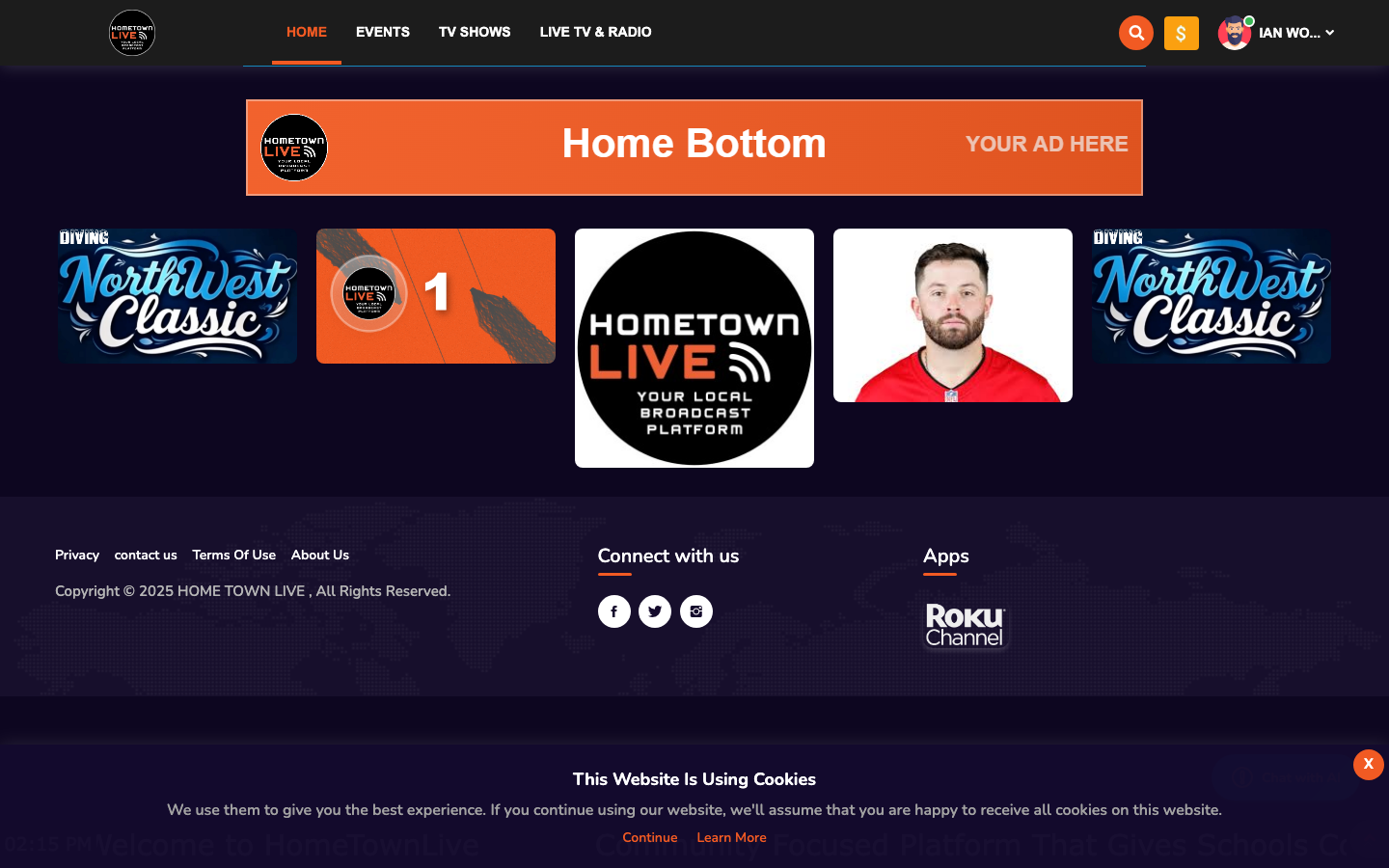
Ticker Dashboard
Location: Sidebar → Ticker (/admin/ticker)
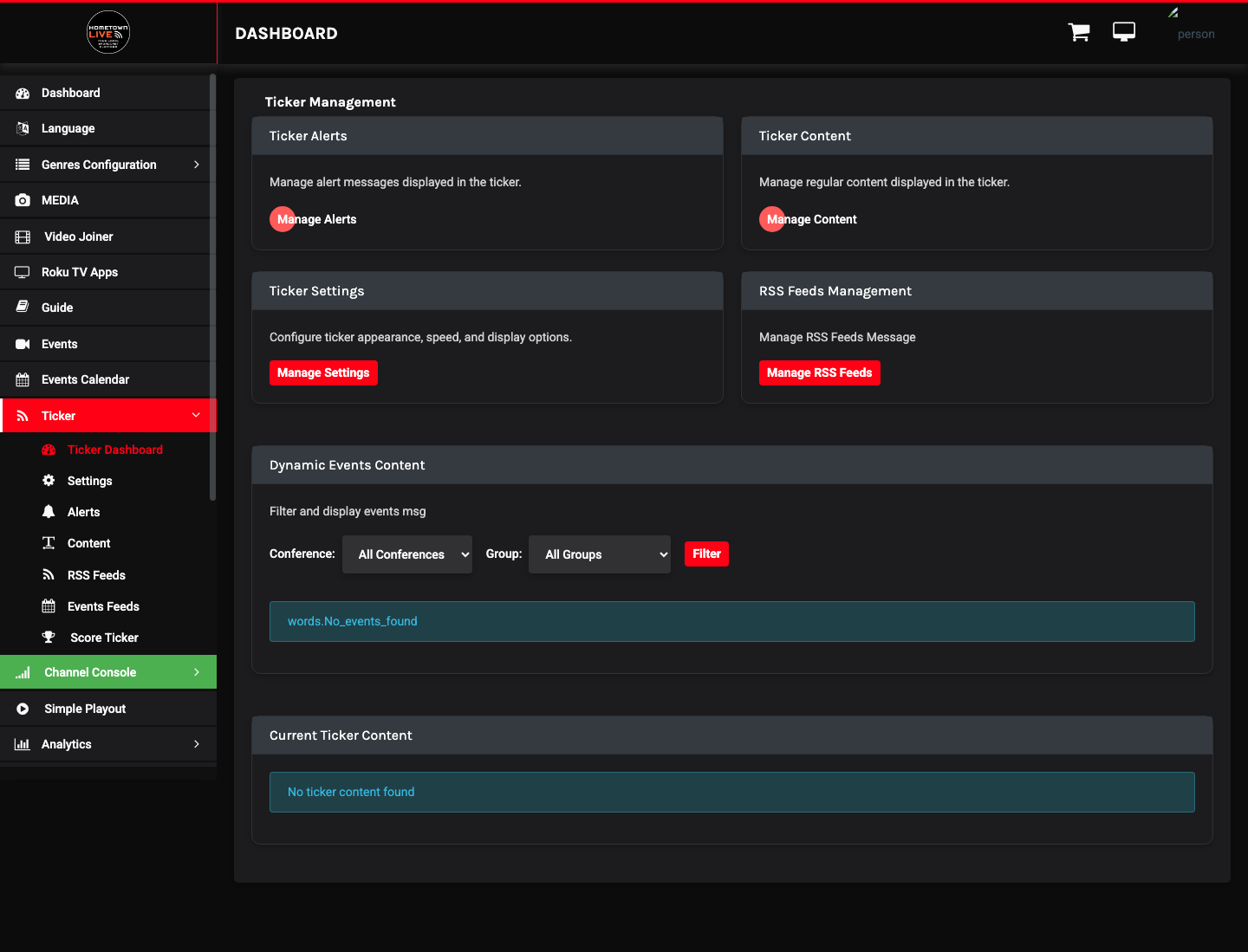
The Ticker dashboard is the starting point for all ticker configuration. It presents five management cards, each linking to a specific feature area.
| Card | Purpose |
|---|---|
| Ticker Alerts | Manage urgent alert messages that display in the highlighted alert color. |
| Ticker Content | Manage regular scrolling content items such as welcome messages and promotional text. |
| Ticker Settings | Configure the ticker's appearance, speed, font, direction, and logo. |
| RSS Feeds Management | Add and manage external RSS feeds that pull headlines into the ticker automatically. |
| Dynamic Events Content | Filter and display upcoming event data in the ticker by Conference and Group. |
Note: The ticker does not appear on the viewer site until you enable it in Settings → Menu → Show Ticker. See Enabling the Ticker at the end of this chapter.
Ticker Settings
Location: Sidebar → Ticker → Ticker Settings (/admin/ticker/settings)
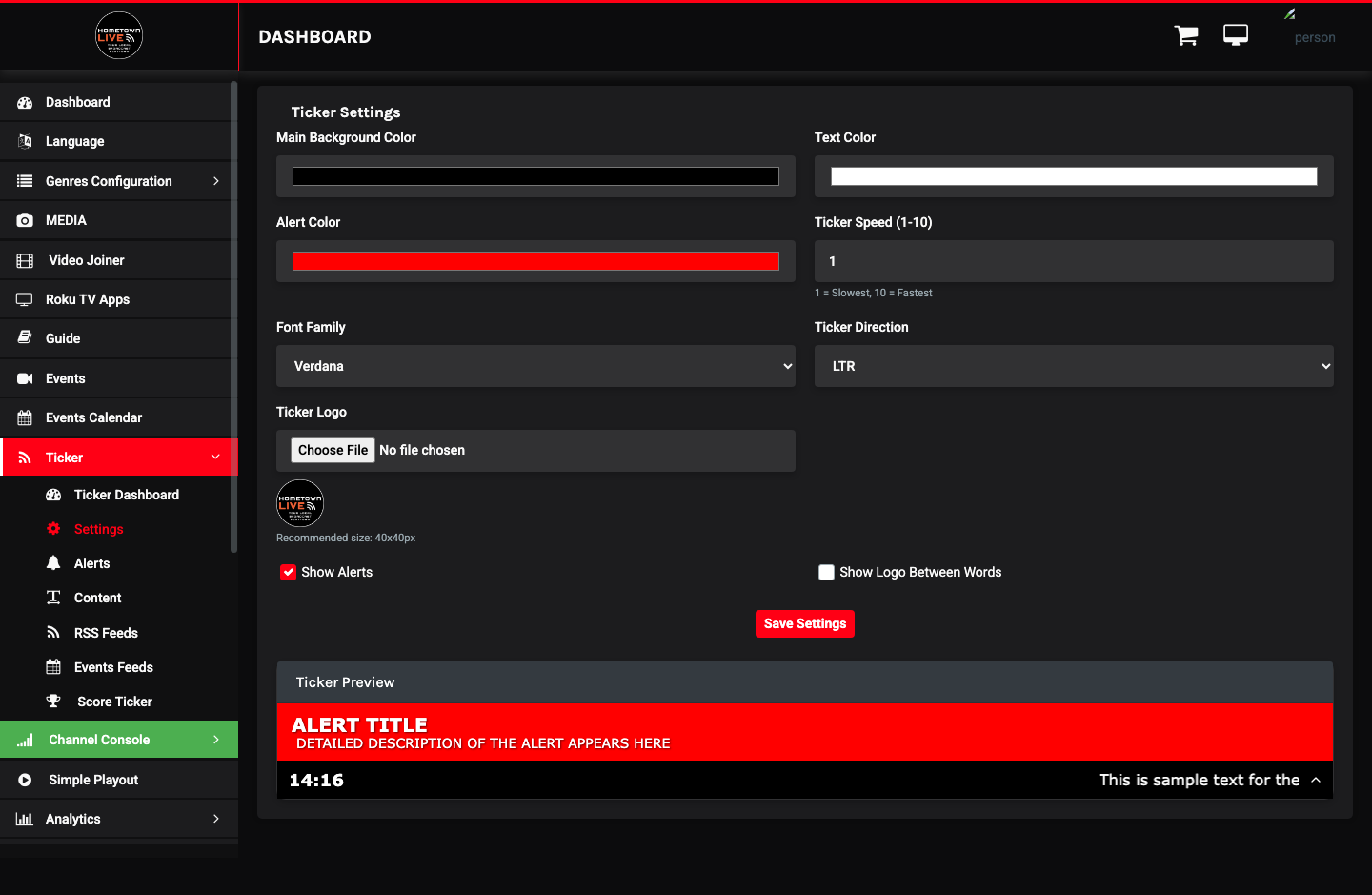
Ticker Settings control the visual appearance and scroll behavior of the banner. A live preview renders below the form as you make changes so you can see exactly how the ticker will look before saving.
| Field | Type | Description |
|---|---|---|
| Main Background Color | Color picker | Background fill color of the ticker bar. |
| Text Color | Color picker | Color of the scrolling content text. |
| Alert Color | Color picker | Highlight color used for Alert items. Choose a contrasting color such as red or amber to make alerts visually distinct from regular content. |
| Ticker Speed | Slider (1–10) | Scroll speed. 1 is the slowest; 10 is the fastest. A setting of 4–6 works well for most broadcast environments. |
| Font Family | Select | Choose from Arial, Helvetica, Verdana, Tahoma, or Times New Roman. |
| Ticker Direction | Select | LTR (left-to-right) for English and most Western languages. RTL (right-to-left) for Arabic, Hebrew, and similar scripts. |
| Ticker Logo | Image upload | Optional small logo displayed within the ticker bar. Recommended size: 40×40 pixels. |
| Show Alerts | Toggle (On/Off) | When On, Alert items display alongside regular content. When Off, alerts are suppressed even if they are Active. |
| Show Logo Between Words | Toggle (On/Off) | When On, the Ticker Logo appears as a separator between each content item as it scrolls. |
Applying Settings
- Adjust fields as needed.
- Watch the live preview update below the form.
- Click Save Settings to apply your changes.
Tip: Make color and speed changes in off-peak hours. The ticker updates live for all viewers as soon as you save.
Ticker Content
Location: Sidebar → Ticker → Ticker Content (/admin/ticker/content)
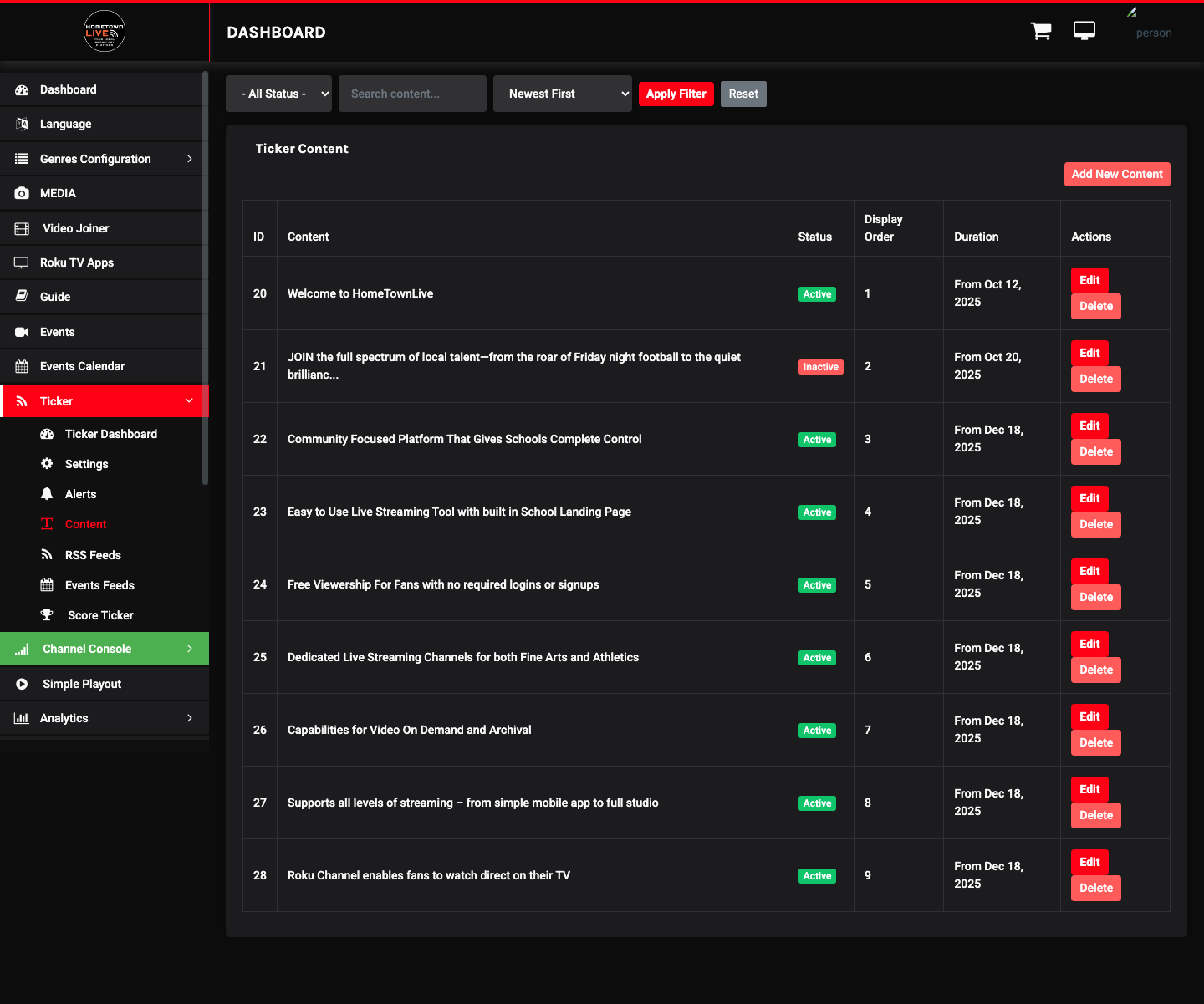
Ticker Content holds the standard scrolling messages that rotate through the ticker during normal operation. This is the right place for welcome messages, platform descriptions, promotional copy, and any recurring community announcements. Content items rotate in display order and are distinguished from Alerts by their regular text color.
Example content items from a typical installation:
- "Welcome to HomeTownLive"
- "Community Focused Platform…"
- "Easy to Use Live Streaming Tool…"
Filtering and Sorting
Use the controls above the content table to manage the list view:
- Filter by Status — show only Active or Inactive items.
- Search — find items by content text.
- Sort — order by Newest, Oldest, Ascending, or Descending.
Content Table Columns
| Column | Description |
|---|---|
| ID | Auto-assigned unique identifier. |
| Content | The full text displayed to viewers in the ticker. |
| Status | Active (currently displaying) or Inactive (hidden from the ticker). |
| Display Order | Numeric position in the content rotation. Lower numbers appear earlier. |
| Duration | The start date from which this content item begins displaying ("From [date]"). |
| Actions | Edit or delete the content item. |
Adding a Content Item
- Click Add New Content.
- Enter the scrolling Content text.
- Set a Display Order number. Lower values appear earlier in the rotation.
- Set the Duration start date to control when this item activates.
- Set Status to Active to begin displaying immediately.
- Click Save.

Tip: Keep individual content items concise — one to two sentences. Shorter items are easier to read as they scroll past during a broadcast.
Ticker Alerts
Location: Sidebar → Ticker → Ticker Alerts (/admin/ticker/alerts)
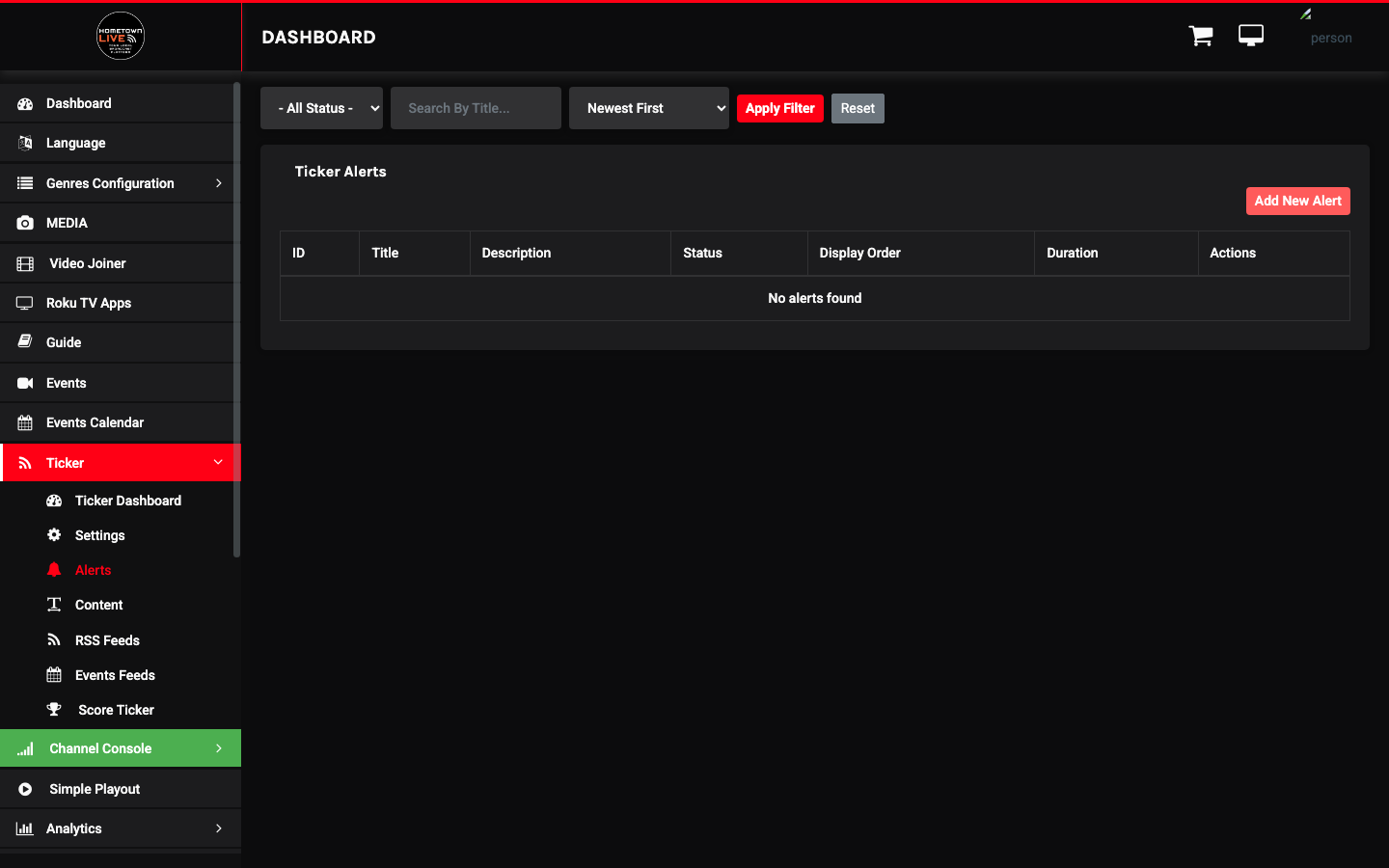
Alerts are high-priority messages displayed in the Alert Color configured in Ticker Settings. Use alerts for time-sensitive announcements that need to stand out visually from the standard content rotation — such as weather delays, event cancellations, venue changes, or safety notices.
Alert Table Columns
| Column | Description |
|---|---|
| ID | Auto-assigned unique identifier. |
| Title | Short label used to identify the alert in the admin panel. Not displayed to viewers. |
| Description | The full alert message that scrolls in the ticker and is visible to viewers. |
| Status | Active or Inactive. |
| Display Order | Numeric position in the alert rotation relative to other alerts. |
| Duration | The start date from which this alert is displayed. |
| Actions | Edit or delete the alert. |
Adding an Alert
- Click Add New Alert.
- Enter a Title for internal identification in the admin list.
- Enter the Description — this is the exact text viewers see scrolling in the ticker.
- Set Display Order to control where this alert appears relative to other alerts.
- Set the Duration start date.
- Set Status to Active to begin displaying immediately.
- Click Save.

Warning: Alerts are designed for urgent messages. Overusing the Alerts feed for routine content diminishes its visual impact. Reserve the alert color for genuinely time-sensitive announcements and use Ticker Content for everything else.
RSS Feeds
Location: Sidebar → Ticker → RSS Feeds Management (/admin/ticker/rss)
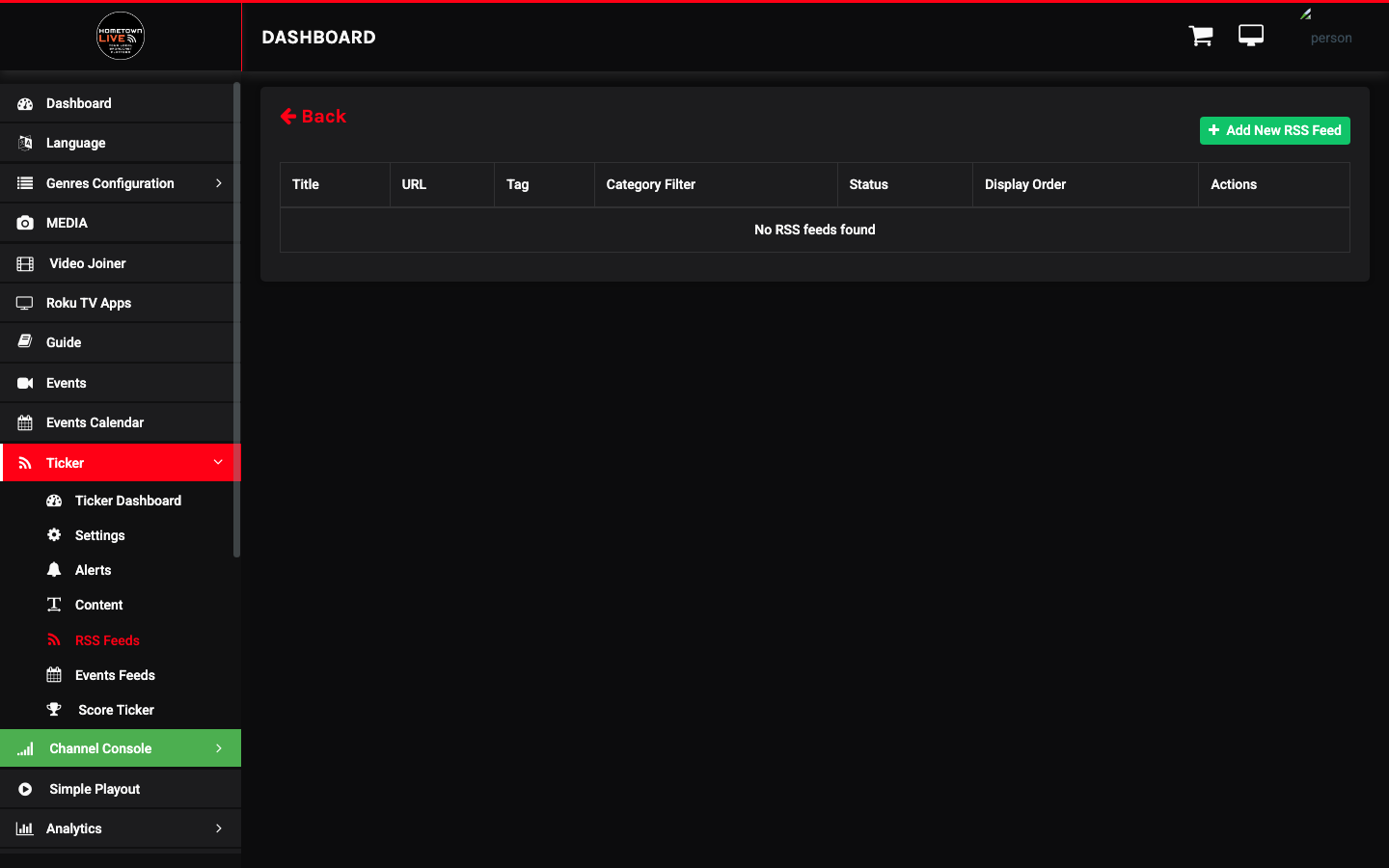
RSS Feeds automatically pull headlines from external sources directly into the ticker, keeping content fresh without manual updates. Common use cases include local news wires, sports score feeds, and organizational blog posts.
A preview panel on the right side of the page shows the content currently being pulled from the selected feed tag, so you can verify the feed is returning results before enabling it.
RSS Feed Table Columns
| Column | Description |
|---|---|
| Title | Internal name for this feed configuration. |
| URL | The full URL of the external RSS feed. |
| Tag | The XML element extracted from each feed item (for example, title or description). Used to select content in the preview panel. |
| Category Filter | Optional filter that limits which feed categories are pulled into the ticker. |
| Status | Active or Inactive. |
| Display Order | Numeric position relative to other ticker content sources. |
| Actions | Edit or delete the feed. |
Adding an RSS Feed
- Click Add New RSS Feed.
- Enter a Title to identify this feed in the admin panel.
- Paste the full URL of the RSS feed. The URL must begin with
https://. - Enter the Tag — the XML element name to extract from each item. Check the feed source to confirm the correct tag before saving.
- Optionally, enter a Category Filter to limit which feed categories appear.
- Set Display Order and Status.
- Click Save.

Note: Not all RSS feeds use the same XML structure. If no content appears in the preview panel after saving, confirm the tag name matches the feed's actual XML element names.
Dynamic Events Content
Location: Sidebar → Ticker → Dynamic Events Content (/admin/ticker/events)
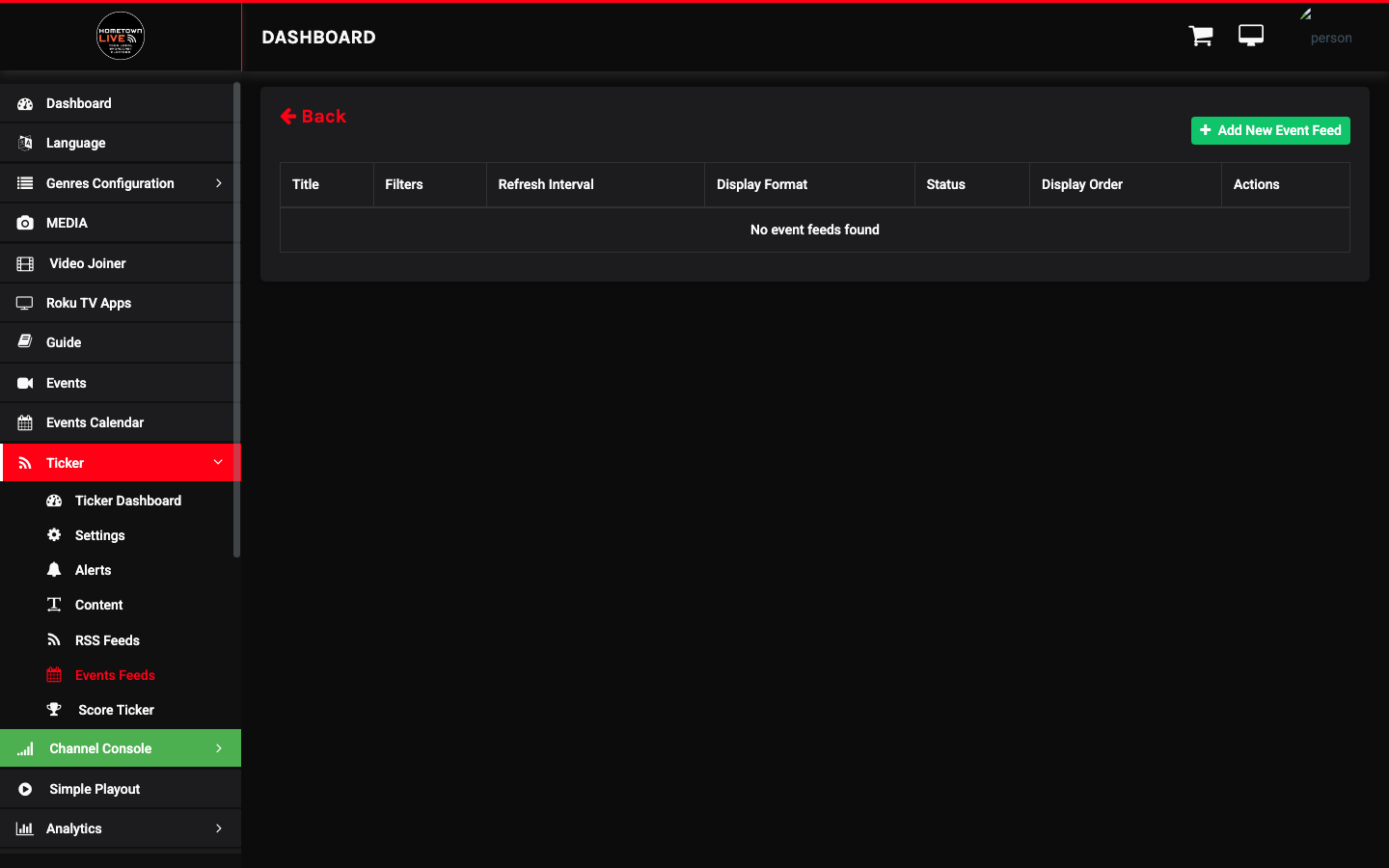
Dynamic Events Content pulls upcoming event data directly from the HometownLive platform into the ticker. Configure feeds by Conference and Group so the ticker automatically promotes relevant upcoming games and events. No manual entry is required once configured — the feed refreshes on the interval you specify.
Events Feed Table Columns
| Column | Description |
|---|---|
| Title | Internal name for this event feed configuration. |
| Filters | Conference and Group filters applied to this feed. |
| Refresh Interval | How frequently (in minutes) the feed polls for updated event data from the platform. |
| Display Format | The text format used to render each event in the ticker (for example, "Team A vs. Team B — Date"). |
| Status | Active or Inactive. |
| Display Order | Numeric position relative to other ticker content sources. |
| Actions | Edit or delete the feed. |
Adding an Event Feed
- Click Add New Event Feed.
- Enter a Title for this feed configuration.
- Select the Conference and Group filters to target the correct events for your audience.
- Set the Refresh Interval in minutes. A value of 5–10 minutes works well for most deployments.
- Choose a Display Format for how event information appears in the ticker.
- Set Status to Active.
- Click Save.
Tip: For an organization with multiple sports programs, create one Event Feed per conference. You can then activate and deactivate individual feeds by season without modifying other ticker content.
Score Ticker
Location: Sidebar → Score Ticker (/admin/score_ticker)
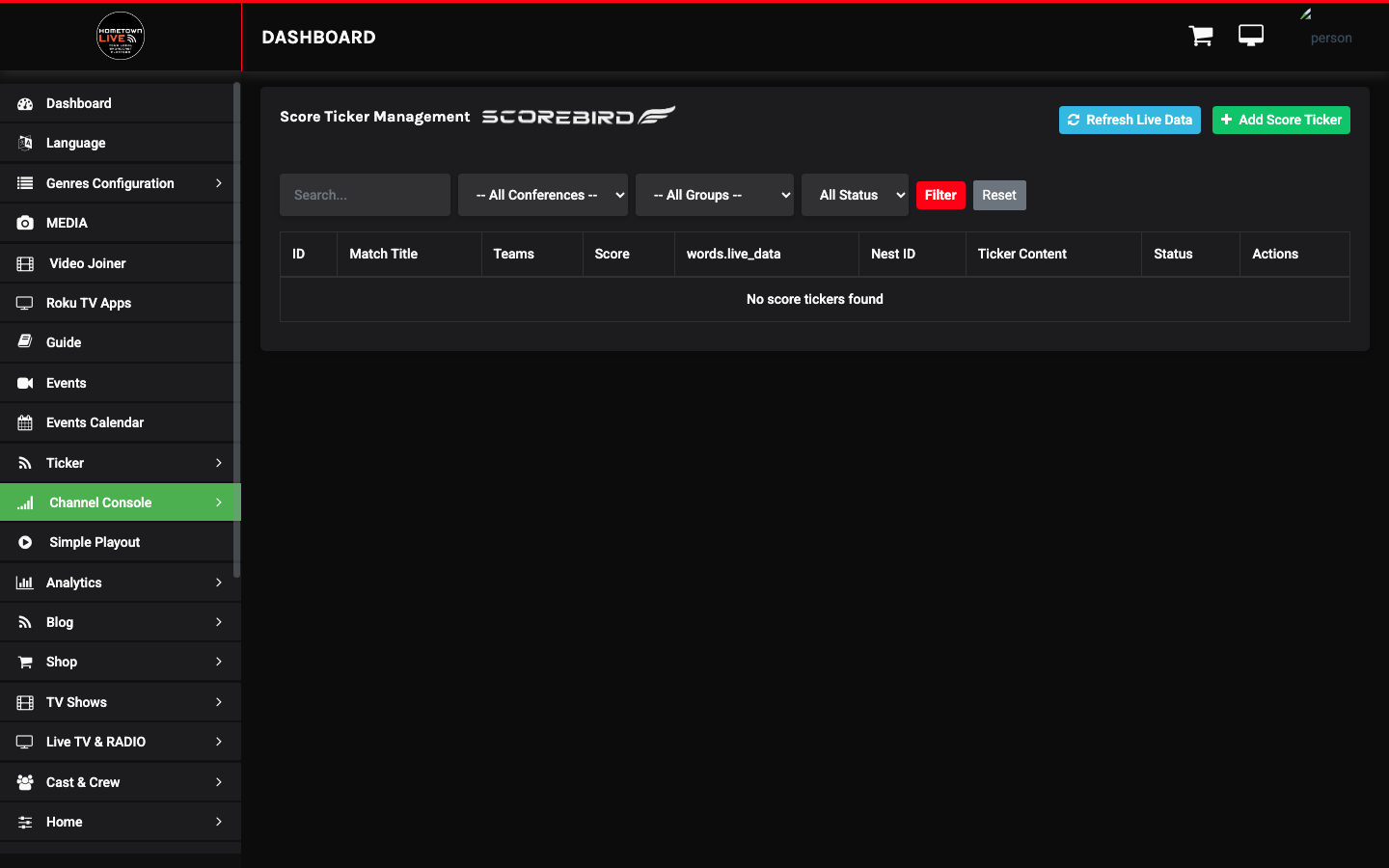
The Score Ticker displays live game scores in the scrolling banner. It integrates directly with the ScoreBird NeST device to pull real-time score data from the scoreboard hardware at the venue. Scores update in the ticker as they change during the game — no manual input is required.
Score Ticker List Controls
| Control | Purpose |
|---|---|
| Add Score Ticker | Opens the form to create a new score ticker entry. |
| Refresh Live Data | Manually triggers a data pull from all active NeST device connections. Use this to confirm data is flowing after adding a new entry. |
| Search | Find a match by title. |
| Filter by Conference | Narrow the list to a specific conference. |
| Filter by Group | Narrow the list to a specific group. |
| Filter by Status | Show only Active or Inactive entries. |
Score Ticker Table Columns
| Column | Description |
|---|---|
| ID | Auto-assigned unique identifier. |
| Match Title | Display name for the game or match shown in the ticker. |
| Teams | Team A and Team B names for this match. |
| Score | Current score pulled from the NeST device. |
| Live Data (NeST) | Indicator showing whether live data is actively flowing from the connected NeST device. |
| NeST ID | The ScoreBird NeST device ID providing score data for this match. |
| Ticker Content | The formatted text string sent to the ticker based on current score data. |
| Status | Active (displaying in the ticker) or Inactive (hidden). |
| Actions | Edit or delete the score ticker entry. |
Adding a Score Ticker Entry
- Click Add Score Ticker.
- Enter the Match Title — for example, "Varsity Basketball — Home vs. Away."
- Enter the Teams competing in the match.
- Enter the NeST ID — this value must exactly match the device ID configured in ScoreBird for this game.
- Set Status to Active.
- Click Save.
- Click Refresh Live Data to confirm the NeST device connection is active and score data is flowing.
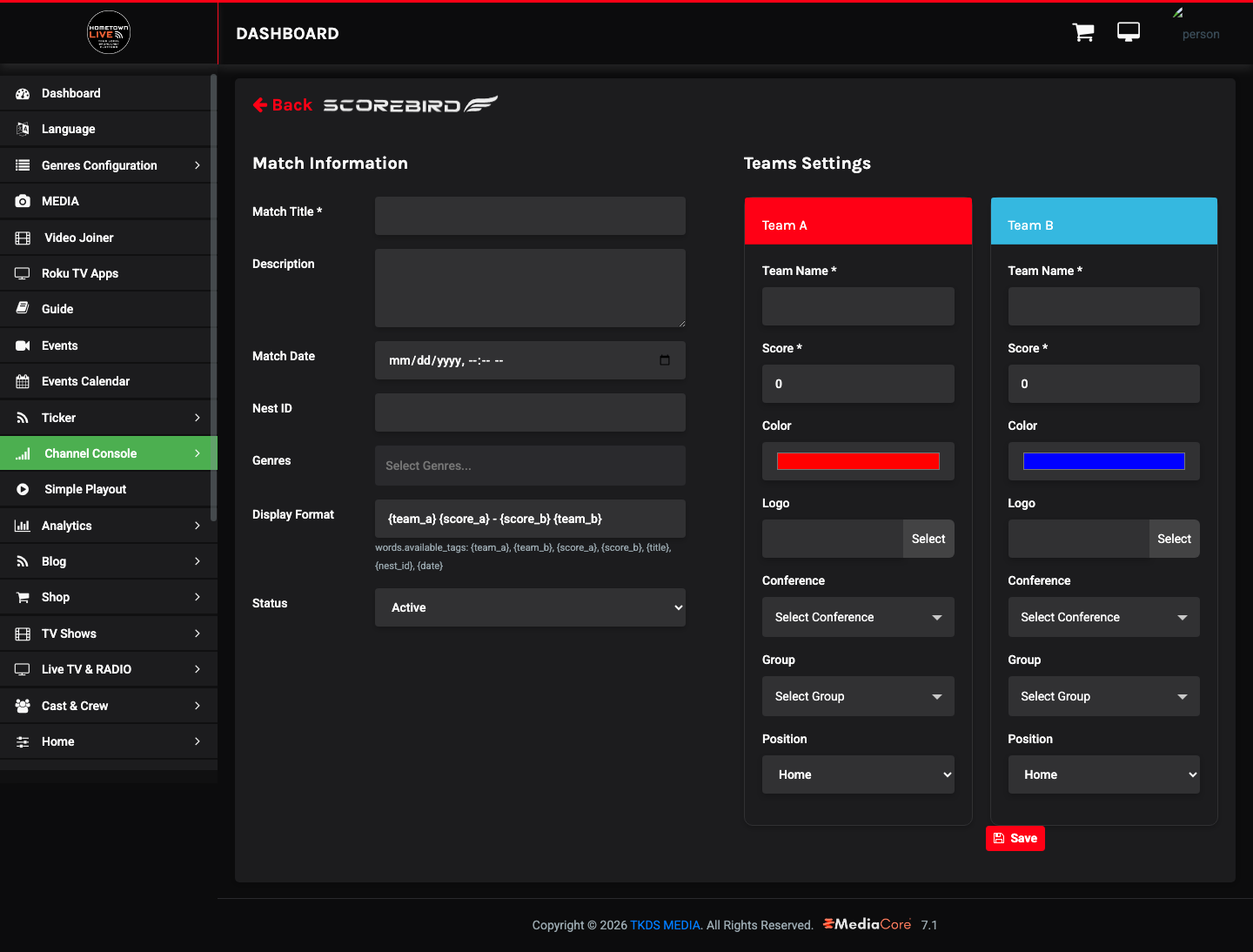
Warning: The NeST ID must exactly match the device ID registered in ScoreBird. An incorrect ID means no score data will appear in the ticker during the game. Verify the NeST ID with your ScoreBird administrator before the event begins.
Enabling the Ticker
The ticker does not appear on the viewer site until you turn it on in the Menu settings.
- In the sidebar, navigate to Settings → Menu.
- Locate the Show Ticker toggle.
- Set the toggle to On.
- Click Save.
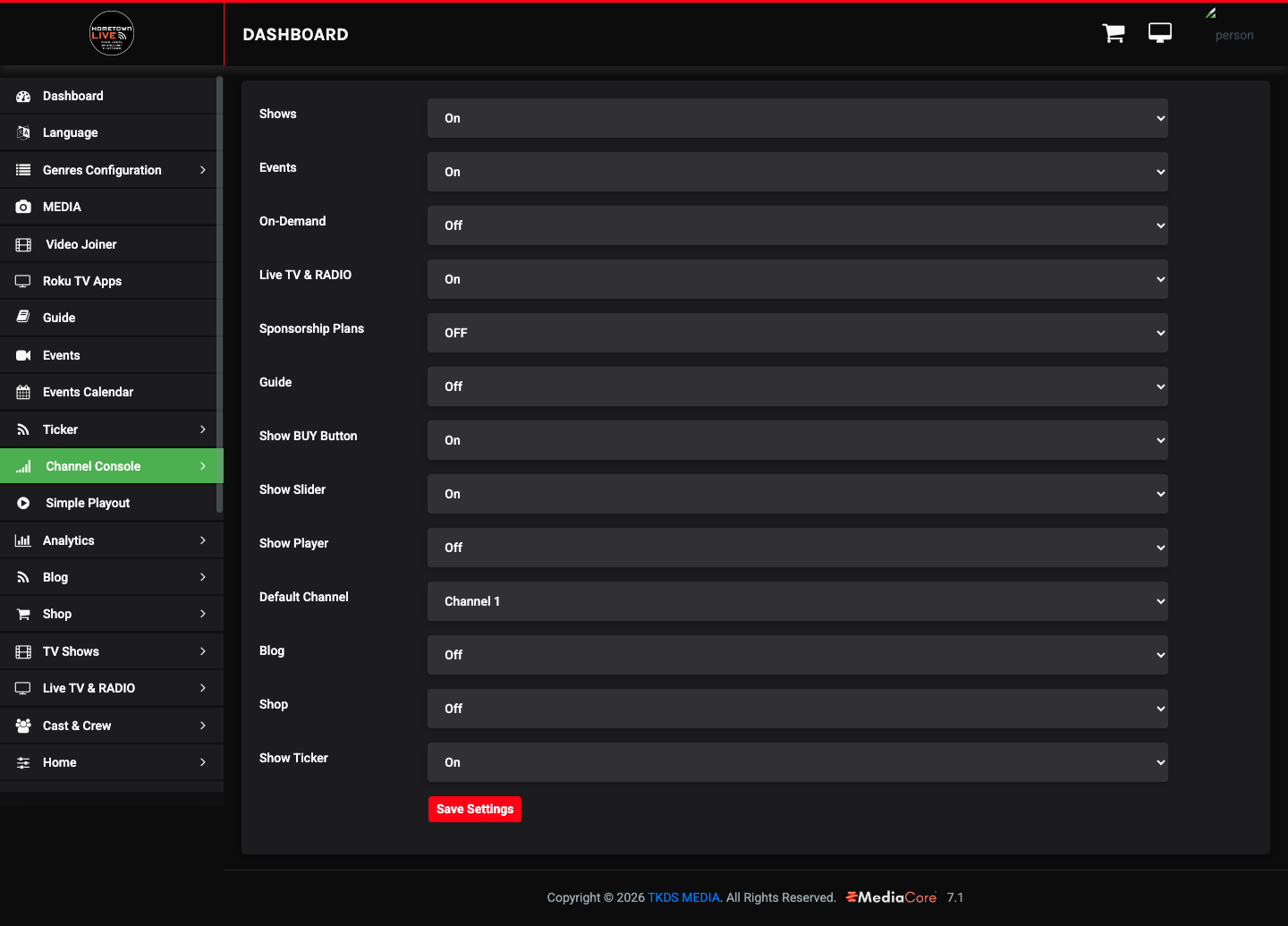
Note: Disabling Show Ticker hides the entire ticker bar from all viewers immediately. Individual content items, alerts, and feeds can be deactivated without hiding the bar by setting their own Status to Inactive.
Still need help?
Can't find what you're looking for? Our support team is here to help.
Contact Support →