
TV Shows
TV Shows are series-style content organized as Shows → Seasons → Episodes. Use TV Shows for recurring programs, recap shows, documentary series, or any content that has multiple episodes grouped into a logical series.
Events vs. TV Shows
| Events | TV Shows |
|---|---|
| One-off broadcasts (a single game or concert) | Episodic series (multiple episodes across seasons) |
| Support live streaming on a channel | On-demand only — no live channel assignment |
| Support ScoreBird scoring overlay | No ScoreBird integration |
| Appear on the Events viewer page | Appear under the TV Shows viewer page |
Note: TV Shows do not support team scoring or ScoreBird integration. Use Events for live scored competitions.
Shows
Location: Sidebar → TV Shows → Shows (/admin/series)
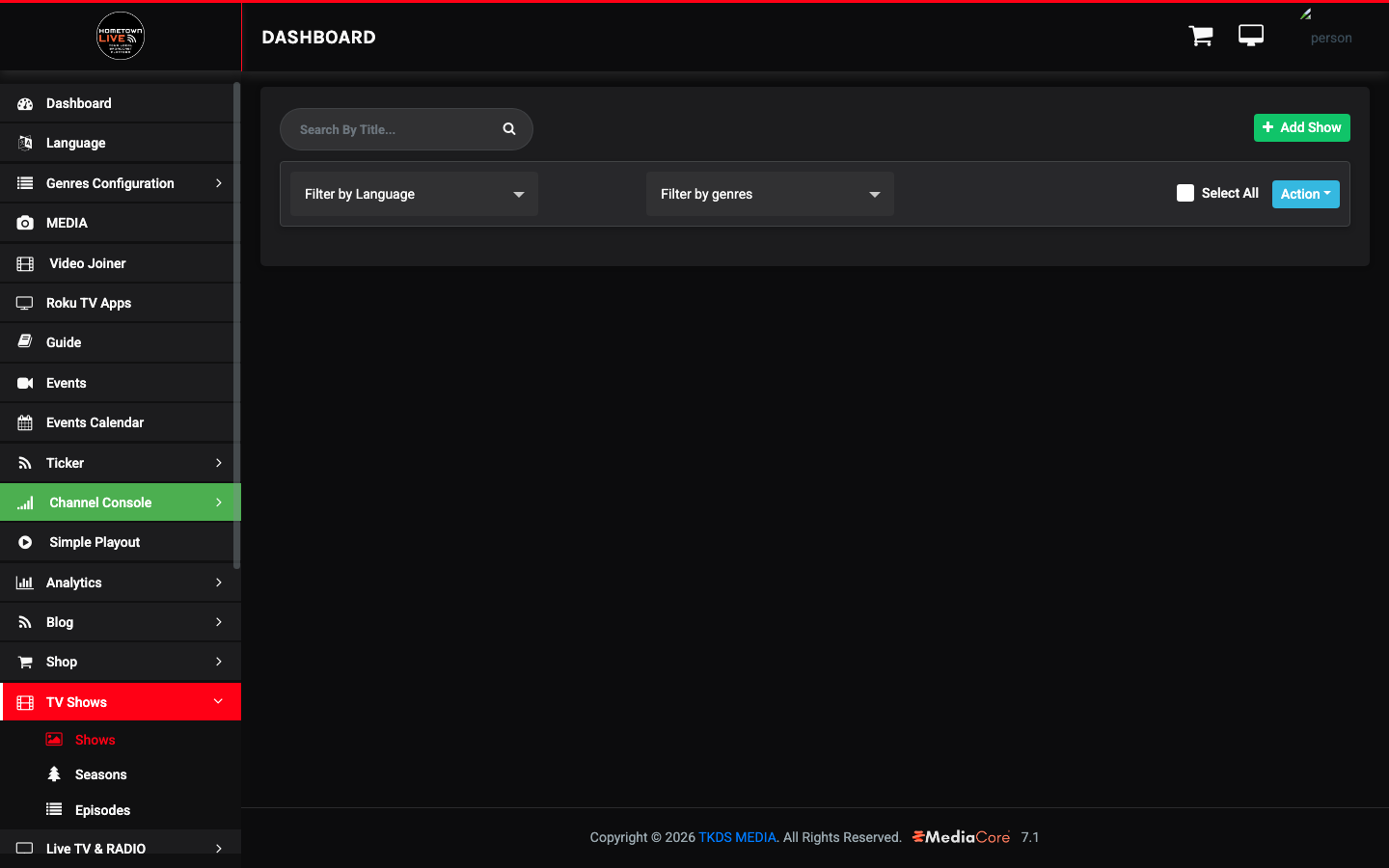
The Shows list displays all configured series. Filter by Language or Genre. Use the Search field to find a show by title. To act on multiple shows, check their boxes and use the Bulk Action dropdown.
Creating a Show
- Click Add Show.
- Fill in the show details:
| Field | Type | Description |
|---|---|---|
| Title | Text | Show name displayed to viewers. |
| Description | Textarea | Summary of the show. |
| Language | Select | Content language (e.g., English). |
| Genres | Multi-select | Athletics, Fine Arts, or News. Select all that apply. |
| Presenters | Search | Assign on-air presenters to this show. |
| Producers | Search | Assign producers to this show. |
| Status | Select | Active (visible to viewers) or Inactive (hidden). |
| Thumbnail | Image upload | Cover artwork for the show. |
| SEO Title | Text | Page title for search engines. |
| SEO Description | Text | Meta description for search engine results. |
| SEO Keywords | Text | Comma-separated keywords. |
- Click Save to create the show.
Tip: Create the Show first, then add Seasons, then add Episodes. You must have a Show before you can create Seasons, and a Season before you can assign Episodes.
Seasons
Location: Sidebar → TV Shows → Seasons (/admin/season)
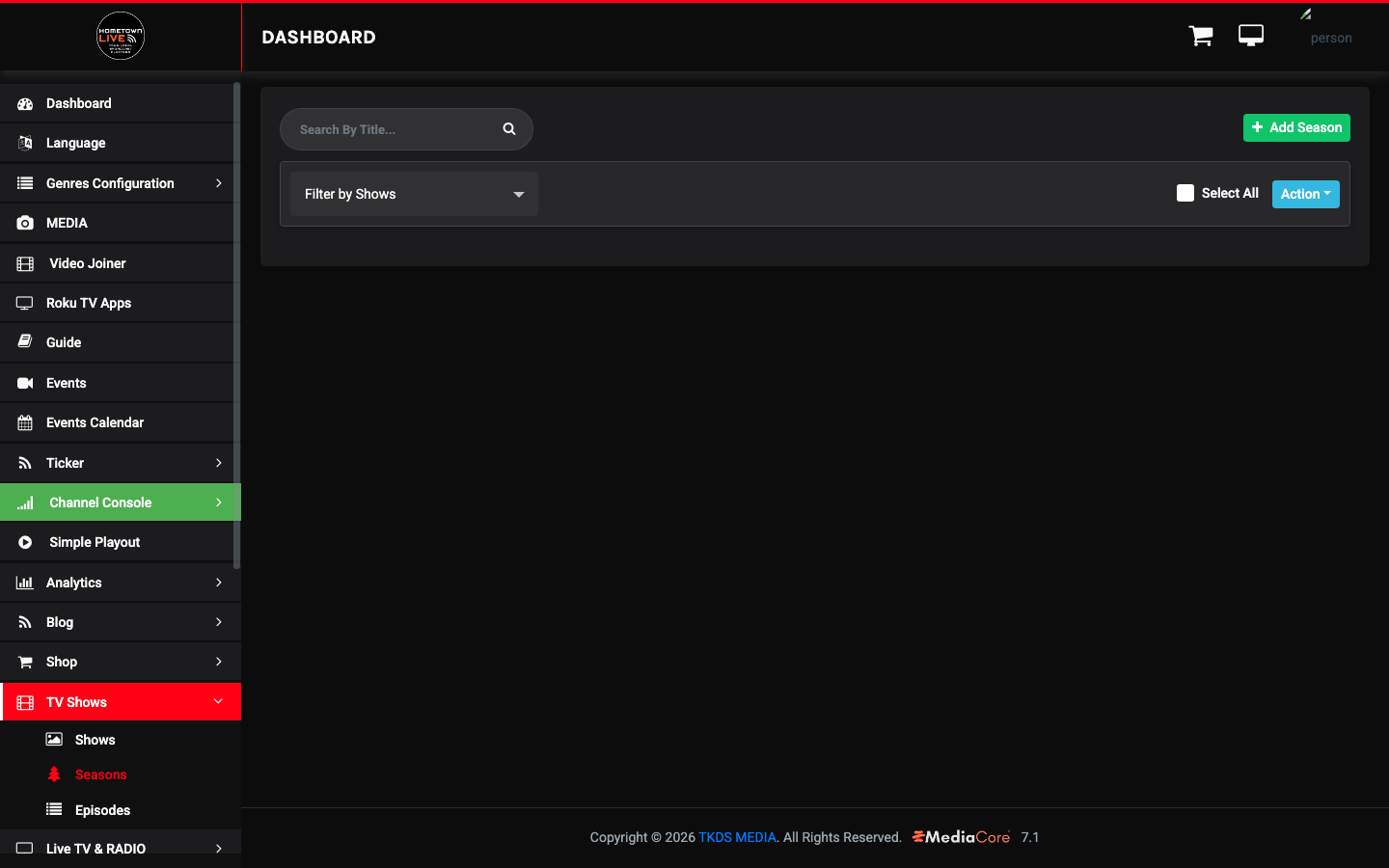
The Seasons list displays all seasons across all shows. Use the Filter by Show dropdown to narrow the list to a specific show.
Creating a Season
- Click Add Season.
- Fill in the season details:
| Field | Type | Description |
|---|---|---|
| Show | Select | The parent show this season belongs to. |
| Season Title | Text | Title for this season (e.g., Fall 2025). |
| Season Number | Number | Numeric order of the season within the show. |
| Description | Textarea | Description of this season. |
| Thumbnail | Image upload | Artwork for this season. |
| Status | Select | Active or Inactive. |
- Click Save to create the season.
Episodes
Location: Sidebar → TV Shows → Episodes (/admin/episodes)
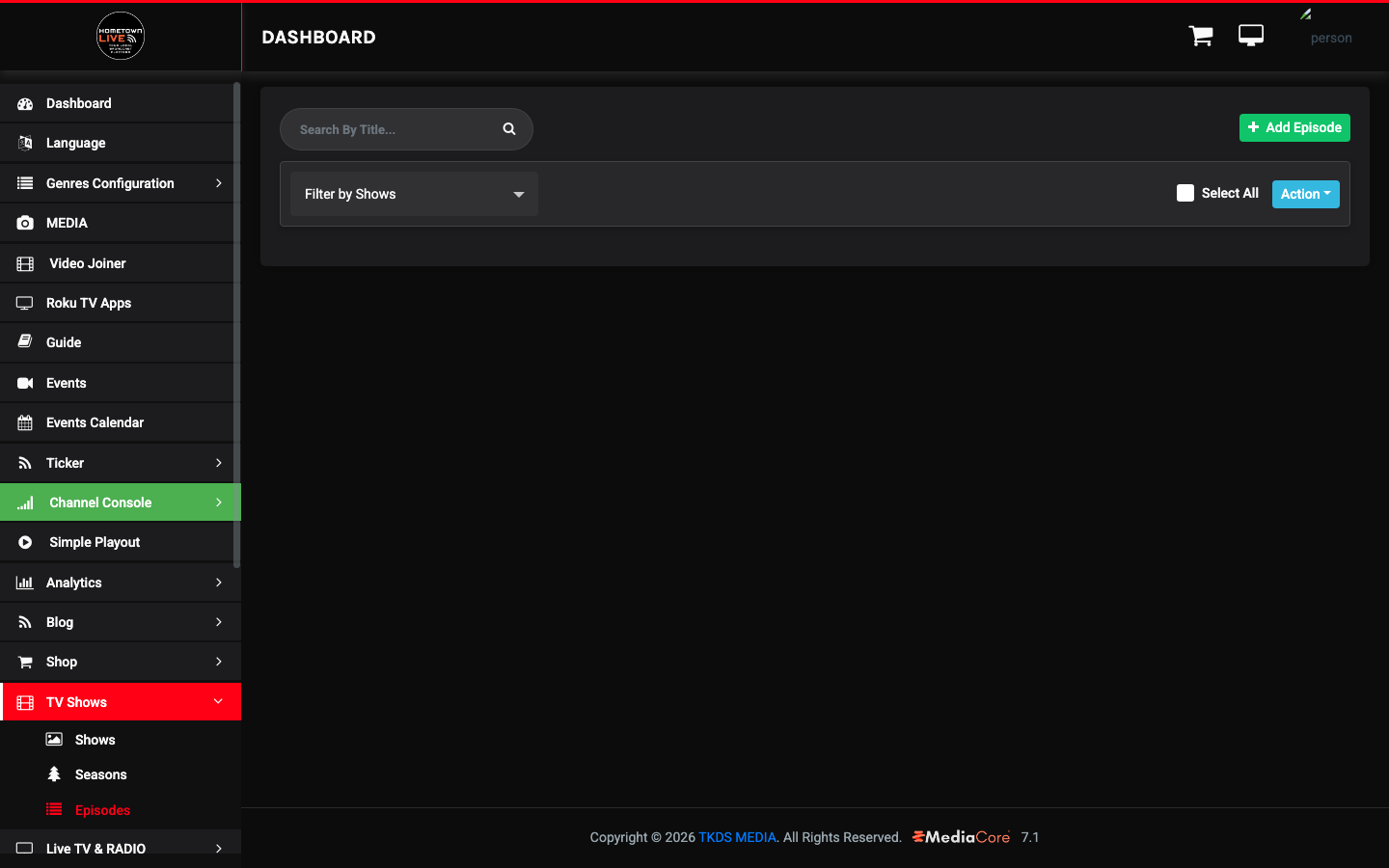
The Episodes list displays all episodes. Use the Filter by Show dropdown to narrow by series.
Creating an Episode
- Click Add Episode.
- Fill in the episode details:
| Field | Type | Description |
|---|---|---|
| Show | Select | The parent show this episode belongs to. |
| Episode Title | Text | Title for this episode. |
| Episode Number | Number | Numeric order of the episode within its season. |
| Season | Select | The season this episode belongs to. |
| Description | Textarea | Description of the episode content. |
| Video Type | Select | Local, URL, HLS/m3u8, MPEG-DASH, YouTube, Vimeo, or Embed Code. |
| Video Source | Text / Textarea | URL, embed code, or upload depending on Video Type selection. |
| Thumbnail | Image upload | Episode thumbnail displayed in the episode list. |
| Status | Select | Active or Inactive. |
- Click Save to publish the episode.
Note: Episodes use the same video source options as Events. For YouTube or Vimeo hosted videos, select the appropriate Video Type and paste the video URL. For self-hosted or CDN content, use URL or HLS/m3u8.
Viewer Experience
TV Shows appear in the viewer navigation under TV Shows. Viewers browse the show library, select a show, choose a season, and then select an episode to watch.


The episode player is the same video player used for Events. No subscription or login is required for shows marked as Free.
Still need help?
Can't find what you're looking for? Our support team is here to help.
Contact Support →