
Events
Creating and managing pay-per-view and free events, ScoreBird integration, and the events calendar.
Events
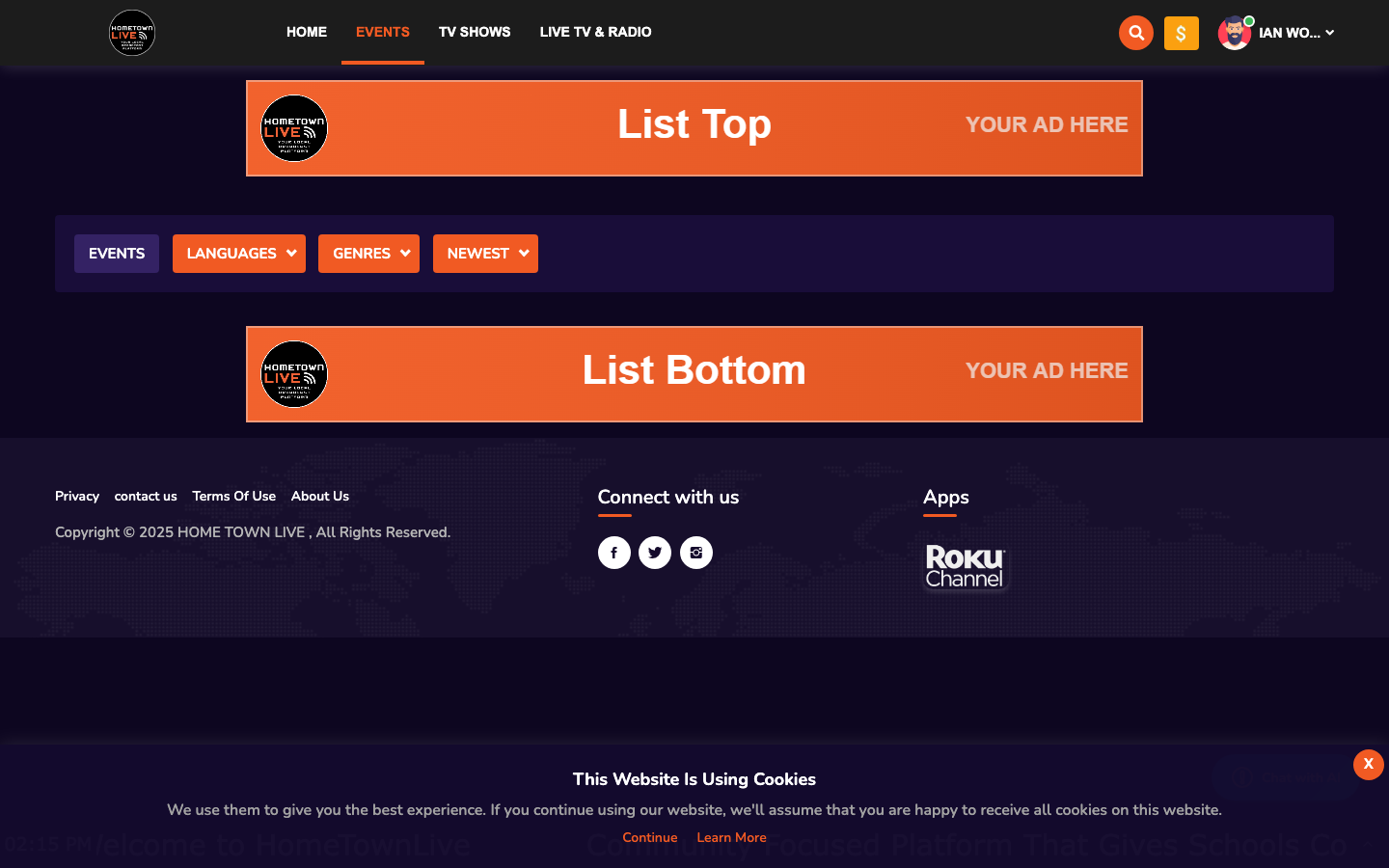
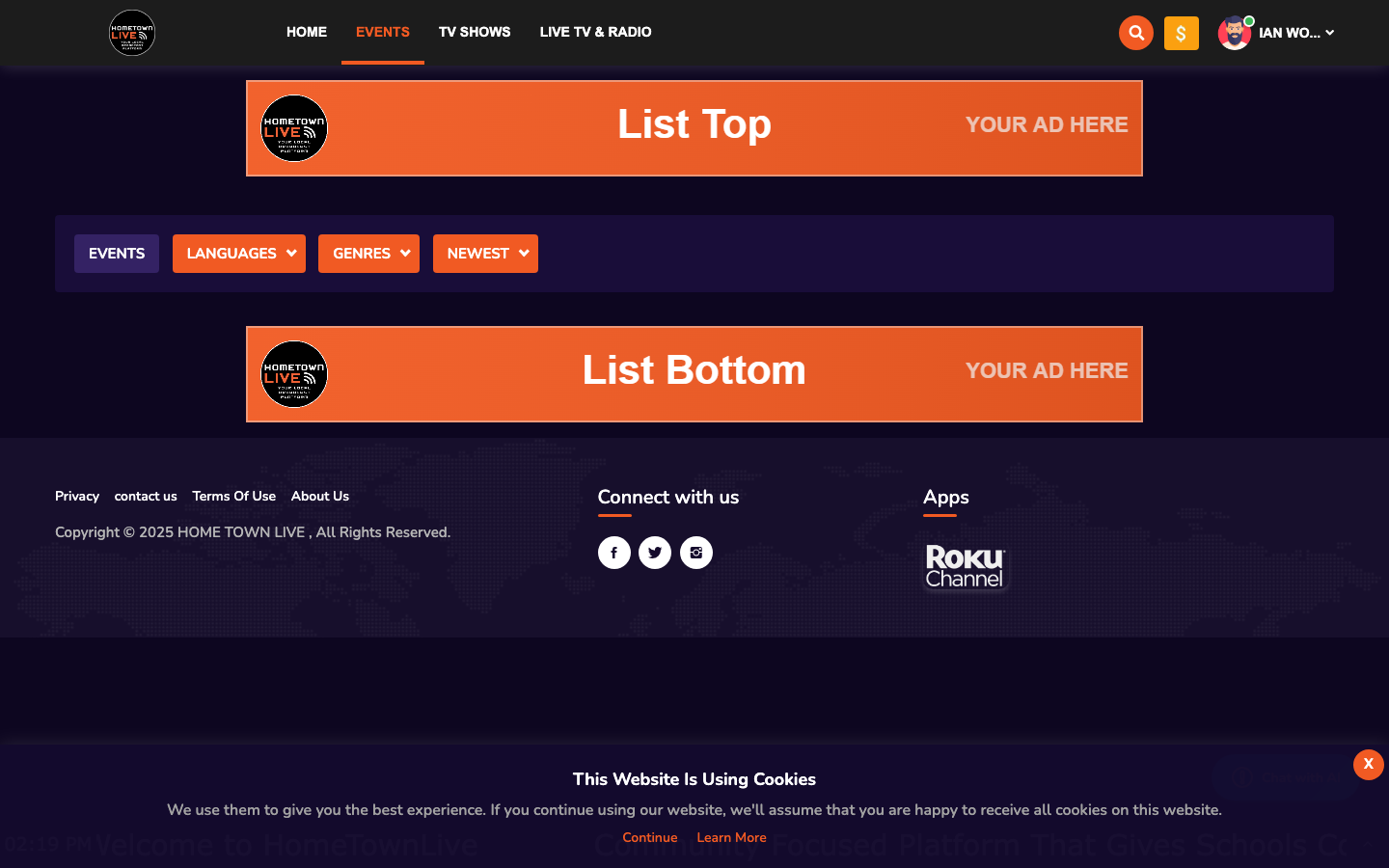
Events are the primary content unit in HometownLive. An event represents a single live or on-demand video item — a game, match, concert, meeting, or any recorded content. Events appear on the public-facing Events page for viewers.
Events List
Location: Sidebar → Events (/admin/events)
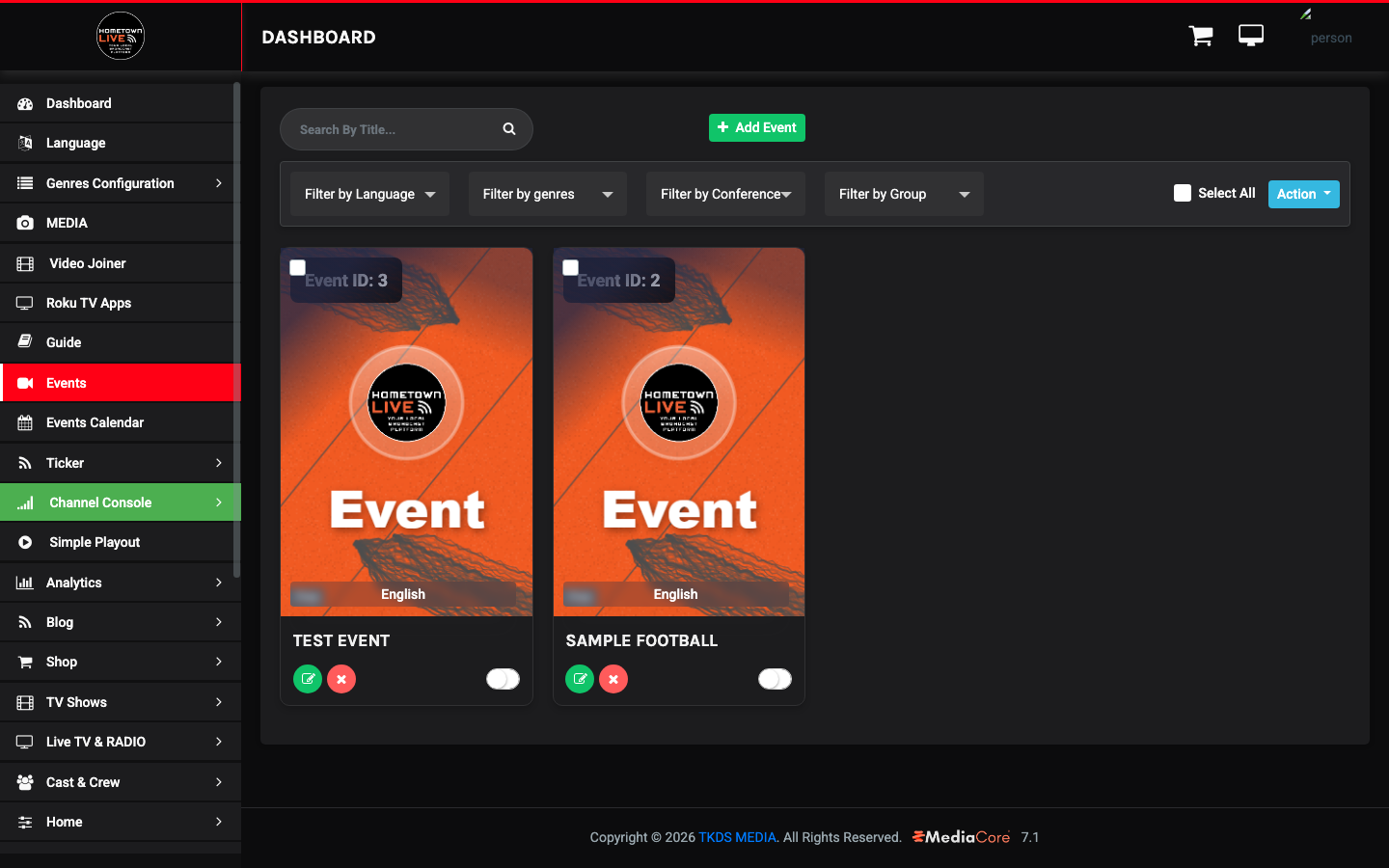
The events list displays a table with these columns:
| Column | Description |
|---|---|
| Event ID | Auto-assigned unique identifier. |
| Title | Event name as shown to viewers. |
| Language | Content language for the event. |
| Access | Free or Paid. |
Use the filter dropdowns to narrow the list by Language, Genre, Conference, or Group. Use the Search field to find a specific event by title.
To act on multiple events at once, check the boxes on the left and use the Action dropdown (Bulk Action).
Events Calendar
The Events Calendar provides a month or week view of all scheduled events.
Location: Sidebar → Events Calendar (/admin/events_calendar)
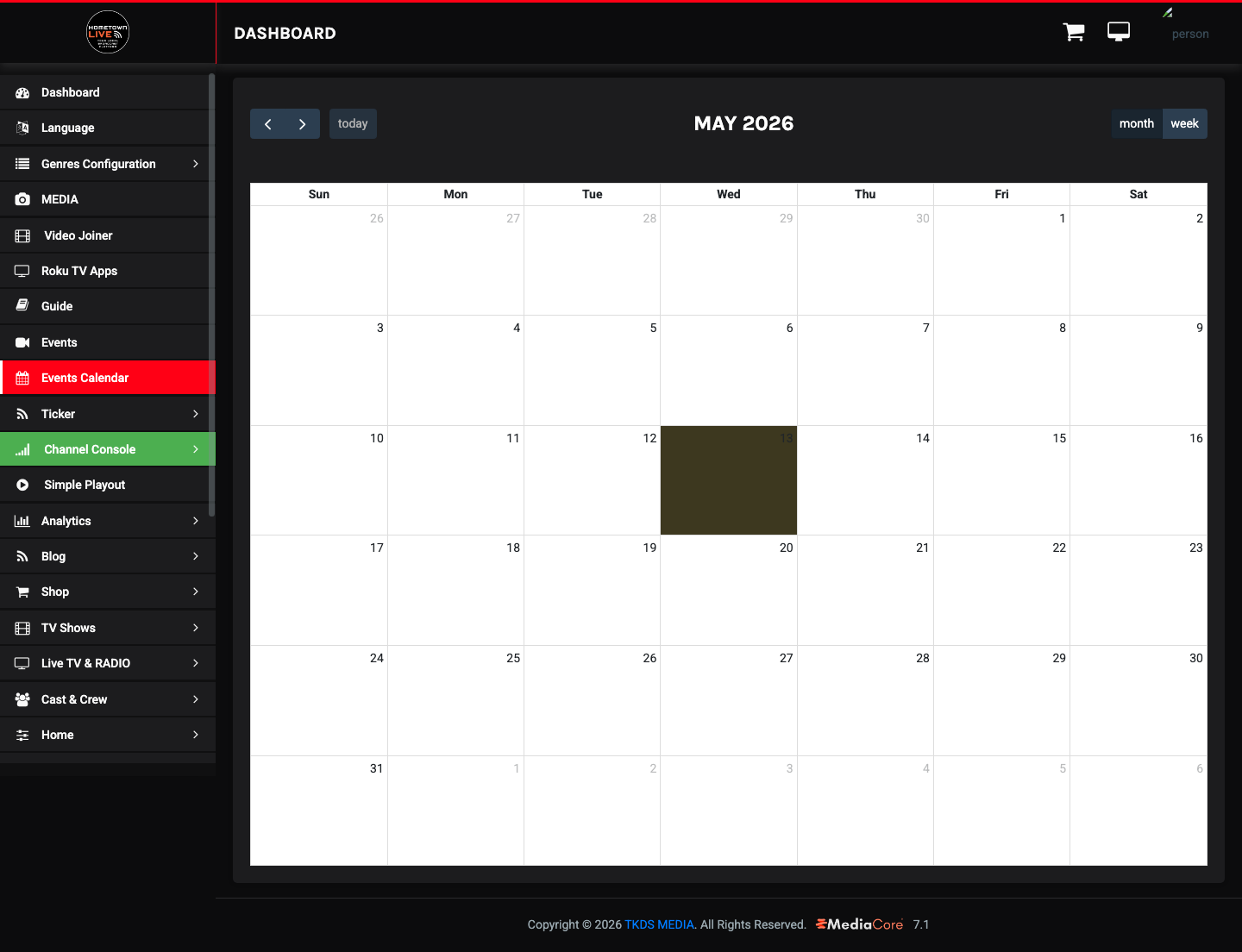
Click Today to return to the current date. Click any date on the grid to see the events scheduled for that day. Events appear as colored entries on the calendar.
Creating or Editing an Event
To create a new event, click Add Event on the Events list page. To edit an existing event, click its title or edit icon.
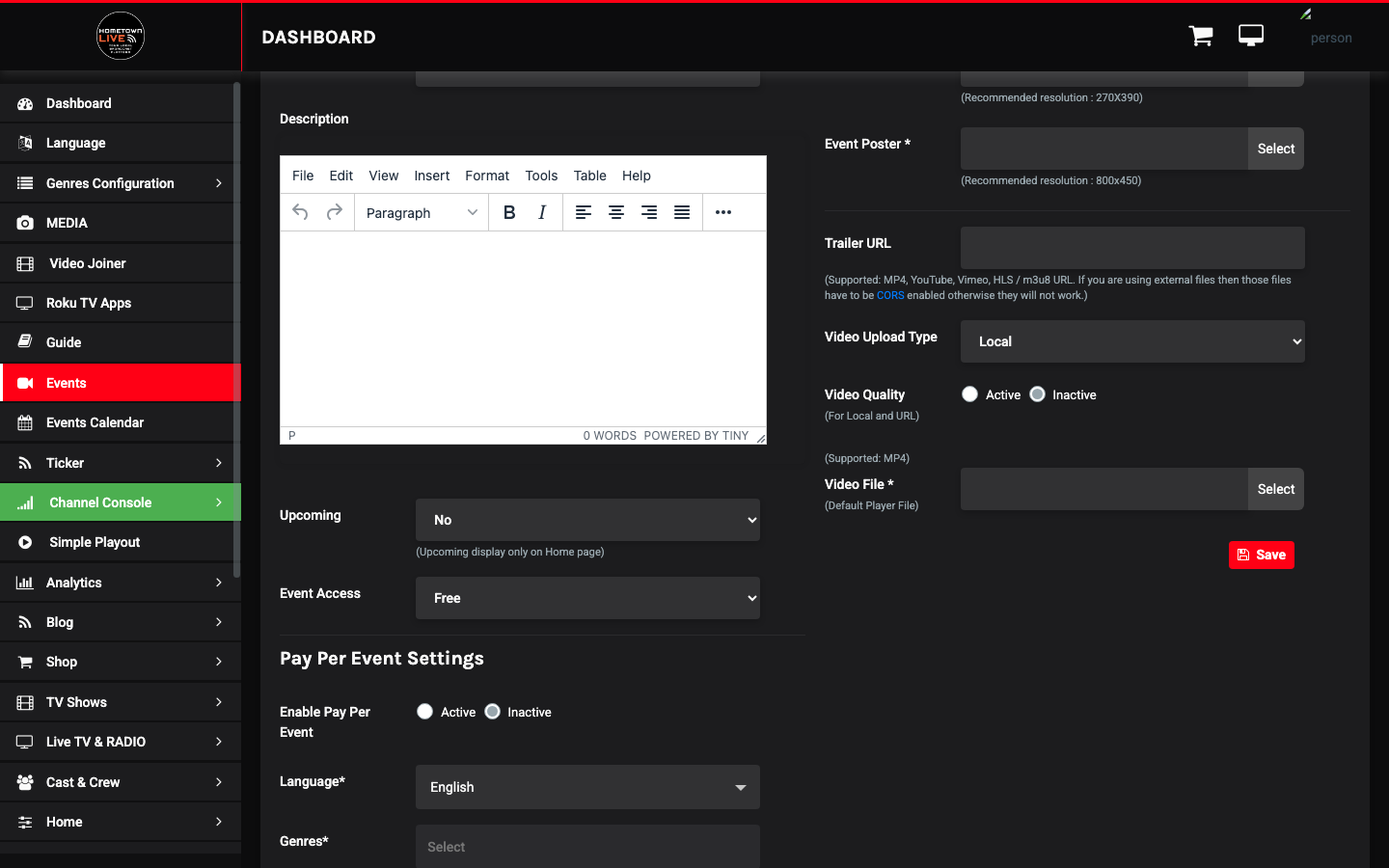
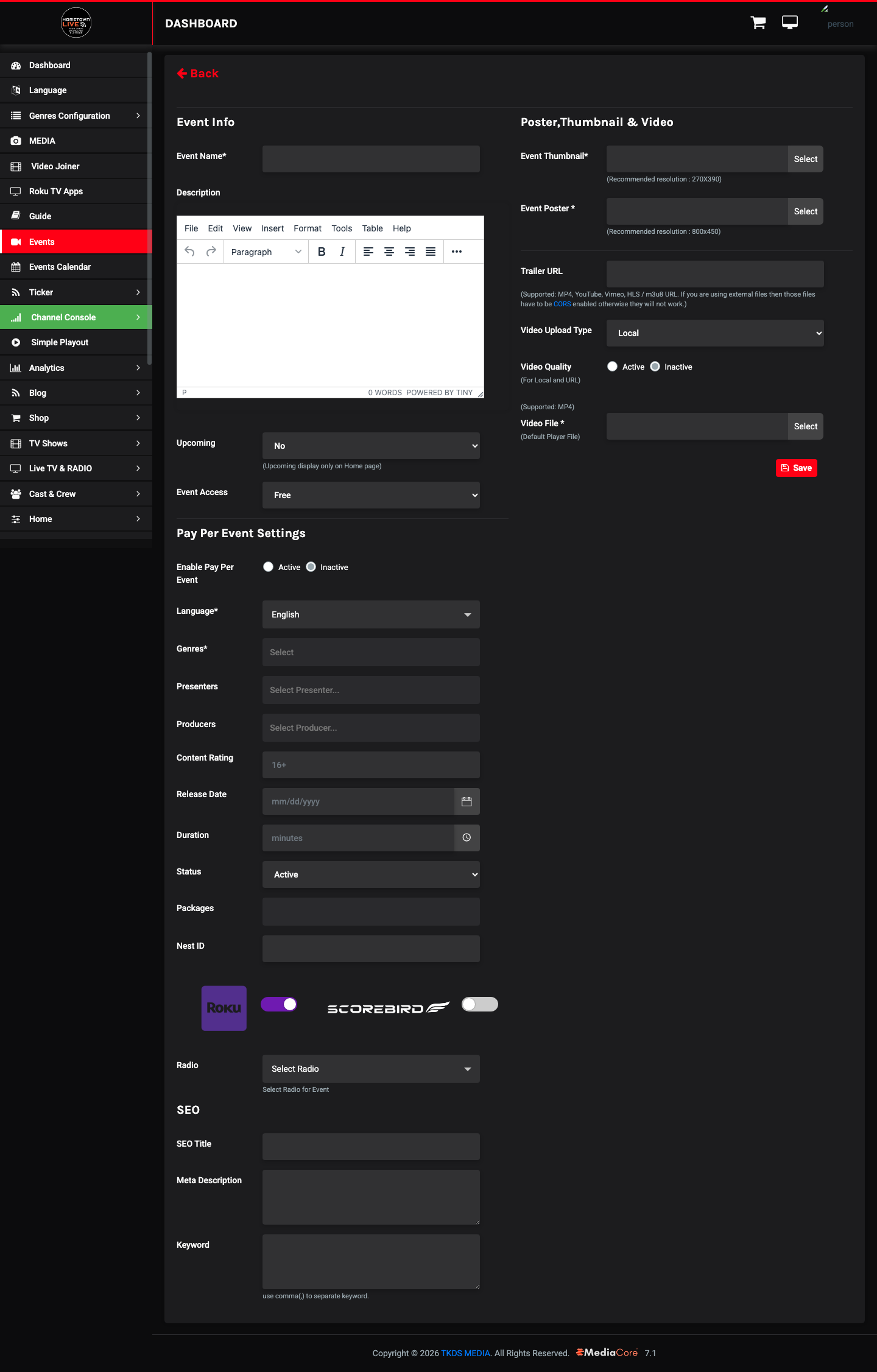
The event form is divided into sections. Complete each section as described below.
Basic Info
| Field | Type | Description |
|---|---|---|
| Title | Text | Event title shown to viewers. |
| Description | Textarea | Full description of the event. |
| Upcoming | Select | No — available now. Yes — upcoming, not yet live. |
| Access | Select | Free or Paid $. |
| Status | Radio | Active (visible to viewers) or Inactive (hidden). |
Pay-Per-View
This section applies only when Access is set to Paid $.
| Field | Description |
|---|---|
| PPV Price | Purchase price in dollars. |
| PPV Access Hours | Number of hours the viewer can access the event after purchase. |
| PPV Description | Short description shown on the purchase prompt. |
Note: Leave the Pay-Per-View section empty when the event is Free. PPV fields have no effect unless Access is set to Paid $.
Classification
| Field | Description |
|---|---|
| Language | Content language (e.g., English). |
| Genres | Multi-select: Athletics, Fine Arts, News. Select all that apply. |
| Presenters | Search and assign on-air presenters for this event. |
| Producers | Search and assign producers for this event. |
| Rating | Content rating (e.g., 16+). |
Schedule
| Field | Description |
|---|---|
| Date | Event date in mm/dd/yyyy format. |
| Timezone | Select the broadcast timezone: EST, CST, MST, PST, or GMT. |
| Start Date/Time | Event start timestamp. |
| End Date/Time | Event end timestamp. |
Tip: Always set the timezone to match the location of the event, not the admin's location. This ensures the schedule displays correctly for local viewers.
Distribution
| Field | Description |
|---|---|
| Home Sections | Which homepage sections should feature this event (e.g., LIVE NOW). |
| Live TV Channel | Required. Which of the 4 channels to stream this event on. |
| Stream Minutes | Required. Maximum stream duration in minutes. The stream stops after this limit. |
| Subscription Packages | Which subscription plans include access to this event. |
| NeST ID | The ScoreBird NeST device ID for live scoring overlay integration. |
| Roku | Enable this event's listing on the Roku channel. |
| ScoreBird | Enable the ScoreBird scoring overlay on this event's video player. |
Note: IT / Installer: The NeST ID must match the device ID configured in ScoreBird. An incorrect ID will prevent score data from appearing on the overlay. Verify the NeST ID with the ScoreBird administrator before the event.
Teams
The Teams section captures team data for scored events. Complete both Team A and Team B.
| Field | Description |
|---|---|
| Team Name | Display name for the team. |
| Score | Current or final score. |
| Color | Team color — select using the color picker. |
| Logo | URL of the team logo image. |
| Conference | The conference this team belongs to (e.g., Varsity Football, Marching Band). |
| Group | The group this team belongs to (e.g., Baseball Boosters, DECA, HOSA). |
| Position | Home or Away. |
Tip: Team data can be updated after the event is created. Use the edit screen to enter final scores once a game is complete.
Radio
| Field | Description |
|---|---|
| Radio | Assign a radio stream to accompany this event. |
SEO
| Field | Description |
|---|---|
| SEO Title | Page title displayed in browser tabs and search engine results. |
| SEO Description | Meta description shown in search engine result previews. |
| SEO Keywords | Comma-separated keywords to improve search discoverability. |
Media
| Field | Description |
|---|---|
| Thumbnail | Primary event thumbnail image shown in listings. |
| Thumbnail (small) | Smaller thumbnail variant used in compact display contexts. |
| Trailer URL | Optional URL for a preview/trailer video. |
| Video Type | Local, URL, HLS/m3u8, MPEG-DASH, YouTube, Vimeo, or Embed Code. |
| Video URLs | Quality-specific URLs: 480p, 720p, and 1080p (or a single URL depending on Video Type). |
| Embed Code | HTML embed code — only used when Video Type is Embed Code. |
| HLS/DASH URL | A .m3u8 or .mpd URL — used when Video Type is HLS/m3u8 or MPEG-DASH. |
Note: For live events streaming from a HometownLive channel, set Video Type to HLS/m3u8 and enter the channel's stream URL in the HLS/DASH URL field.
ScoreBird Integration
When ScoreBird is enabled on an event and a valid NeST ID is entered, the platform connects to the ScoreBird device and pulls live score data. Scores are overlaid directly on the video player, visible to all viewers watching the event.
The overlay updates in real time as scores change. No additional action is required from the admin once the event is live and ScoreBird is connected.
Warning: Do not enable the ScoreBird overlay on events where no NeST device is connected. An enabled overlay with no active ScoreBird device will display incorrect or empty score data on the player.
Step-by-Step: Creating a Live Event
This procedure walks through creating a complete live event from start to finish.
- In the sidebar, click Events.
- Click Add Event.
- In the Basic Info section, enter the Title and Description for the event.
- Set Upcoming to Yes if the event has not started yet, or No if it is live now.
- Set Access to Free or Paid $ as appropriate.
- Set Status to Active.
- In the Classification section, select the appropriate Genres (e.g., Athletics).
- In the Schedule section, set the Date, Timezone, Start Date/Time, and End Date/Time.
- In the Distribution section, select the Live TV Channel this event will broadcast on.
- Enter the Stream Minutes value — the maximum duration of the stream.
- If this event uses ScoreBird live scoring, toggle ScoreBird to enabled and enter the NeST ID.
- In the Teams section (if applicable), enter team names, colors, logos, conferences, and home/away positions.
- In the Media section, set Video Type to HLS/m3u8.
- Enter the HLS stream URL for the assigned channel in the HLS/DASH URL field.
- (Optional) Add a Thumbnail image for the event listing.
- Review all sections for accuracy.
- Click Save to publish the event.
Tip: After saving, open the event's public viewer page to confirm the stream loads and the ScoreBird overlay appears if enabled. Do this a few minutes before the scheduled start time.
Still need help?
Can't find what you're looking for? Our support team is here to help.
Contact Support →