
Troubleshooting
This chapter covers the most common issues encountered by both admins and viewers. Each entry describes the symptom, the most likely causes, and the steps to resolve it. Work through the steps in order — most issues are resolved by the first or second step.
Admin Troubleshooting
Stream Shows "Finished" But the Event Should Be Live
Symptom: Viewers see a "Finished" status on an event that is actively being broadcast.
Cause: The encoder is not connected to the channel, the RTMP push has stalled, or the channel status in Feeds Console does not reflect the active stream.
Resolution:
- Verify your encoder (OBS, TKDS Streaming App, or hardware encoder) is running and actively pushing.
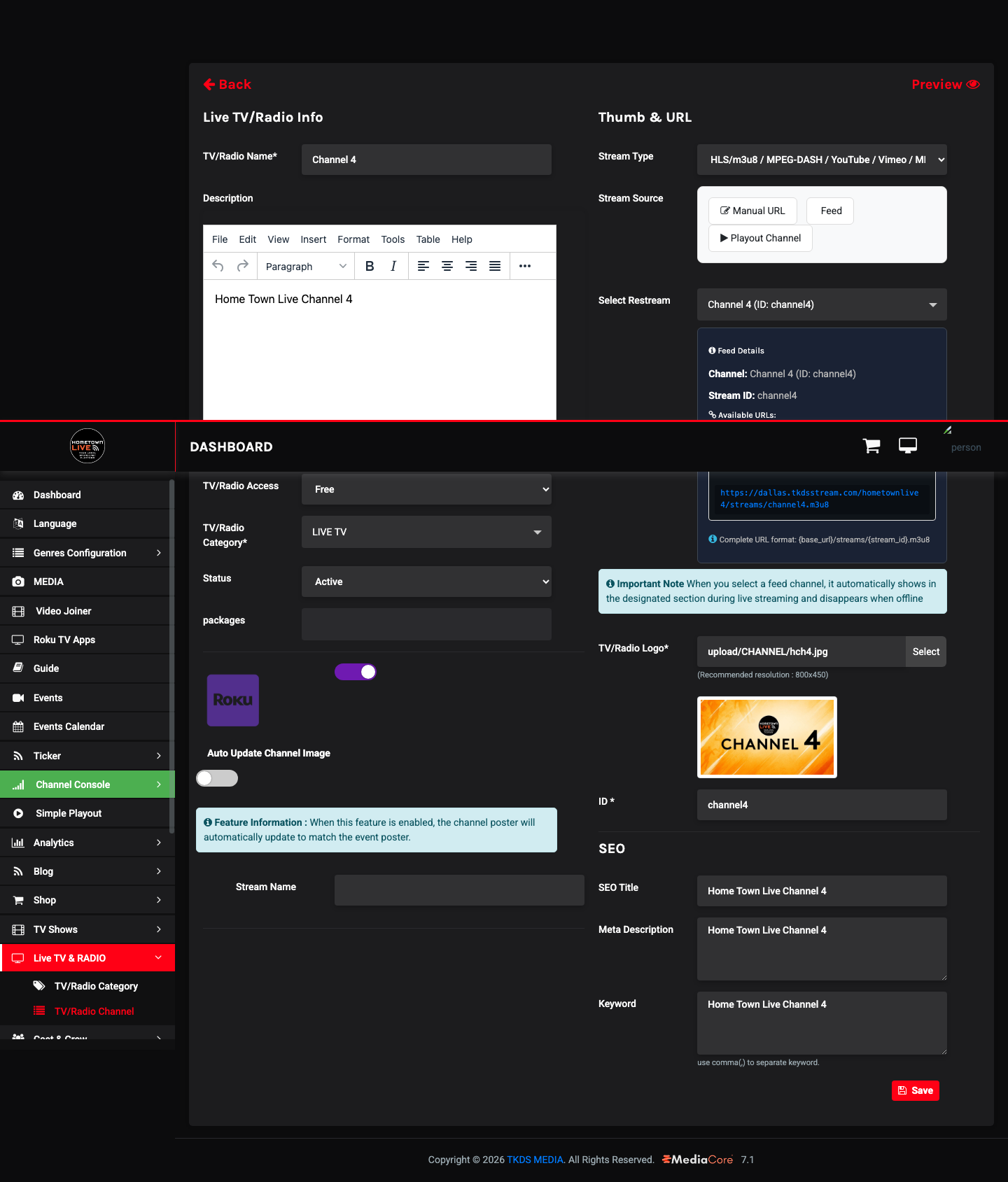
- Confirm the encoder is pointing to the correct RTMP URL and Stream Key for this channel. Copy the RTMP URL and Stream Key from Admin → Live Channels → the channel's edit page.
- Check that the encoder software shows a connected and streaming status — not an error or disconnected state.
- In the admin panel, go to Admin → Live Channels → Feeds Console for the channel and verify the incoming stream is showing an active signal.
- If the stream shows as stalled in Feeds Console, stop and restart the encoder.
- Update the Event status to Live if it has been set to Finished or Upcoming incorrectly.
Tip: Keep the Feeds Console open on a second screen during a broadcast so you can monitor the incoming stream status in real time.
Cannot Log In to the Admin Panel
Symptom: Entering admin credentials on the login page results in an error or the page reloads without granting access.
Cause: Incorrect email or password, an expired or locked account, or a reCAPTCHA failure.
Resolution:
- Confirm you are entering the correct email address — admin accounts are provisioned by HometownLive, not self-created.
- Click Forgot Password? on the login page and follow the password reset process.
- If the Forgot Password email does not arrive, check the spam/junk folder.
- If reCAPTCHA is enabled on the login form, ensure you complete it before clicking Log In.
- If none of the above resolves the issue, contact HometownLive support at
https://platform.hometownlive.tv/page/contact-usto verify your account status.
Note: Admin accounts are separate from viewer accounts. If you can log in to the viewer-facing site but not the admin panel, your account has viewer-only access.
Event Not Appearing on the Viewer-Facing Site
Symptom: An event was created and saved in the admin panel but does not appear in the Events listing on the viewer site.
Cause: The event status is Inactive, the start date is in the future beyond the visible window, or the channel assigned to the event is inactive.
Resolution:
- Go to Admin → Events and find the event.
- Verify the event Status is set to Active. Inactive events are hidden from viewers.
- Check the event Start Date and Start Time. Some views filter by date — verify the date is correct and not set to a past or far-future date incorrectly.
- Confirm the Channel assigned to this event is Active. Go to Admin → Live Channels and verify the channel status.
- Verify the Genre and Language assigned to the event are Active in Settings → Genres and Settings → Language.
- Save the event again to force a cache refresh.
Roku Channel Not Showing in the Roku Channel Store
Symptom: Viewers report they cannot find the HometownLive Roku channel when searching the Roku Channel Store.
Cause: The Roku checkbox is not enabled on the channel configuration, or the required Roku TV app assets (background image, banner image) have not been uploaded.
Resolution:
- In the admin panel, go to Admin → Live Channels and open the channel.
- Verify the Roku checkbox is enabled.
- Go to Admin → Settings → Roku TV Apps (or the Roku configuration section for this channel).
- Confirm a Background Image and Banner Image have been uploaded. These are required by Roku for the channel to display correctly.
- If images were just uploaded, Roku channel updates can take 24–48 hours to propagate through the Roku Channel Store.
- Confirm the channel is using the correct Roku channel credentials provided by HometownLive during setup.
Note: IT / Installer: Roku channel publication is part of the initial platform setup. If the Roku channel has never appeared, contact HometownLive support — the channel may not yet be submitted to the Roku Channel Store.
ScoreBird Live Scores Not Appearing on the Stream
Symptom: A ScoreBird-connected event is live but the scoring overlay is not showing on the video player.
Cause: The nest_id is incorrect, the ScoreBird device is offline, or the ScoreBird integration is not enabled on the event.
Resolution:
- Open the event in the admin panel and verify the ScoreBird checkbox is enabled.
- Confirm the nest_id field contains the correct NeST ID for the connected ScoreBird device. The NeST ID is visible in the ScoreBird admin portal or on the device label.
- Verify the ScoreBird NeST device is powered on, connected to the network, and actively scoring the game. Log in to the ScoreBird admin to confirm the device status.
- Verify the ScoreBird API Key is correctly entered in Settings → General Settings →
scorebird_api_key. - If the API key or NeST ID were just changed, reload the event page in the viewer-facing browser.
Tip: Test the ScoreBird integration before the game starts by enabling the event early and verifying the overlay appears. This gives you time to troubleshoot before the broadcast begins.
Ticker Not Showing on the Viewer-Facing Site
Symptom: The scrolling ticker is not visible at the top or bottom of the viewer site.
Cause: The Show Ticker toggle is disabled in Menu Settings, or the ticker has no Active content items.
Resolution:
- Go to Admin → Settings → Menu and verify Show Ticker is set to On.
- Go to Admin → Ticker and verify that at least one ticker item has Status set to Active.
- If ticker items exist but none are active, toggle at least one item to Active.
- If the Show Ticker setting was just changed, reload the viewer-facing site in a new browser tab.
Video Not Playing for Viewers
Symptom: Viewers report that the video player loads but the video does not play, or the player shows an error.
Cause: The video type or URL is misconfigured, the HLS stream is not accessible, or the channel is set to Paid without an active subscription plan assigned.
Resolution:
- Open the event or channel in the admin panel.
- Verify the Video Type field matches the actual source: HLS (
.m3u8), MP4, YouTube, or RTMP. - If using HLS, paste the
.m3u8URL into a browser tab or VLC player to verify it loads independently of the platform. - If the stream URL has changed (e.g., a new encoder was configured), update the channel's stream URL.
- If the event is set to Paid, verify that at least one active subscription or PPV plan is assigned to it. A paid event with no plan configured blocks all viewers.
- Check the Default Access setting in Settings → General Settings. If it is set to Paid, new content may inadvertently require purchase.
- Verify the channel is not set to a Paid plan that has expired.
Warning: If you change a Free channel to Paid, all viewers immediately lose access until they complete a purchase. Coordinate any access changes with your community to avoid disrupting an active broadcast.
Maintenance Mode Was Accidentally Enabled
Symptom: Visitors to the site see a maintenance page. Maintenance mode was enabled unintentionally or you need to access the site while maintenance mode is on.
Cause: The Maintenance Mode toggle in Settings → Site Maintenance is set to On.
Resolution:
- Locate the Maintenance Secret from Settings → Site Maintenance. If you do not have it written down, it is visible in the Site Maintenance settings page — but maintenance mode blocks the admin panel login. In that case, proceed to step 2.
- If you can still access the admin panel (because you are already logged in), go to Settings → Site Maintenance and click Off to disable maintenance mode immediately.
- If you have been locked out of the admin panel by maintenance mode, use the bypass URL: navigate to
https://platform.hometownlive.tv/TKDSwith your Maintenance Secret appended. This sets a bypass cookie in your browser. - Once you have bypass access, navigate to the admin panel and disable maintenance mode.
- Verify the viewer site is accessible by opening it in a private/incognito browser window.
Note: Write down your Maintenance Secret and store it securely before enabling maintenance mode. You will need it to regain access if you are locked out.
Viewer Troubleshooting
Cannot Watch a Live Channel
Symptom: Clicking Watch on a channel either shows a spinner that never resolves, plays no video, or shows an error message.
Cause: The event may not have started yet, the channel may be offline, the school may have put the site in maintenance, or there is a network issue on the viewer side.
Resolution:
- Check the Events page to confirm the event's scheduled start time. The channel may not be live yet.
- Refresh the page and try again. A stale browser cache can prevent the player from loading new stream URLs.
- Try opening the channel in a different browser (Chrome, Firefox, or Edge).
- Check your internet connection by loading another site or video service.
- If the site shows a maintenance message, the school is performing updates. Check back later or contact the school for an expected return time.
- If other channels on the site work but this specific one does not, the channel may be offline. Contact the school's AV team.
Video Is Buffering or Quality Is Poor
Symptom: The video stutters, pauses to buffer, or looks pixelated or blurry.
Cause: The viewer's internet connection does not have sufficient bandwidth to sustain the stream, or the viewer's device is under load.
Resolution:
- Test your internet speed at
fast.comorspeedtest.net. Live video typically requires at least 5–10 Mbps for reliable playback. - Move closer to your Wi-Fi router or connect via ethernet cable if possible.
- Close other applications and browser tabs that are using bandwidth (other streaming services, video calls, large file downloads).
- If the player offers a quality selector, try selecting a lower quality level.
- Try watching on a different device on the same network to determine whether the issue is device-specific.
- Restart your router and modem if other devices on the same network are also experiencing slowness.
Tip: Cellular connections (4G/5G) can handle most streams, but you may experience brief buffering during peak usage or in areas with weak signal. For important events, use a Wi-Fi connection when available.
"Access Denied" or "Purchase Required" Message
Symptom: Clicking an event or channel shows a message indicating access is denied or requires a purchase.
Cause: The event is Pay-Per-View and requires purchase, or a previously purchased access period has expired.
Resolution:
- Verify you are logged in to your viewer account. Access Denied messages on PPV content require you to be signed in before purchasing.
- Check whether you have already purchased this event. Log in and check your account for active purchases.
- If your purchased access has expired, contact the school to ask whether extended access is available.
- If you believe you purchased access but still see an access denied message, try logging out and back in to refresh your session.
- If the issue persists, contact the school using the Contact Us form at
https://platform.hometownlive.tv/page/contact-us.
Note: Access duration is set by the school administrator, not by HometownLive. The school's AV team can confirm how long access lasts for a specific event.
Forgot Password
Symptom: You cannot remember your password and need to regain access to your viewer account.
Resolution:
- Go to
https://platform.hometownlive.tv/login. - Click Forgot Password?.
- Enter the email address you used to create your account.
- Click Submit and check your email inbox for a reset link.
- If the email does not arrive within 5 minutes, check your spam/junk folder.
- Follow the link in the email to set a new password.
Note: Free content does not require an account. Only PPV purchases require you to be logged in. If you only need to watch free content, you can skip account recovery entirely.
Roku Channel Not Loading
Symptom: The HometownLive Roku channel opens but displays an error, spins without loading, or shows no content.
Cause: The Roku device is offline or has a stale cache, the channel app needs an update, or the school's HometownLive platform is temporarily unavailable.
Resolution:
- Press the Home button on the Roku remote to exit the channel.
- Re-launch the HometownLive channel.
- If the channel still fails to load, press Home again and navigate to Settings → System → System Restart to restart the Roku device.
- Check for channel updates: go to Settings → System → System Update on your Roku.
- Verify your internet connection is working by opening another channel (e.g., YouTube or The Roku Channel).
- If your internet connection is working but HometownLive still fails, the school's platform may be experiencing downtime. Try again in a few minutes or contact the school.
Tip: Most Roku playback issues are resolved by a simple device restart. Press and hold the Home button for 5 seconds to access the restart option from anywhere on the Roku.
Still need help?
Can't find what you're looking for? Our support team is here to help.
Contact Support →