
Users & Plans
Managing viewer accounts, admin users, subscription plans, and coupons.
Users and Plans
This chapter covers viewer account management, admin accounts, subscription plans, and coupons. Viewer accounts represent the people who watch content on your platform. Admin accounts grant access to the administrative panel. Subscription plans define what content viewers can access and for how long.
User Accounts
Location: Sidebar → Users (/admin/users)
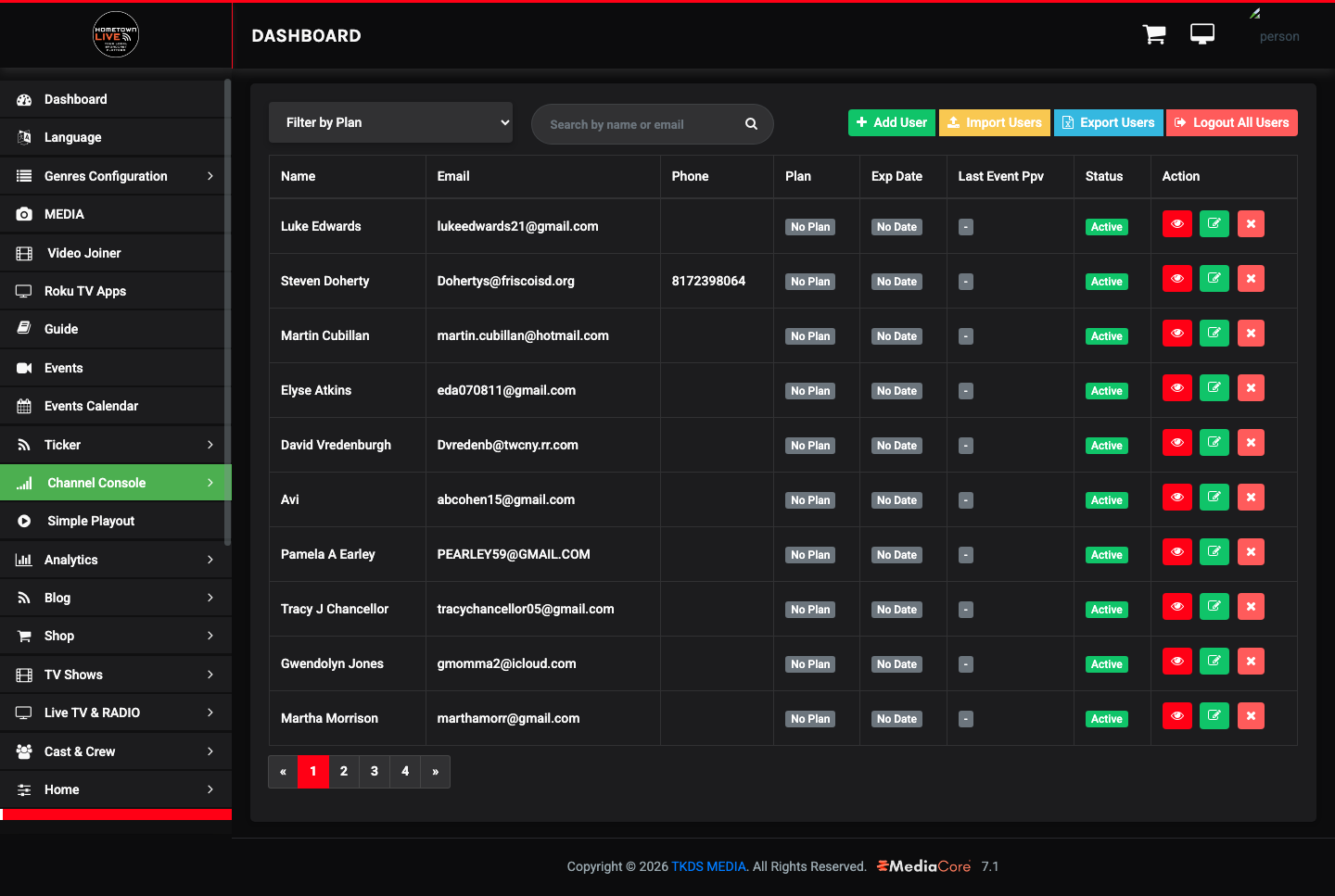
The Users list shows all registered viewer accounts on the platform. The table is paginated at 10 records per page. Use the controls at the top to manage the list and take bulk actions.
User List Controls
| Control | Purpose |
|---|---|
| Filter by Plan | Narrow the list to users on a specific subscription plan. |
| Search | Find a specific user by name or email. |
| Add User | Manually create a new viewer account. |
| Import Users | Bulk-create viewer accounts from a CSV file. |
| Export Users | Download the full user list as a CSV file for reporting or backup. |
| Logout All Users | Force-terminate all active viewer sessions on the platform. Use with caution. |
User Table Columns
| Column | Description |
|---|---|
| Name | The viewer's full display name. |
| The account email address used for login and notifications. | |
| Phone | The viewer's phone number, if provided. |
| Plan | The subscription plan currently assigned to this account. |
| Exp Date | The date the current subscription plan expires. |
| Last Event PPV | The most recent pay-per-view event this user purchased. |
| Status | Active (can log in and view content) or Inactive (access suspended). |
| Actions | Per-row buttons to edit the account, manage the subscription, or deactivate. |
Adding a User
Use Add User to manually create a viewer account on behalf of a viewer — for example, to provide complimentary access or to register staff.
- Click Add User.
- Complete the form fields:
| Field | Type | Description |
|---|---|---|
| Name | Text | The viewer's full name as displayed on their account. |
| Text | Email address used for login. Must be unique — no two accounts can share an email. | |
| Phone | Text | Phone number. Optional. |
| Password | Text | Initial account password. Communicate this to the viewer securely. |
| Plan | Plan selector | Assign a subscription plan to grant access to content. |
| Status | Select | Active or Inactive. |
- Click Save.
Tip: If you are adding a large number of accounts at once — for example, at the start of a new season — use Import Users rather than adding them individually.
Importing Users
Import Users bulk-creates viewer accounts from a CSV file. This is the fastest way to migrate an existing subscriber list or provision a group of accounts at once.
- Click Import Users.
- Download the CSV template provided in the import modal.
- Fill in the template with name, email, phone, and plan data for each user.
- Upload the completed CSV file.
- Click Import to create the accounts.
Note: Importing a CSV with an email address that already exists in the system will not create a duplicate account. The import skips existing emails and creates only new records.
Exporting Users
- Click Export Users.
- The platform downloads a CSV file containing all current user records, including name, email, plan, expiry date, and status.
Use the export for external reporting, subscriber audits, or backup before making bulk changes.
Editing a User
- Click the edit icon on the user's row.
- Update any fields as needed, including plan assignment, status, or contact information.
- Click Save.
Warning: Setting a user's Status to Inactive immediately prevents them from logging in. Their account data is preserved and can be reactivated at any time.
Admin Users
Location: Sidebar → Users → Admin Users (/admin/sub_admin)
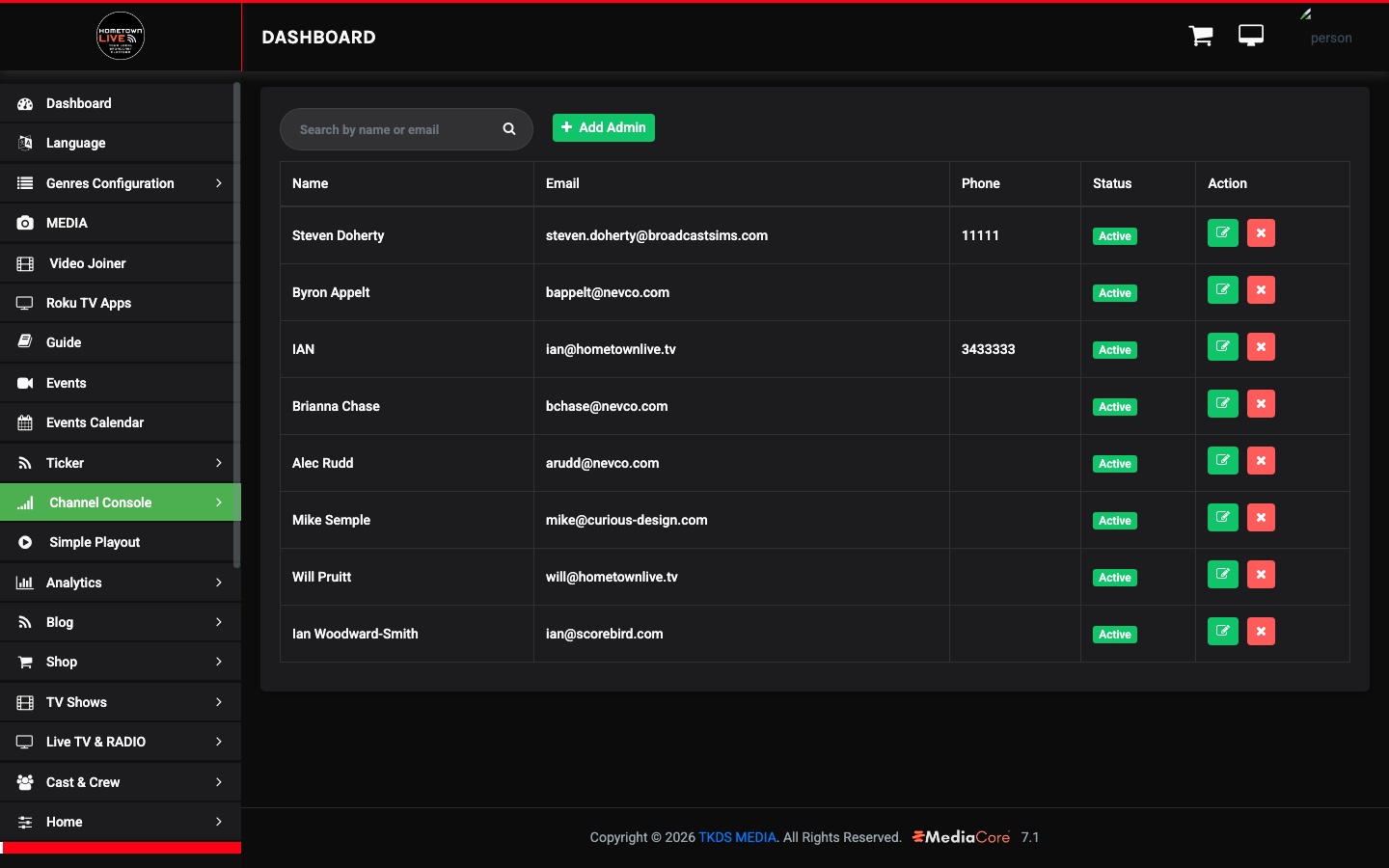
Admin Users are separate from viewer accounts. They have access to the /admin/ panel and can manage platform content, settings, and user accounts. Admin accounts do not automatically include a viewer subscription.
The table shows: Name, Email, Phone, Status, and Actions.
Current admin users on a typical demo installation include platform administrators, school staff, and technical contacts.
Adding an Admin User
- Click Add Admin.
- Enter the admin's Name, Email, and Phone.
- Set Status to Active.
- Click Save.
Note: Contact HometownLive support to provision admin accounts for new school or organization staff who need access to the admin panel.
Admin User Roles
Admin users have full access to the admin panel by default. There is no granular role system — any admin user can access all areas of the platform configuration. Limit admin accounts to staff who genuinely require that level of access.
Deleted Users
Location: Sidebar → Users → Deleted Users (/admin/deleted_users)
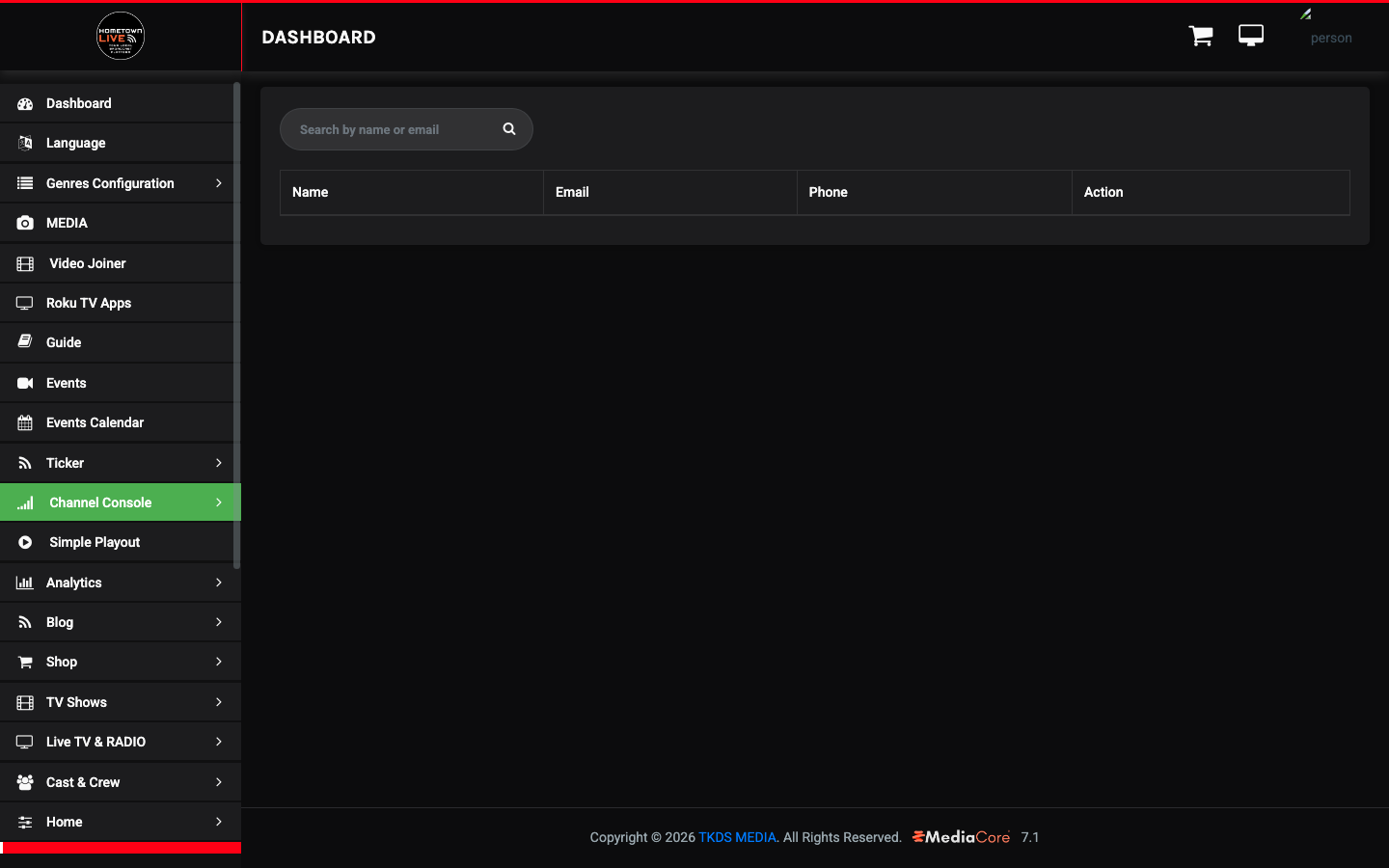
When a viewer account is deleted from the active Users list, it is moved here rather than permanently removed. Soft-deleted accounts retain their data and can be restored.
Deleted Users Table Columns
| Column | Description |
|---|---|
| Name | The viewer's full name. |
| The account email address. | |
| Phone | The viewer's phone number. |
| Actions | Restore — moves the account back to the active Users list. Permanently Delete — removes the account and all associated data permanently. |
Warning: Permanently deleting an account from the Deleted Users list is irreversible. All account data, purchase history, and subscription records associated with that account are removed. Restore the account instead whenever possible.
Subscription Plans
Location: Sidebar → Plans → Subscription Plans (/admin/subscription_plan)
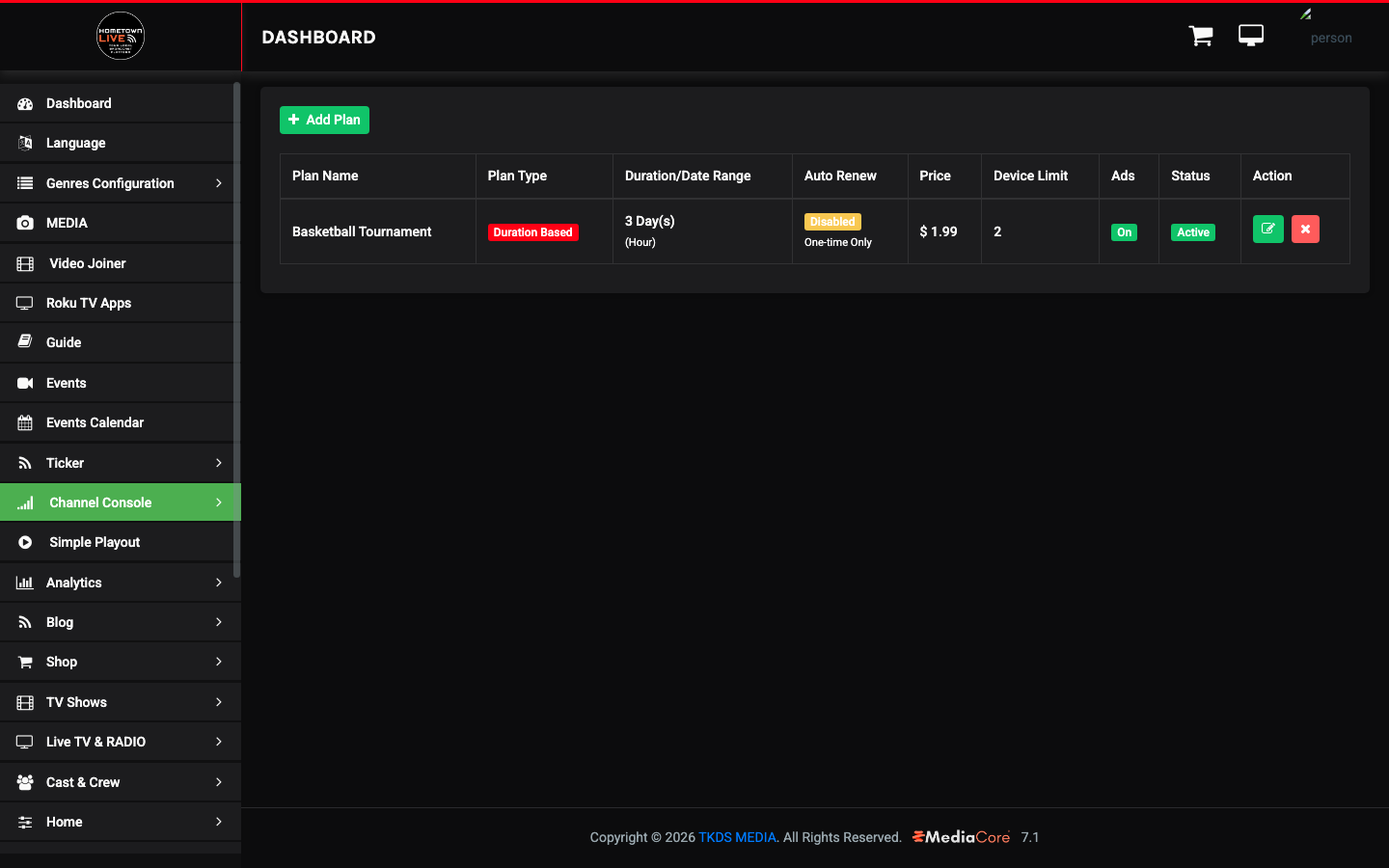
Subscription Plans define what content subscribers can access and for how long. Plans can be duration-based (rolling period from purchase date) or tied to a fixed date range. Plans are assigned to events and channels to control which subscribers can view that content without a separate pay-per-view purchase.
Subscription Plans Table Columns
| Column | Description |
|---|---|
| Plan Name | The display name shown to subscribers on the purchase page. |
| Plan Type | Duration Based or Fixed Date Range. |
| Duration/Date Range | For Duration Based plans: the rolling period (e.g., "3 Day(s)"). For Fixed Date Range plans: the specific start and end dates. |
| Auto Renew | Yes (automatically renews at period end) or No (one-time purchase only). |
| Price | Plan price in the platform currency. |
| Device Limit | Maximum simultaneous streams allowed under one subscription. |
| Ads | Whether advertisements are shown to subscribers on this plan. |
| Status | Active (available for purchase) or Inactive (not purchasable). |
| Actions | Edit or delete the plan. |
Creating a Subscription Plan
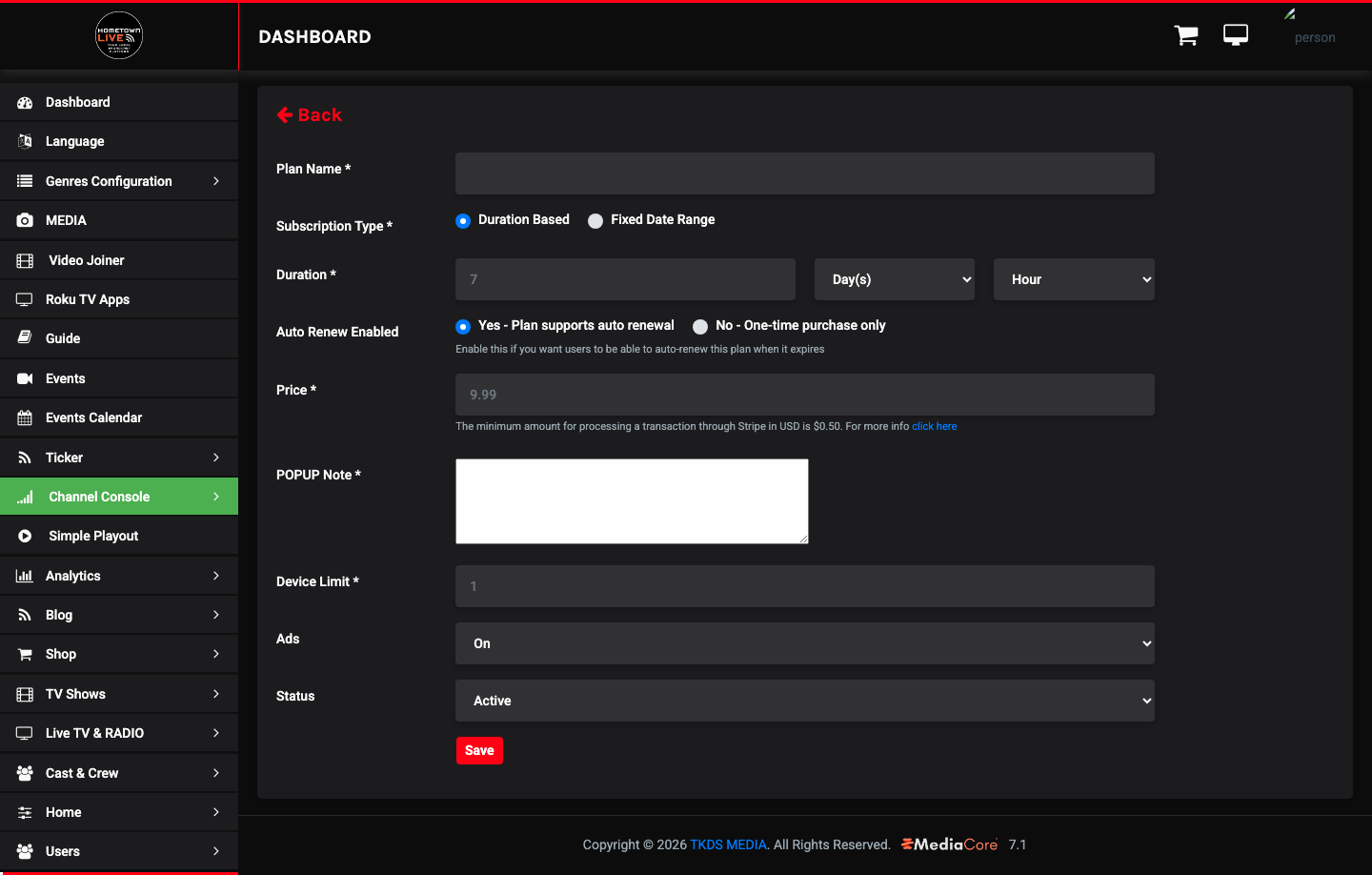
- Click Add Plan. The plan creation modal opens.
- Complete the form fields:
| Field | Type | Description |
|---|---|---|
| Plan Name | Text | The name shown to subscribers. Be descriptive — for example, "Fall Basketball Season Pass." |
| Plan Type | Select | Duration Based — the plan period starts on the date of purchase. Fixed Date Range — the plan is active only between specific start and end dates regardless of when purchased. |
| Duration | Number + Unit | The plan length for Duration Based plans. Enter a number and select Day(s), Month(s), Year(s), or Hours. |
| Granularity | Select | Sub-day precision for short-term plans. Select Hour or Day. |
| Auto Renewal | Select | Yes — the plan renews automatically at the end of the period, charging the viewer again. No — one-time purchase only; the viewer must renew manually. |
| Fixed Start Date | Date/time | The date the plan becomes active. Fixed Date Range plans only. |
| Fixed End Date | Date/time | The date the plan expires. Fixed Date Range plans only. |
| Price | Number | Plan price in dollars. |
| Plan Message | Textarea | Description displayed to viewers on the purchase page. Explain what content this plan covers. |
| Device Limit | Number | Maximum number of simultaneous streams allowed under one subscription. A limit of 2 is common for household use. |
| Ads | Toggle | On — advertisements display for subscribers on this plan. Off — no ads for subscribers on this plan. |
| Status | Select | Active or Inactive. |
- Click Save to create the plan.
Note: Plans assigned to Events in the Distribution section of the event form grant subscribers on those plans free access to those events. If an event is Paid and not included in a subscriber's plan, the viewer must purchase pay-per-view access separately.
Tip: Use Fixed Date Range plans for tournament weekends or seasonal passes with a hard end date. Use Duration Based plans for rolling monthly or annual subscriptions.
Coupons
Location: Sidebar → Plans → Coupons (/admin/coupons)
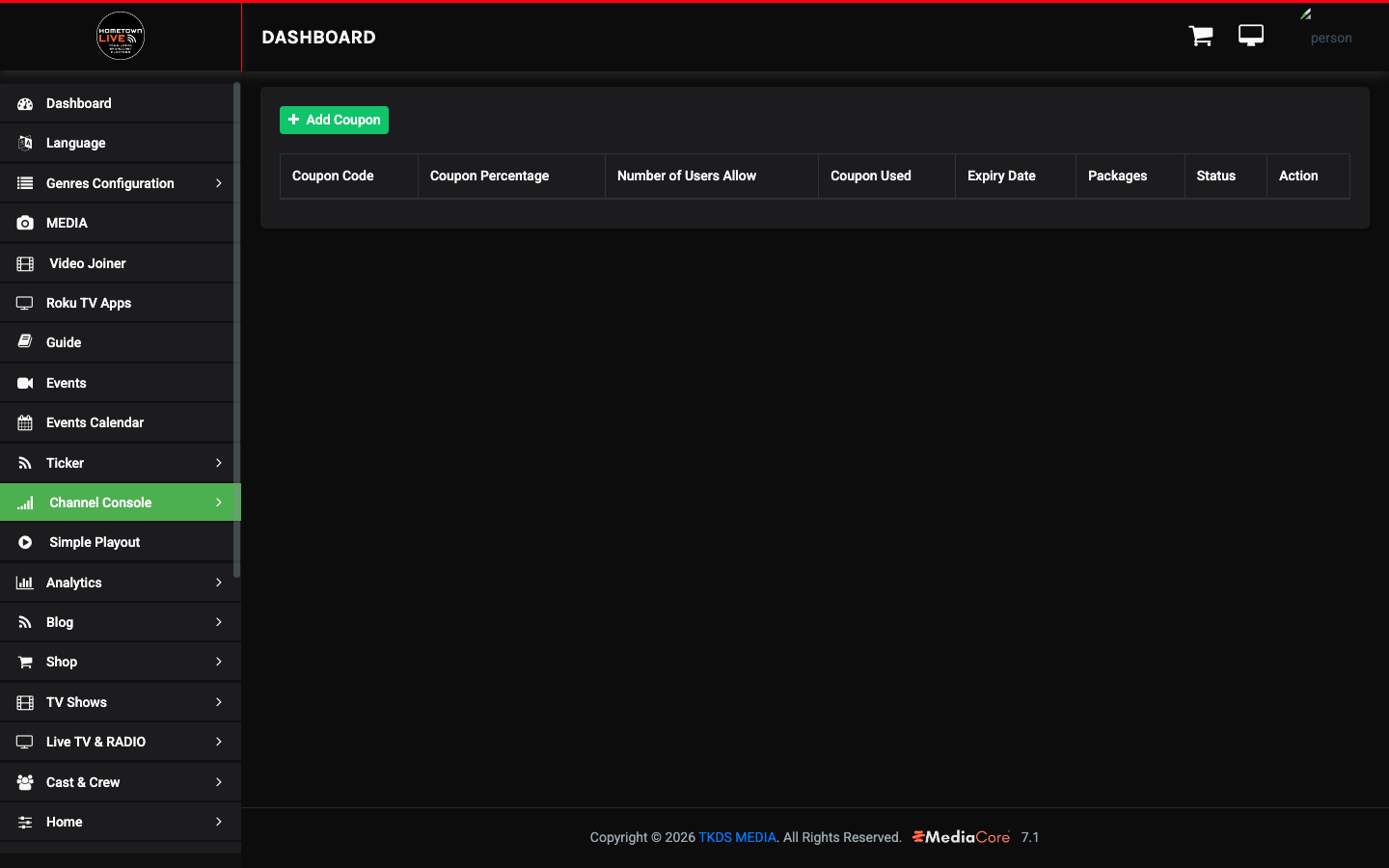
Coupons provide discount codes that viewers enter at checkout when purchasing a subscription plan. Use coupons for seasonal promotions, launch discounts, or targeted offers for specific groups.
Coupons Table Columns
| Column | Description |
|---|---|
| Coupon Code | The code viewers enter at checkout. |
| Coupon Percentage | The percentage discount applied to the plan price. |
| Number of Users Allowed | Maximum number of accounts that can redeem this coupon before it deactivates. |
| Coupon Used | Running count of how many times this coupon has been redeemed. |
| Expiry Date | The date after which the coupon is no longer valid. |
| Packages | The subscription plans this coupon applies to. |
| Status | Active or Inactive. |
Creating a Coupon
- Click Add Coupon.
- Complete the form fields:
| Field | Type | Description |
|---|---|---|
| Coupon Code | Text | The code viewers type at checkout. Use uppercase and avoid ambiguous characters such as 0 and O. Example: FALL2025. |
| Percentage Discount | Number (0–100) | The percentage off the plan price. A value of 25 means 25% off. |
| Max Redemptions | Number | Maximum number of users allowed to use this coupon. Leave blank for unlimited. |
| Expiry Date | Date | The date the coupon expires. Viewers cannot redeem it after this date. |
| Applicable Plans | Multi-select | Which subscription plans this coupon applies to. A coupon will not apply to plans not selected here. |
| Status | Select | Active or Inactive. |
- Click Save.

Tip: Set a low Max Redemptions value and a specific Expiry Date for limited-time promotional codes. This prevents overuse if a code is shared publicly and ensures you can track the promotion's reach through the Coupon Used counter.
Still need help?
Can't find what you're looking for? Our support team is here to help.
Contact Support →